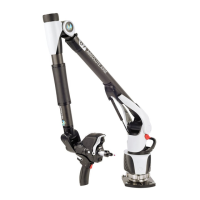
Tracker tools
H000002007-RDS User Manual │Version 5.0.0 (2018-09-17) │93
E.1 FIND A TARGET - OVC
Once the tracker is connected, and active, it has to focus on the target (Reflector, T-Probe or Scanner).
Either manually bring the target into the field of view of the tracker, or help and guide the tracker to the
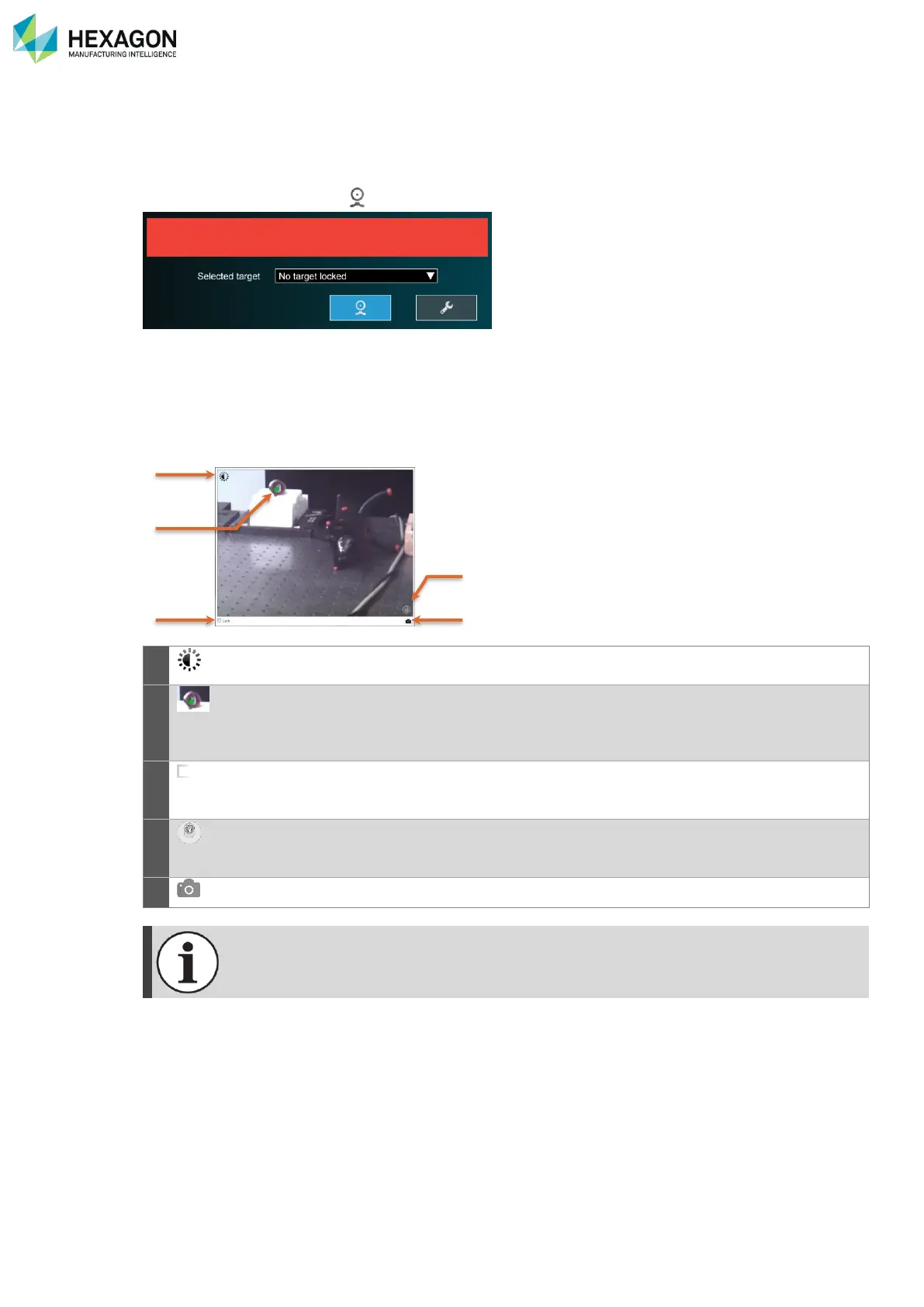
target: Click on “Show OVC” ( ).
E.1.1 DESCRIPTION
The Overview Camera (OVC) provides a coloured video stream in order to locate targets.
The video gets displayed on screen:
a. Control of the contrast
b. Marked target
c. Activate the lock on the target
d. Dynamic control of the tracker position
e. Save the video in a picture file
Brightness: adjust the brightness of the view image by moving the slider. This setting
will be stored persistently.
Target: the OVC image contains for each reflector in the field of view (FoV) a green
spot.
Green spots for each reflector in the FoV are present all the time regardless if the
Absolute Tracker AT960 is locked or not to a target.
Lock option: auto–locking action on the click of the mouse or on closing the OVC.
When active, the Tracker will drive the beam to the click position and will perform a
relative search to lock onto a target.
Dynamic control: Drag the button on the panel to move the Tracker. The speed
increases the further the button is moved away from the centre.
Release the button to stop the movement.
Saves the video of the OVC in a picture file.
The OVC can only be opened if the Absolute Tracker AT960 is initialized.
The Locking status depends if a target is locked or not when the OVC is opened.
No valid target has been found


 To Next Page