RDS Control Panel
H000002007-RDS User Manual │Version 5.0.0 (2018-09-17) │87
D.11 ACCESS CONTROL (ADVANCED USER)
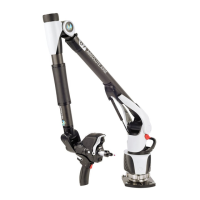
User profiles define the levels of authorization in RDS.
Except the Standard profile, the access to the user profiles is protected by a password and/or a Feature
code.
Password
(default =
“Advanced”)
Password
(default =
“Administrator”)
The Access Control tab is used to manage those passwords.
Only profiles equal or higher than the one to modify can do it (for example: Advanced user
cannot modify the Administrator profile).
To be sure about the password that has been entered, click on “Show plain password”: the asterisks are
replaced by the real characters.
D.11.1 HOW TO … MODIFY THE PROTECTION OF A FUNCTION
1. Open RDS Control Panel, tab « Access Control » (use at least the Advanced profile).
2. Select the profile to change and {Modify}
Shop floor user, he can only perform checks but cannot perform compensations.
Higher level customer, can perform both compensations and checks.
Customer administrator who is able to change passwords for the advanced user.
Hexagon Manufacturing Intelligence CO supporter
3. Tick « Unlocked »to remove the protection or “Locked” to activate or modify the password
4. Enter or change the password if necessary (“Locked”) and click on OK


 To Next Page