User’s Manual INNOMAR Parametric Sub-Bottom Profilers / SESWIN 113
Innomar Technologie GmbH (2023-01) 113
7.10.3 System information and LOG files for troubleshooting
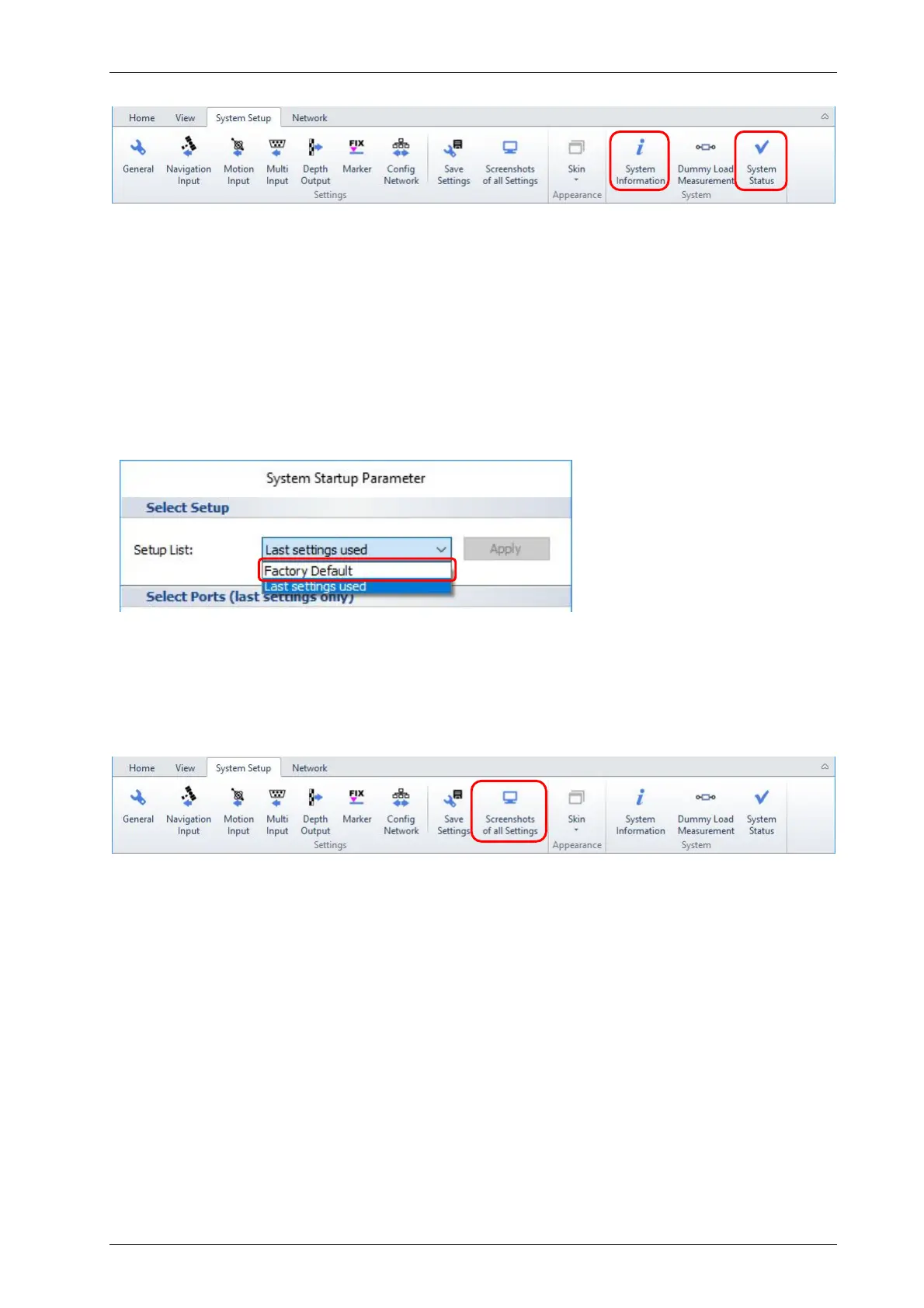
The System Information box shows serial numbers and SESWIN version.
The System Status box shows hardware sensor information like voltages present and
temperature inside the topside unit.
There is another log file generated automatically, the “_ses_sys.log” located in the SESWIN
folder. This file contains information of each SESWIN start together with all error messages and
is mainly intended for use by INNOMAR’s technicians if you need assistance for troubleshooting.
7.11 How to reset to factory defaults
The SESWIN software starts by default with the last used settings. If for any reason these settings
are faulty it is possible to reset to “factory defaults”. Just select the corresponding item from the
drop-down list during SESWIN start, as shown above.
Be aware that all your settings, also for auxiliary in-/outputs like GNNS data, are lost. Please
document all settings you made before, e.g. by using the “screenshot” function of the SESWIN
software.
If there are still problems with old settings, you may delete the SESWIN key in the WINDOWS
registry:
Start the Windows registry editor: Start menu Run type “regedit” (Win XP) or
Start menu type “regedit” (Win 7/8/10)
Delete the following Registry Keys:
- HKEY_CURRENT_USER\Software\Innomar\SES for Windows
- HKEY_CURRENT_USER\Software\Innomar\SESWIN_2
(menu entry “Edit | Delete…” or mouse right-click “Delete”)
Close the Registry Editor



 To Next Page