46 User’s Manual INNOMAR Parametric Sub-Bottom Profilers / SESWIN
46 Innomar Technologie GmbH (2023-01)
5.9 SESWIN Home Menu Bar
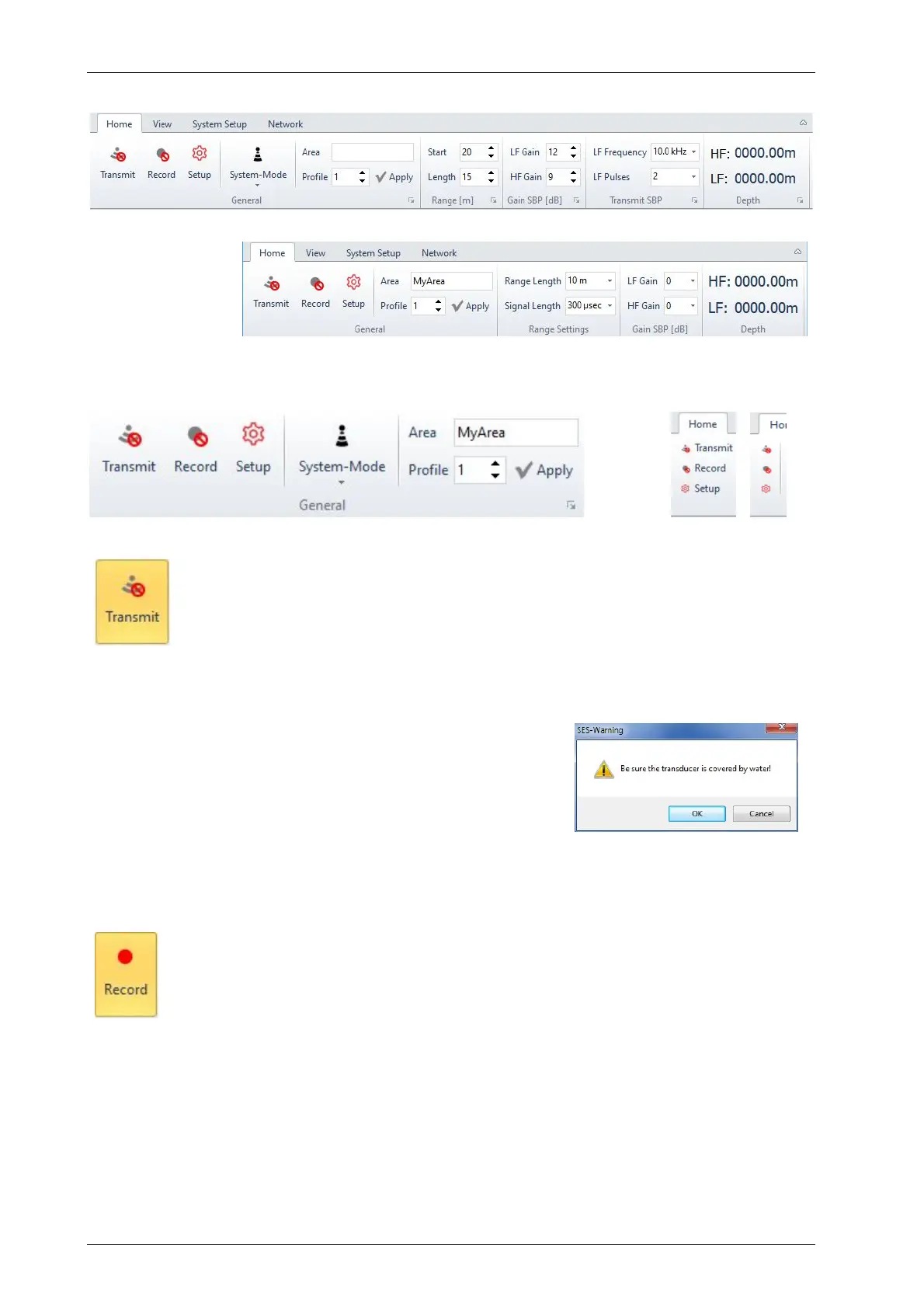
This menu bar collects all parameters and settings that might be changed during the survey.
It’s slightly diffe-
rent for the
INNOMAR
“smart” model:
5.9.1 Home – General
Transmit on/off [F4]
The Transmit button switches the transmitter on/off. If the Transmit button is
activated, the transducer will transmit the frequency and pulses as defined in the
“Transmit SBP” section of the Home menu.
If the Transmit button is active, the green “SND” LED at the front panel is lit. The system hot key
“SND” at the front panel (older “light”, “standard”, “medium-xx” and “deep-xx” models only) can
be used to switch on/off the transmitter, too.
!
The transducer must be connected to the INNOMAR
System unit and placed in water before the transmitters
are switched on. Operating the transducer in air may
cause serious damages! To remind you on this, a
warning message pops up after pressing the “Transmit”
!
Data Recording is not switched on/off automatically with transmitter on/off!
Record on/off [F5]
The Record button is used to switch on/off the digital recording of the received
echo data. Data from the navigation system and the motion sensor will be recorded
with the echo data, too. The file name is shown in the SESWIN status bar.
If the Record button is set, the green “REC” LED at the front panel is lit. The system hot key
“REC” at the front panel (older “light”, “standard”, “medium-xx” and “deep-xx” models only) can
be used to switch on/off the data recording as well.
!
Transmitters are not switched on/off automatically with Record on/off!
!
In case you have no write permission on the folder specified in “System Setup – Settings
– General – Files”, you will get an error message. In this case close the SESWIN
application and change the “record folder”, see section 5.11.4 on page 61.



 To Next Page