146 User’s Manual INNOMAR Parametric Sub-Bottom Profilers / SESWIN
146 Innomar Technologie GmbH (2023-01)
12.5 Data Quality Check (Innomar ISE Software)
For a quick check and quality assurance (QA) of the recorded INNOMAR data files immediately
after acquisition, it is useful to open the data files with the INNOMAR ISE software from the
operator’s workstation. Below, some basic settings are proposed which may not be optimised for
interpretation purposes, but should give a full profile overview in full resolution.
This section briefly describes how to use INNOMAR ISE software for QA, for a full description of
the processing capabilities and features see the INNOMAR ISE manual.
The INNOMAR ISE software needs no installation, you can just copy the files to any hard disk
folder and start “ISE2.exe”. Do not operate ISE from a network or USB drive, since this would
result in significant slow-down due to file operations. Although the ISE software needs an USB
dongle for most post-processing features, it can be used without dongle for quality assurance
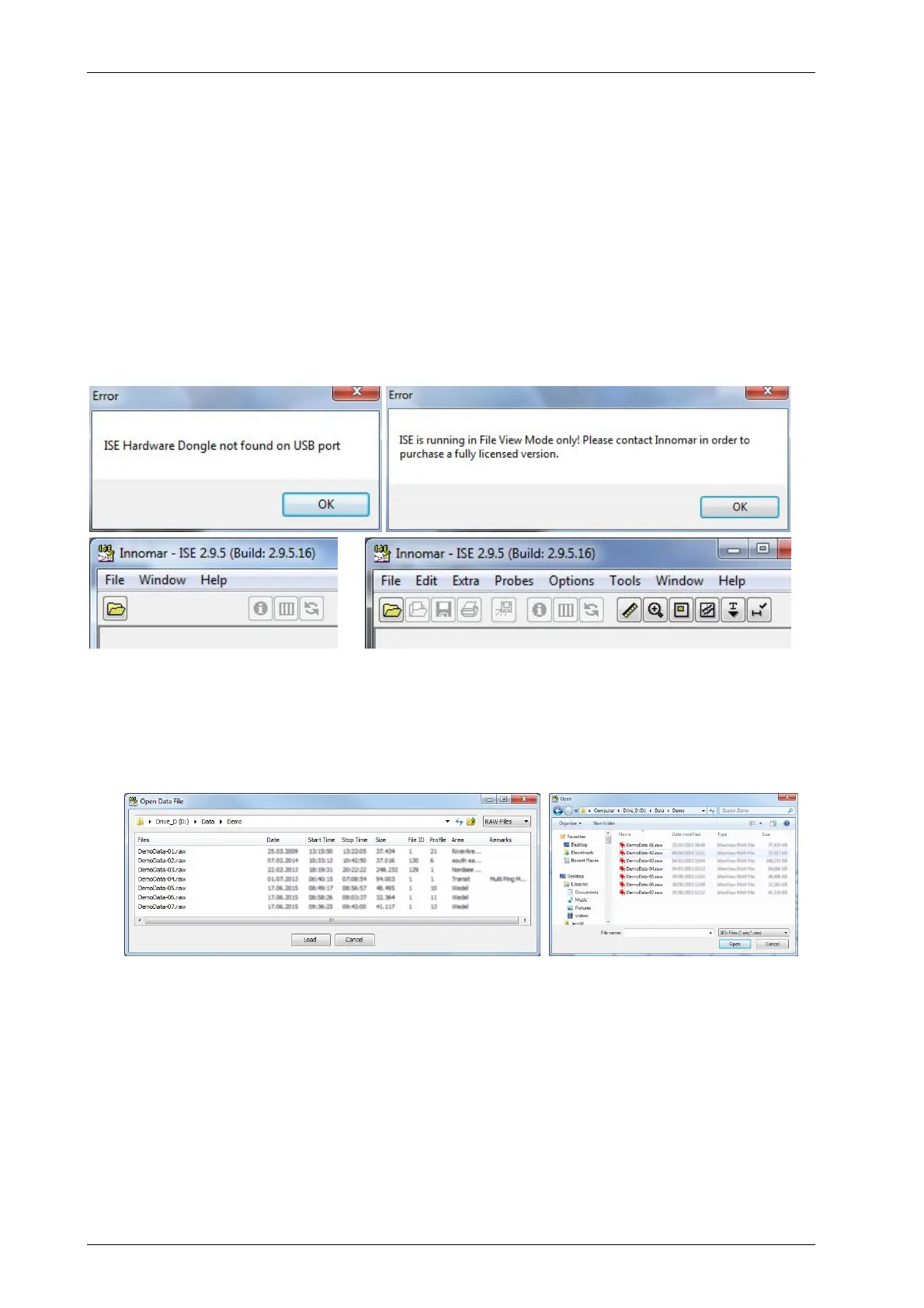
(“file view mode”). In this case you will get two error messages during ISE start-up which can be
ignored:
ISE error messages if the license dongle is not found, just click “OK” for using ISE file view mode (top) and limited
options in in “file view mode” (bottom left) compared to full license (bottom right)
1) Open the file open dialogue by pressing the “load data” button or by shortcut (“Ctrl-L”) or
via menu (“File Load Echo Data…”). Depending on the ISE settings, either the standard
Windows dialogue will show up or the ISE file selector, which gives some more information
on the data files. In the following we assume the ISE file selector is used.
ISE file selector already giving some additional information on the data files (left) and standard Windows file open
dialogue (right)
2) Navigate to the file folder where the data files are stored, choose the “RAW” file format in
the upper right corner of the file selector dialogue window, choose the file you want to load
and press the button “Load”. Once you return to the file selector, the cursor will point on the
last file opened.
3) The dialogue to load RAW data files gives a number of options and parameters. A possible
setup is given in the screenshot below, where the following parameters were altered from
the default settings.
Stacking: 2. The higher the stacking the better the signal to noise ratio due to averaging of
pings, the stacking value determines the lateral shrinking of the echo plot, i.e. 2 means half
of the original traces are shown on the echo plot.



 To Next Page