212 User’s Manual INNOMAR Parametric Sub-Bottom Profilers / SESWIN
212 Innomar Technologie GmbH (2023-01)
How to get 24-bit data
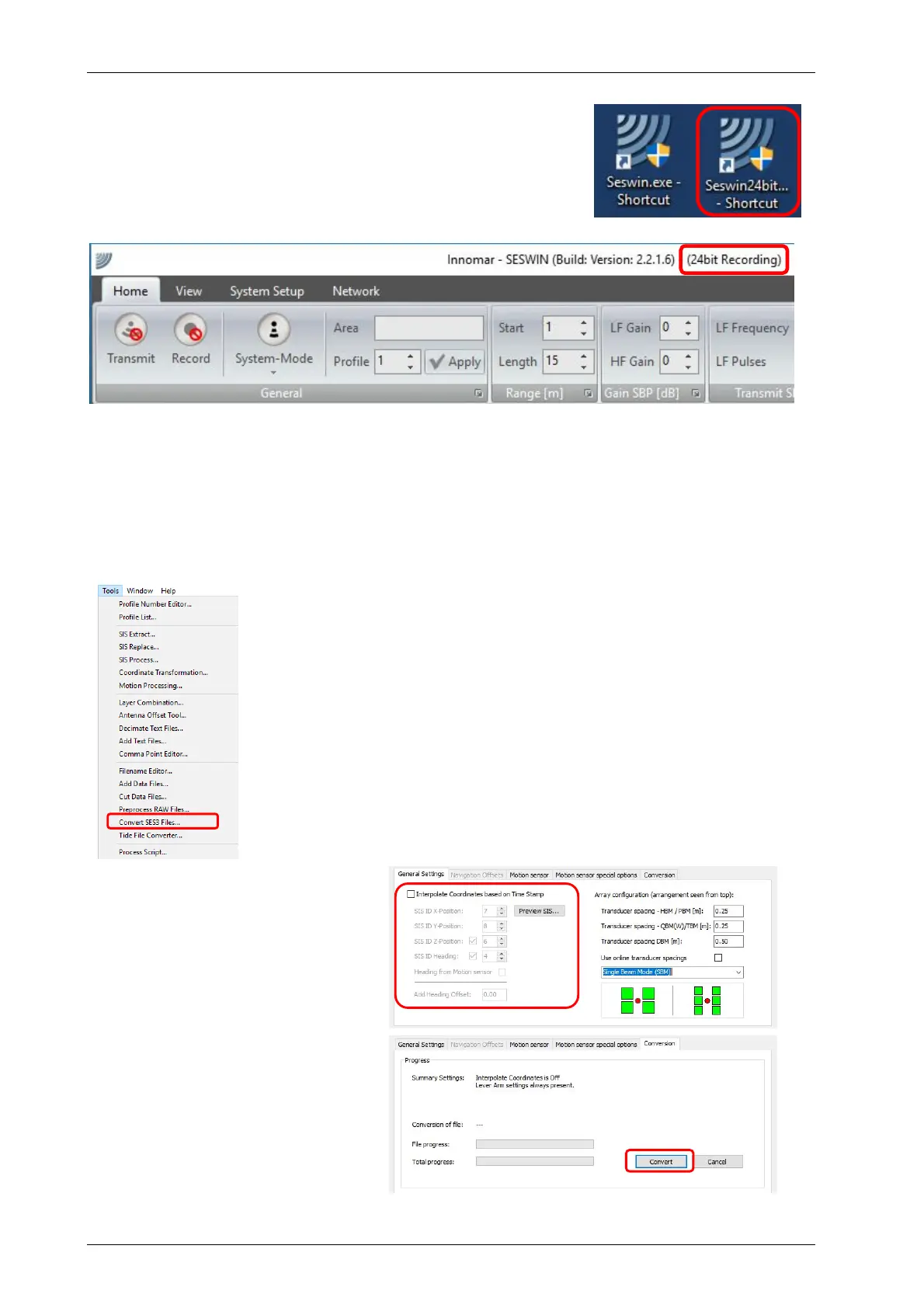
In order to acquire and save data in full 24-bit resolution you
have to use the “seswin24bit.exe” provided by INNOMAR (NOT
“seswin.exe”).
This SESWIN version will record data in the new SES3 data file
format only. There are no SES or RAW files as with the other
SESWIN versions.
How to convert 24-bit SES3 data files to SEG-Y format
For using third-party post processing software, convert the SES3 files to SEG-Y format using
Innomar’s “SESConvert” software, see chapter 10 on page 133. Make sure to enable “Interpolate
Coordinates” and “Remove Coordinate Duplicates”.
How to process 24-bit SES3 data files in ISE2
For full processing of SES3 files, use ISE3.
The INNOMAR ISE2 post-processing software is limited
to 16-bit data and SES3 files need to be converted to
RAW files first when the ISE is used for data processing:
Tools Convert SES3 Files
You may select multiple files for batch conversion.
Coordinate interpolation and motion sensor data
corrections (lever arms) should be applied on the RAW
data files after conversion.
With recent ISE2 versions it is possible to handle
position and motion data processing for SES3 files, too.
In “General Settings” disable the
“Interpolate Coordinates” feature.
Check that all options are disabled
in the “Motion Sensor” tabs.
Press “Convert” Button in the
“Conversion” tab



 To Next Page