Troubleshooting Process 3: Troubleshooting
43
Troubleshooting Process
Use the process described here to isolate problems and repair your HeartStart XL+.
To troubleshoot HeartStart XL+:
1 Decontaminate the device using your local decontamination guidelines.
2 Check the Ready for Use (RFU) indicator. See “Ready For Use Indicator” on page 30.
3 Perform a visual inspection.
Thoroughly examine the device and its cables and accessories. Refer to “Visual Inspection” on
page 160. If no further troubleshooting is needed, proceed to Step 12 to repair the device.
4 Tu r n th e Th er a py Kn o b t o Monitor.
Failures and messages appear on the display when you turn on the defibrillator/monitor. Technical
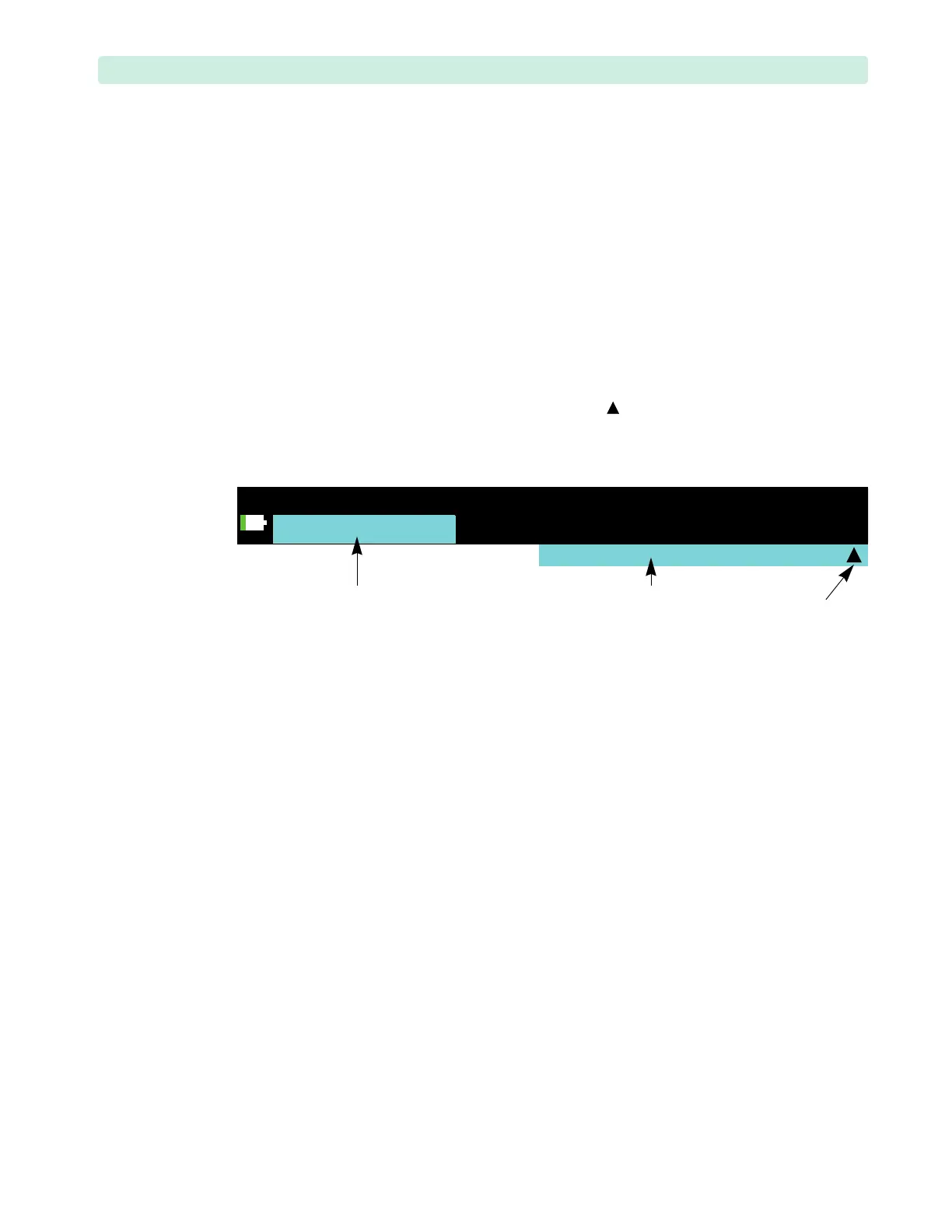
Alarms appear on cyan background below the status area, see Figure 30. If multiple Technical Alarms
of the same priority are present, then they alternate, and a symbol appears on in the Technical
Alarm text box.
5 Run the Operational Check (Op Check).
The Op Check tests the functionality of all PCAs and modules of the device. E.g., if the device is
equipped with the NBP option, the Op Check performs a self-test on the NBP module and reflects
the results both on the screen and on the printed report. The Op Check results indicate the
problems areas of the device. See “Operational Check” on page 33 for detailed instructions.
6 Check the Hardware error log.
Save the Hardware and Software error logs content in case you call the Response Center. See “Error
Log Messages” on page 41 for more information.
7 Use the Troubleshooting tables to identify the problem.
Use the “Components Troubleshooting” on page 46 to find information on messages and common
troubleshooting issues. If several solutions are offered for your problem, always try the solutions in
the order they are listed, and apply the next solution only if the previous solutions did not fix the
problem. If no further troubleshooting is needed, proceed to Step 12 to repair the device.
8 Interview the user. Gather the external components.
If possible, talk directly with the user who reported the problem. Identify what they were doing
when the problem occurred, and exactly what happened. What was on the display? Were any sounds
noticed? Were there operational problems?
If possible, obtain the cables, paddles, battery, etc., that were in use when the problem occurred and
use them in your evaluation. If no further troubleshooting is needed, proceed to Step 12 to repair the
device. Otherwise, continue with Step 9.
9 Try to reproduce the problem.
Use the Troubleshooting tables to identify the symptoms and possible solutions, then proceed to
Step 12. If the problem cannot be reproduced, an intermittent condition or operator error is likely.
Figure 30 Technical Alarm Sample
multiple technical
alarm indicator
battery status area technical alarm area



 To Next Page