RESTARTING THE UNITY SELF:
17- When all the consoles and UNITY SELF are congured, turn UNITY SELF o and back on. In
this way, UNITY SELF downloads the update database.
Whenchangesaremadeintheclassconguration,UNITYSELFmustalwaysbeoandturnedback
on. In this way, UNITY SELF downloads the update database.
NUMBERED ADHESIVES:
18.-Apply the numbered adhesives on the Group Cycle based on the class layout, if desired by
the customer. The numbered adhesive on the bike MUST CORRESPOND to the bike number set
in the Equipment Set-Up APP.
19- When you’ve congured all the Group Cycle, make the nal test: On Unity Self click on GROUP
CYCLE CLASS buon. Pedal on Group Cycle and check that each Group Cycle is visible on the
screen.
8.3 CONFIGURING THE GROUP CYCLE APP AS THE
MAIN UNITY SELF APP
The Group Cycle app can also be congured as the main UNITY SELF app:
1- In the menu 2406 or 2501 of UNITY SELF, in the GENERAL SETTINGS area, click on DASH-
BOARD in the “Select main app” eld and select the Group Cycle app. Save the seing.
• Set by default to “o”: the Group Cycle app, if installed, is present in the standard UNITY SELF
dashboard and the nal user or the trainer must click on the “Group Cycle” tile to use it.
• When set to “on”: the Group Cycle app starts automatically when UNITY SELF is turned on.
To exit the Group Cycle app, if set as the main app, repeatedly press the screen in the top left corner
of the display.
8.4 SECOND NETWORK CONFIGURATION
TheGroupCycleClasscongurationdescribedbelowwasdoneusinganAndroidsmartphone.
If the network was already congured on Group Cycle and you need to modify it, it’s necessary
to follow the below procedure:
1 - Run the Equipment Set-up App and in the WI-FI NETWORK section congure Group Cycle
with the new network data.
2 - Click on START.
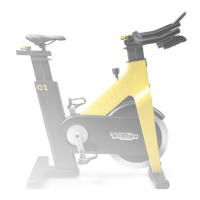
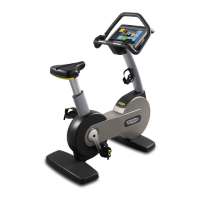
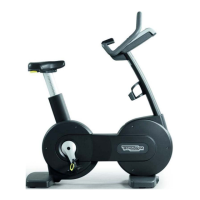
New Group Cycle (D92):
Technical Service Guide - Rev. 5.1
Document uncontrolled when printed
Page 100






 To Next Page