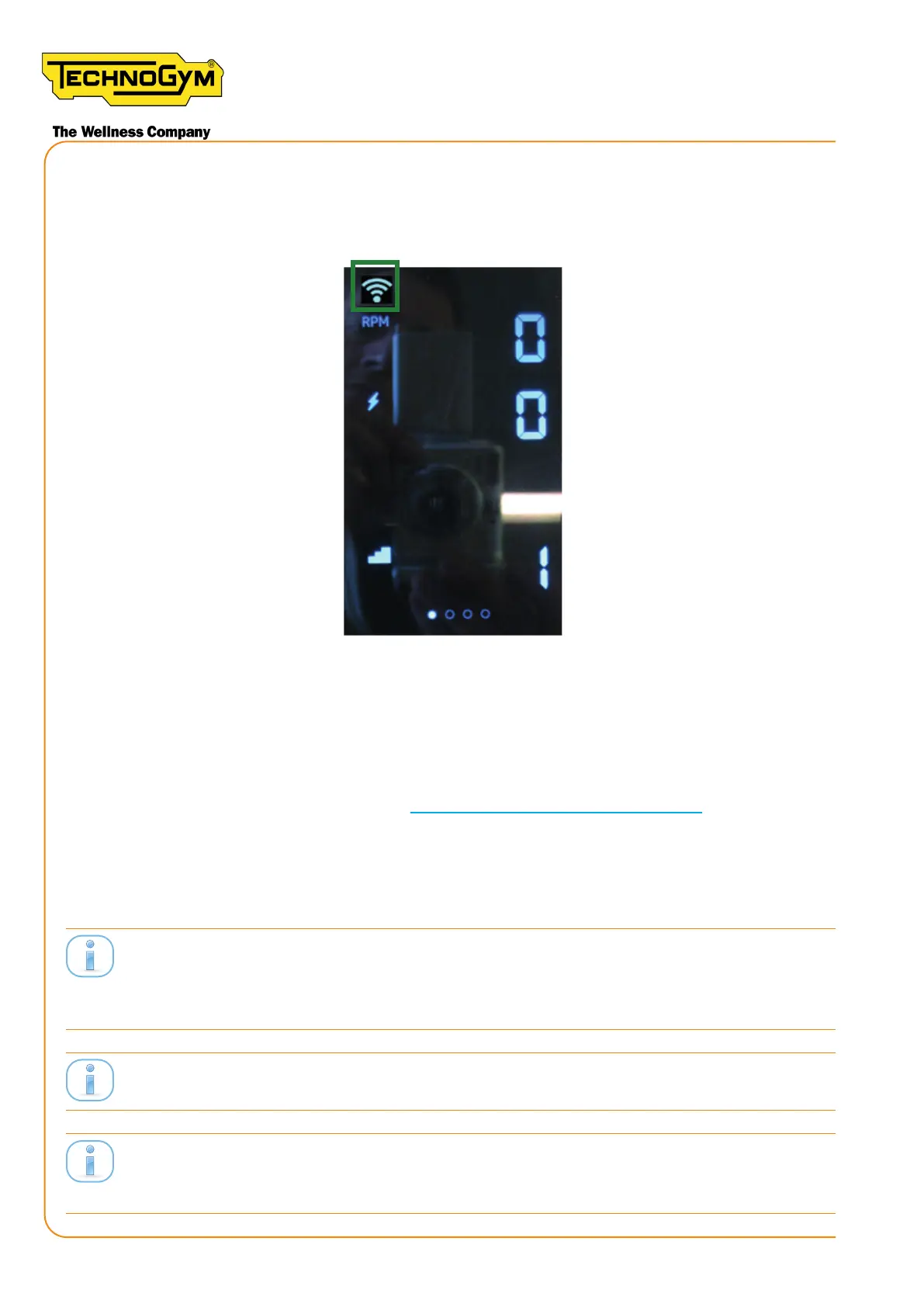
13a.2- Check if the the network icon appears in the top left corner of the console:
-if yes keep the display on untill it appears YES on the display, it means that
the net work conguration is done. Please note that the message YES doesn’t
indicate that the conguration is correct.
Figure 77
-If the network icon does not appear wait until the console switches o and
repeat this procedure from step 13a.1.
_13b- If the network was already congured but you need to modify it, it’s necessary to
use a combo. For details see §.
14- Then, scan the QR Code label of the Group Cycle console with your smartphone camera.
Congure the Group Cycle console with the number of the bike and the room in the “Equipment
Seing” section of the Technogym Equipment Set-Up App.
The name of the room must correspond to the room created in the pro.mywellness.com site. The name
of the room where UNITY SELF is located must be equal to the name of the room where the Group
Cycles are located.
The assigned numbers must identify univocally the Unity Self and each Group Cycle of the class.
Theconguredbikenumberwillbetheidenticationprojectedonthescreenduringtheclassman-
aged with UNITY SELF.
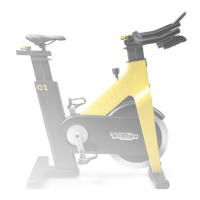
New Group Cycle (D92):
Technical Service Guide - Rev. 5.1
Document uncontrolled when printed
Page 96





 To Next Page