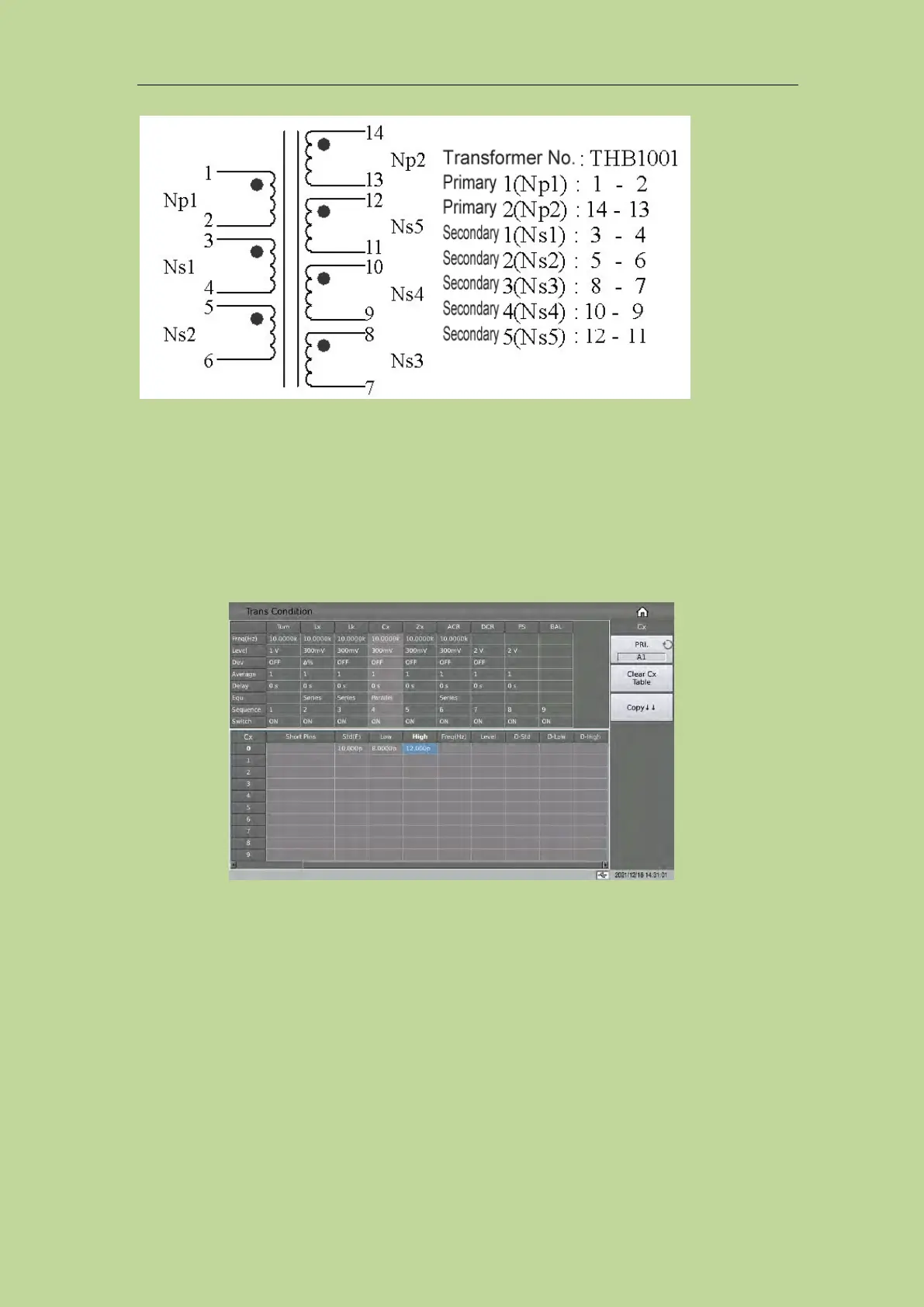
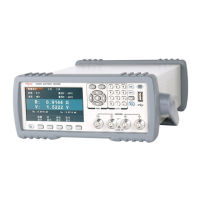
The Cx limit setting table is used to set the positive and negative pins of Cx, short pins, nominal
value, upper and lower limit, multi-frequency, multi-level, and D value limit.
Due to the large number of table parameters, one page cannot display all the setting parameters.
Here, you can move the cursor left and right, or directly swipe the limit setting table on the screen to
display the incomplete parameter settings.
Touch the Cx limit setting table, or move the cursor to the Cx limit setting area, and use the numeric
keys, corresponding magnification or [ENTER] key to set.
The magnification corresponding to Cx is p,n,μ,m, and the [ENTER] key is x1.
7.11.5.2 Cx Pin(+), Pin(-) and Short Pins
When setting the Cx short pins, you can use the soft key﹒and ~ to input multiple pins, where a
maximum of 24 pins can be saved.
Example:
1: Input a segment of discontinuous numbers "1, 3, 5, 7, 9", use the soft key﹒to separate each
number, press the ENTER key to confirm, the final data displayed in the table is (1, 3, 5, 7, 9).
2: Input a continuous number of "1, 2, 3, 4, 5, 6, 7, 8, 9", first input the number "1", then press the
soft key ~, and finally input "9", press the ENTER key to confirm. After that, the data finally
displayed in the table is (1~9).
Note: The maximum number of Cx pins and short pins supported is 24, and the excess pins will be


 To Next Page