5 Using 3D Guidance in theField
5.5.1 Setting the working surface lift and/or vertical offset
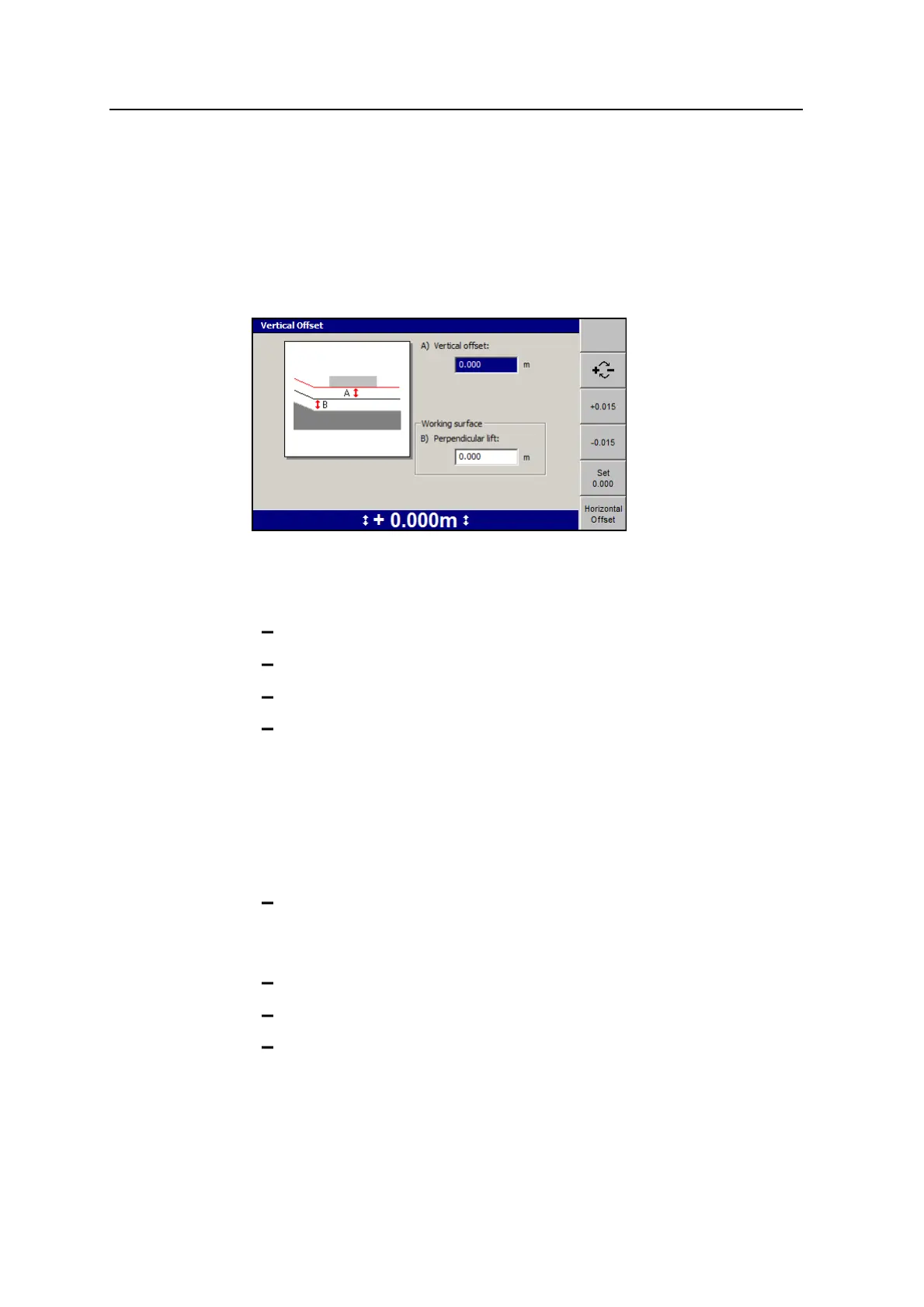
1. From any guidance screen, press Offsets. For a list of softkey icons and their
functions, see Softkeys, page 27.
If your site supervisor has selected a working surface other than the design
surface for you to work to, the following dialog appears.
Note – If the design surface is the working surface, the Working surface
section is unavailable.
2. If required, use any of the following tools to set the vertical offset value:
Edit the A) Vertical offset field directly.
To change the sign of the offset, press o.
To set the offset to zero, press Set 0.000.
To increase or decrease the offset, press +0.015 or -0.015.
Note – The offset increment and decrement softkeys change the vertical offset
by an amount equal to the vertical offset increment value. By default, the
vertical offset increment is 15mm (0.6inches), but your site supervisor can
change this value.
3. If required, and if the Working surface section is available, use one or more of
the following tools to set the working surface lift value:
Edit the B) Perpendicular lift field directly.
Note – Depending on the selected working surface, this field could also be
B) Layered Lift, B) Vertical Lift, or B) Reference Surface.
To change the sign of the offset, press o.
To set the offset to zero, press Set 0.000.
To increase or decrease the offset, press +0.015 or -0.015.
134 GCS900 GradeControl System for Excavators Operator's Manual



 To Next Page