5 Using 3D Guidance in theField
5.5.8 Turning off UTS guidance
Before you turn off the system, turn off UTS guidance:
1. From any guidance screen, press UTS.
2. Press Stop and then wait for the UTS status to change to Waiting for Start.
Note – Turning off UTS guidance does not turn off the UTS instrument. You must
manually turn off the power at the UTS instrument.
5.5.9 Selecting horizontal alignment
In most cases, use the Guide to Horizontal Alignment dialog to select a design
feature to use as a horizontal alignment. The exceptions are:
l If the only possible alignments in the loaded design are Site Map or
Background Plan features, the Guide to Horizontal Alignment dialog is skipped,
and the graphical selection screen appears.
l If you require guidance to side slopes in a road design.
To select a feature to use as a horizontal alignment:
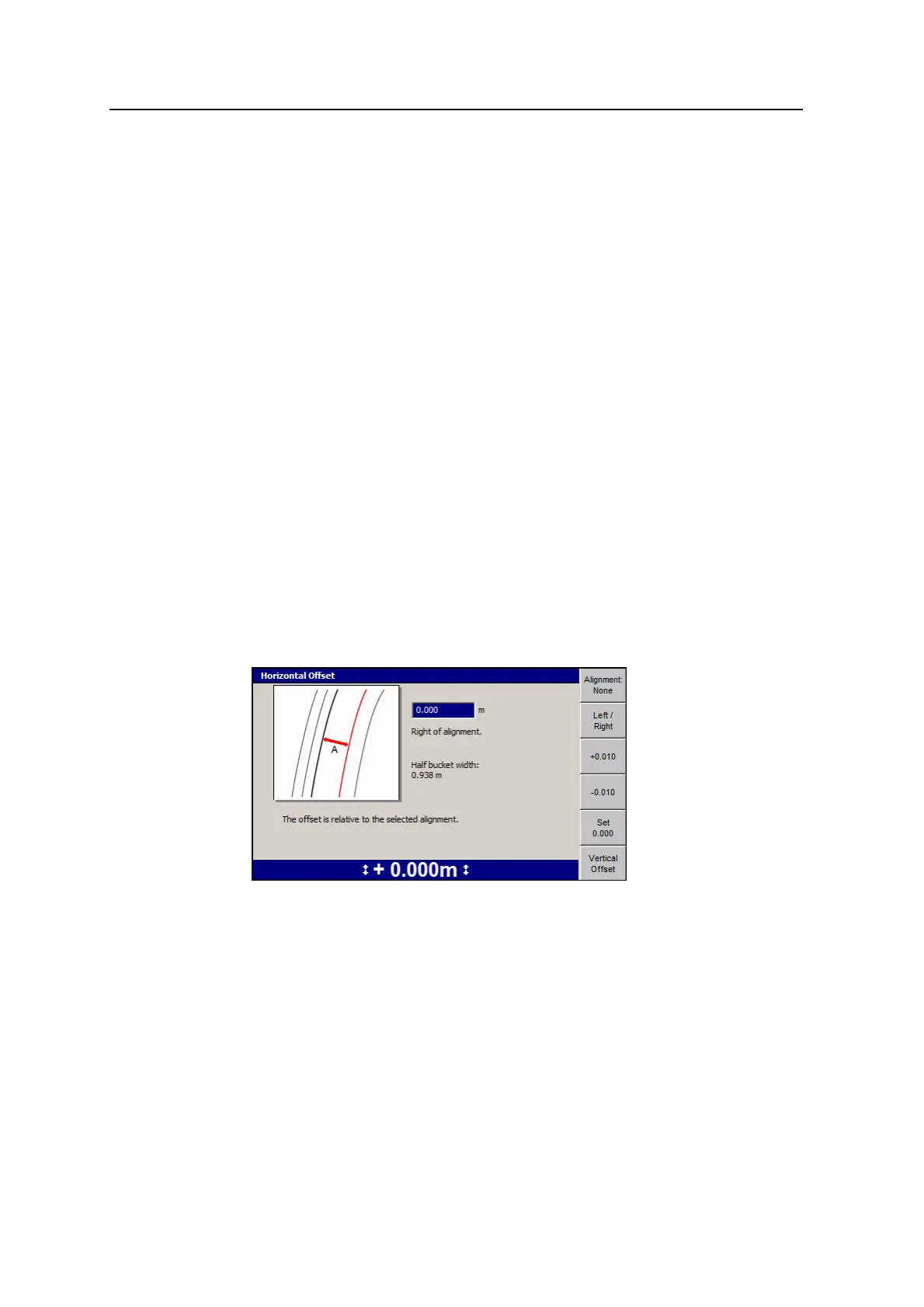
1. From any of the guidance views, press Offsets. For a list of softkey icons and
their functions, see Softkeys, page 27.
2. Press Vertical Offset. See 5.5.1 Setting the working surface lift and/or vertical
offset.
3. Press Alignment:<value>. The following example shows the choices available
in a .dc road design:
138 GCS900 GradeControl System for Excavators Operator's Manual



 To Next Page