3 Preparing to Work
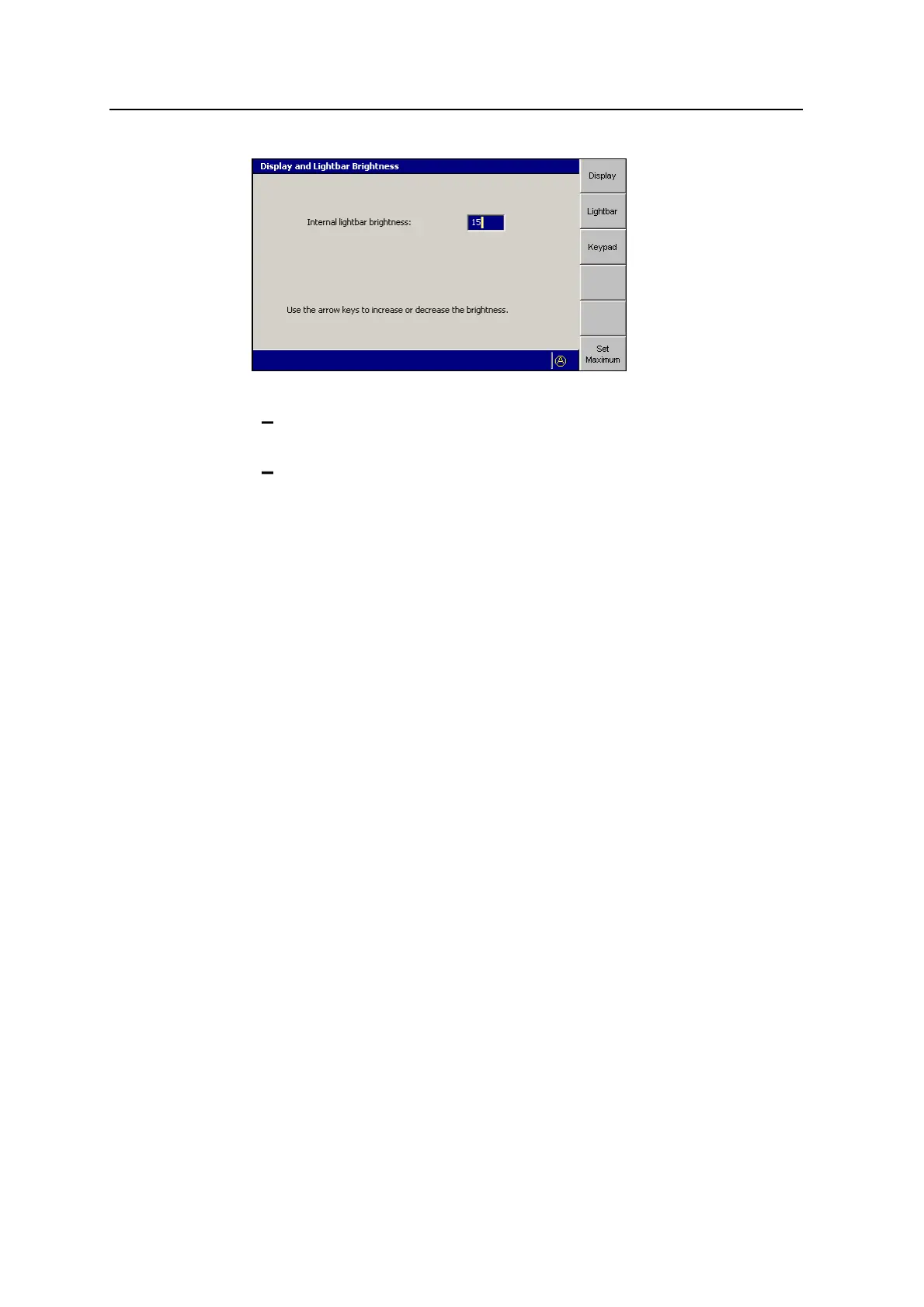
4. Use one of the following tools to set the lightbar brightness:
Use the arrow keys to increase or decrease the value of the Lightbar
brightness field.
Press Set Maximum to set the value to the maximum of 15.
5.
To confirm the settings, press \; to exit without saving the changes, press
=.
3.3.8 Lightbar tolerances
Note – In systems that do not have lightbars configured, you should still check the
on-grade tolerances for the Cut/Fill text items using the On-Grade Tolerance dialog
in the Setup Menu – Configuration menu. The interface is similar to the interface
described in this section.
The lightbar tolerances control not only the way the lightbar LEDs are lit, but also
how far the cutting edge can be from design before the Off Grade message is
displayed, and the sensitivity of Cut/Fill map recording.
For example, cab-mounted GNSS systems will fail to record deviations in cut/fill
less than 0.3m (about 1ft.), when the lightbar or on-grade tolerance is set to the
default value. In this case, you can follow this procedure to reduce the tolerance
and increase map recording sensitivity.
To check and/or set the tolerance thresholds (scales) for the lightbars:
1.
From any guidance screen, press M.
2. Select Lightbar Scales.
56 GCS900 Grade Control System for Excavators Operator's Manual



 To Next Page