Troubleshooting in theField 7
l Do the devices have the correct firmware versions loaded? Use the information
in 7.3 Running system diagnostics and the program log file to check current
firmware versions. Contact your site supervisor to get a list of correct firmware
versions.
l Are the orientations of installed slope sensors configured correctly?
l Are the machine measurements correct? Ask your site supervisor to check the
arm position, arm length, and machine vector measurements provided in the
advanced excavator diagnostics.
l Are all cables and connections secure and undamaged?
l What were the steps that led to the problem occurring?
l Can the problem be repeated?
7.3 Running system diagnostics
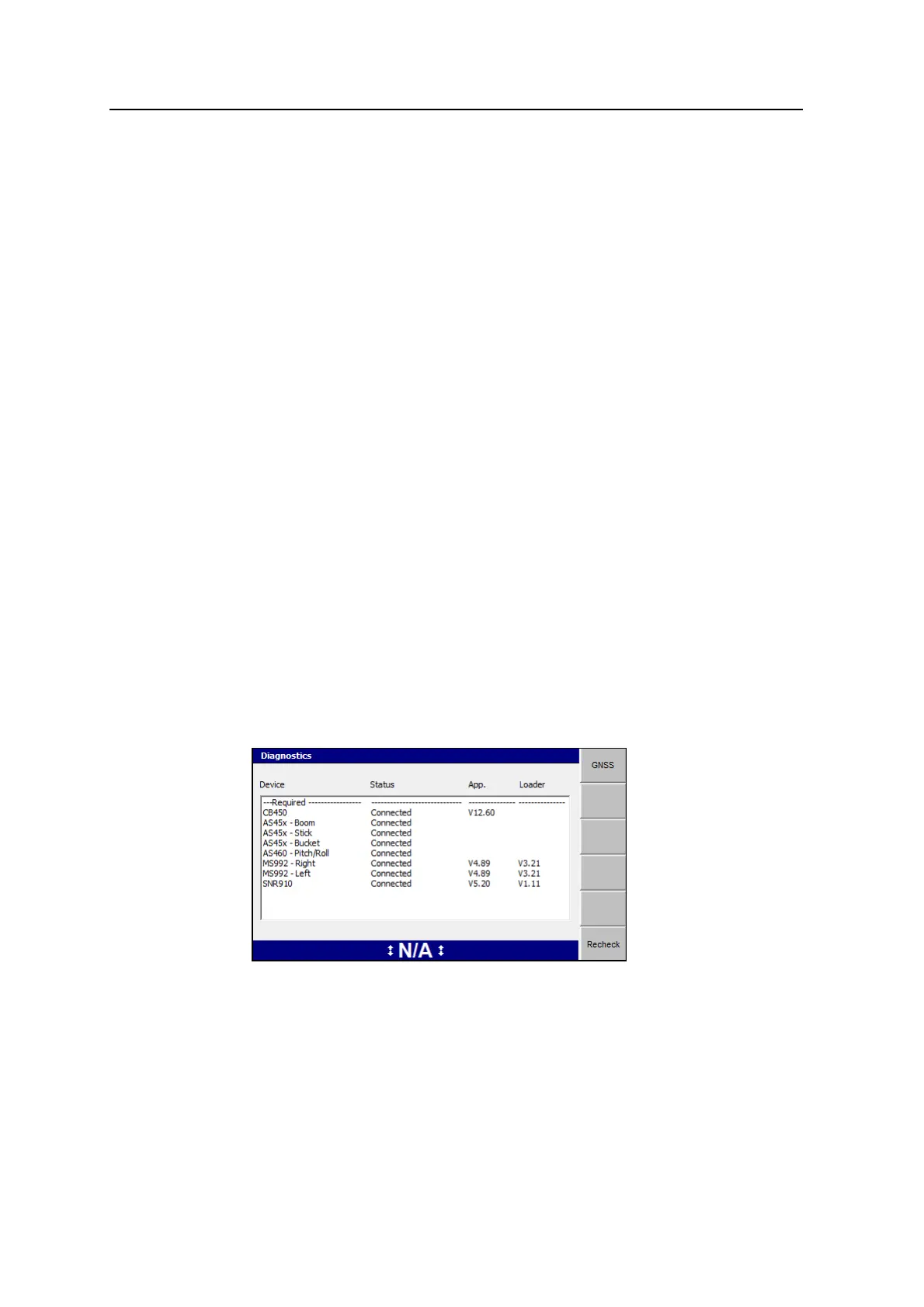
The system expects certain components to be connected, depending on the system
configuration.
When you first turn on the system, it automatically completes an initial check for
devices that are configured to be connected to the CAN bus. If the system does not
detect one or more of the devices, the Diagnostics dialog appears so that you can
identify the problem.
To view a list of expected components and their status:
1.
From any guidance screen, press M.
2. Select Diagnostics.
Devices showing as Not Required are connected, but are not required by the
currently configured system.
3. Press Recheck at any time to refresh the data in this screen.
4.
Press = to exit.
GCS900 Grade Control System for Excavators Operator's Manual 155



 To Next Page