3 Preparing to Work
If the work group is edited, the machine data will be synchronized to the
Connected Community filespace:
"TrimbleSynchronizerData/<work group>/<machine name>/Machine Control
Data".
Note – The wireless file exchange system has been designed on the basis of
one USB flash drive per machine name. Swapping USB flash drives in the
control box (for a machine name) may result in the deletion of files from the
Connected Community on future data synchronization.
4. To validate the login, press Test.
"Login failed" will be displayed if the password or organization are incorrect,
or if the work group folder does not exist on the Connected Community. Press
\ to continue.
5.
To save the settings and return to the Connectivity Settings dialog, press \; to
return to the Connectivity Settings dialog without saving changes, press =.
6.
Press = to return to the Setup Menu–Installation dialog.
3.7.2 Initiating Connected Community file exchange from the machine
To synchronize the system to the Connected Community:
1. From the Setup Menu – Installation menu, select Connectivity Settings.
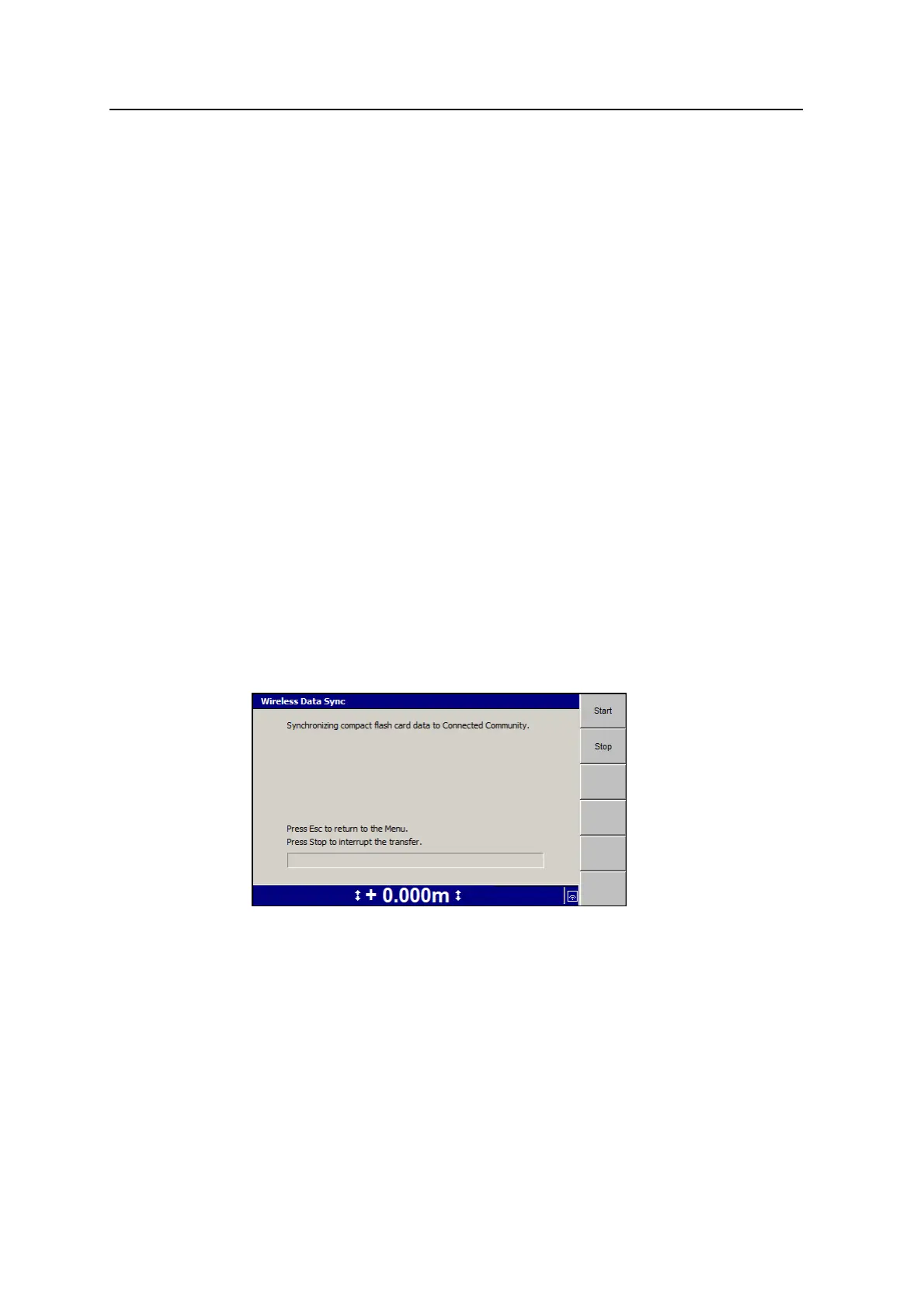
2. Select Wireless Data Sync.
3. Press Start to begin the synchronization.
The system establishes a connection, logs into the Connected Community
server and begins file exchange. The status of the file exchange is displayed in
the dialog. The progress of the file exchange is displayed on the progress bar.
4. When the exchange is complete the status changes to Synchronization
complete. To return to the Connectivity Settings menu, press \.
68 GCS900 Grade Control System for Excavators Operator's Manual



 To Next Page