Using Mapping/Recording in the Field 6
6.5 Minimum height mapping
You can constrain Cut/Fill and Terrain mapping so that swathe data for a cell is
only updated when the latest pass is lower than any previous pass over that cell.
This prevents incorrect data being displayed in jobs that involve cutting down to the
design surface.
To configure your system for minimum height mapping, see your site supervisor.
6.6 Point recording
Point recording is a mapping feature that enables you to record the 3D location of a
point identified by the focus position.
Note – To use point recording, enable mapping/recording and load a design. See 6.3
Configuring Mapping/Recording.
Tip – The Record Point softkey is visible when Record Point has been set as the Mapping
Softkey in Main Screen Views. If Mapping:On/Off/Auto has been set as the Mapping Softkey
and Record Point has been enabled for Press and Hold, you can record a point by pressing
and holding the Mapping/Recording softkey.
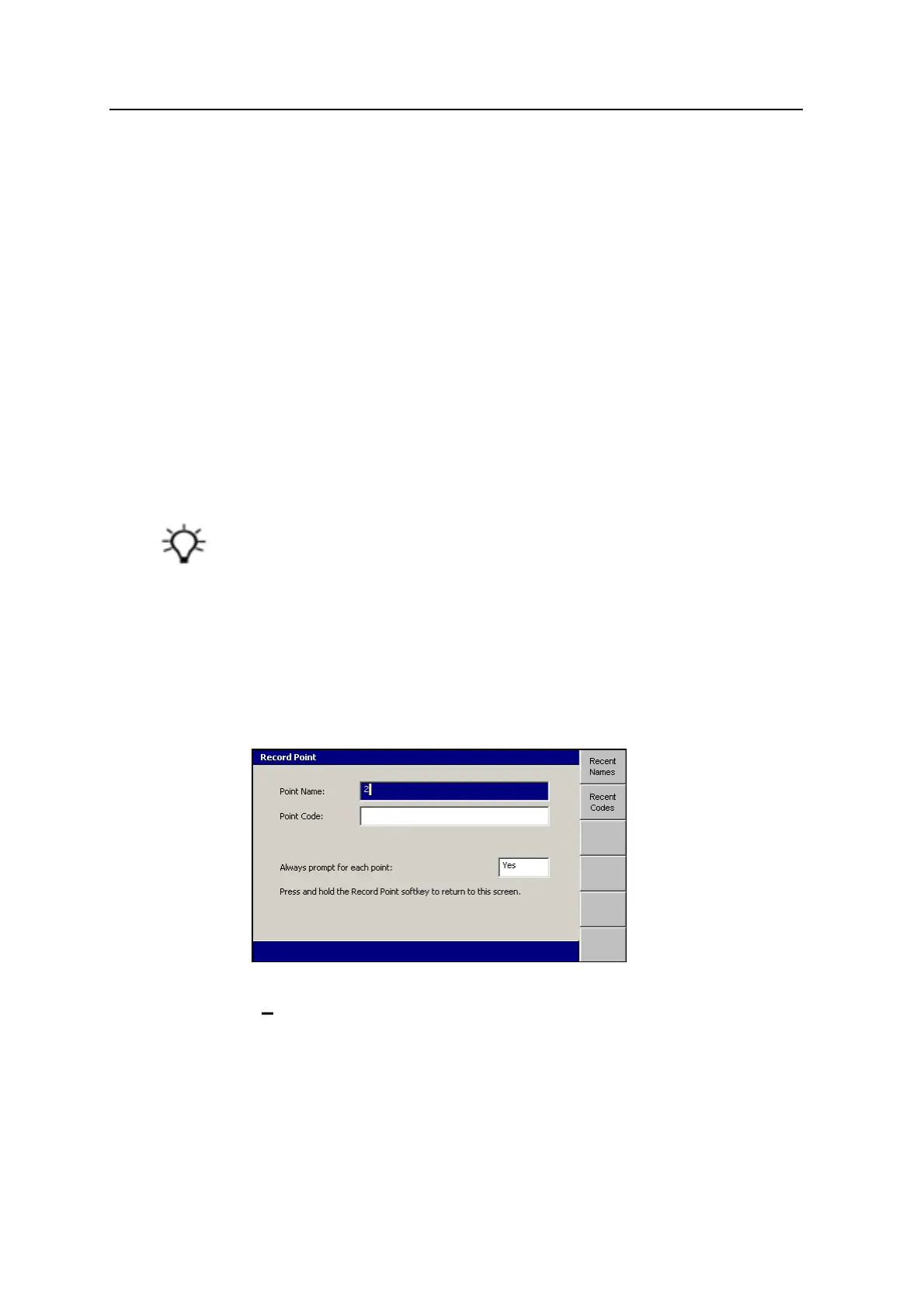
To use the point recording feature:
1. Place the focus on the point to be recorded.
Note – The machine does not need to be stationary to record a point. If the
machine is moving, the current focus position is recorded.
2. From any guidance screen, press Record Point.
3. Enter the following information:
Point Name – This value must be unique. The suffix automatically
increments with each new point. If a suffix is not specified, one is
generated automatically. You can edit the name and the suffix as required.
GCS900 Grade Control System for Excavators Operator's Manual 147



 To Next Page