6 Using Mapping/Recording in theField
Press Recent Names to display a list of recently used point names.
An example point name is “PT”. When you record a new point, an
incremental numeric suffix will be appended, giving an example result of
“PT1”.
Point Code – This value is an arbitrary alpha-numeric value that helps to
identify the type of point being recorded.
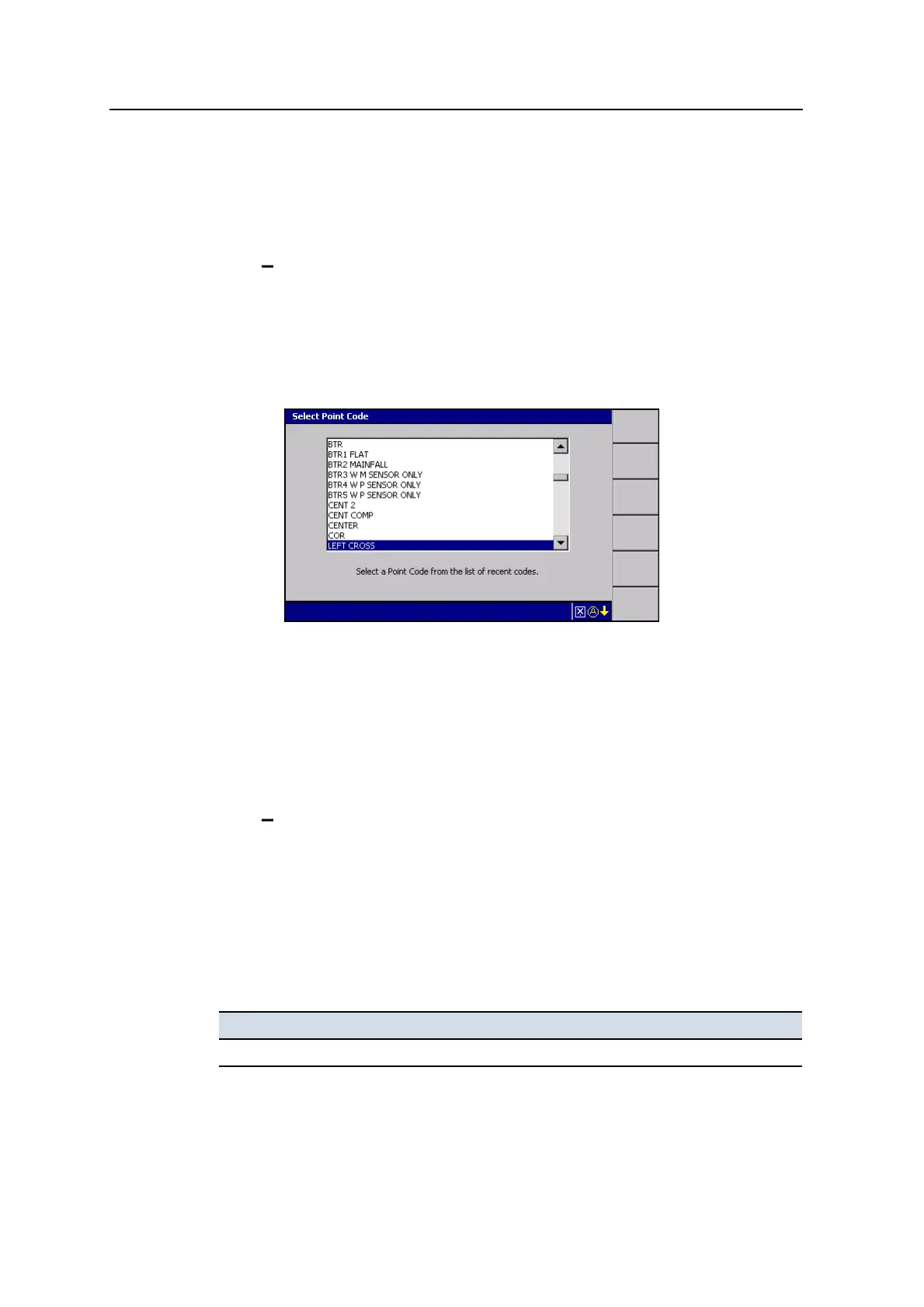
From the Record Point dialog, press Recent Codes to display a list of
recently used point codes.
If a Codes.txt file exists, a list of predefined point codes in the order they
are contained within the Codes.txt file appears.
Select the point code you require and press \.
Note – You cannot edit the name of a Point Code selected from a Codes.txt
file in the Record Point dialog.
Note – Recent names and codes are only available after you start to
record points and are only relevant to the current points file you are
recording. For example, if you change designs and start recording new
points the recent names and codes from your last job will not be available.
Prompting behavior – If Always prompt for each point is set to Yes, the
Record Point dialog appears each time the Record Point softkey is pressed.
Otherwise, only a Record Point flashing message appears.
Note – If Always prompt for each point is set to No, you can access the
Record Point dialog by pressing and holding Record Point.
4.
Press \.
The following problems may occur when you perform a point store operation:
Problem Action
Error recording point The system is in a low accuracy state. See your site supervisor.
148 GCS900 GradeControl System for Excavators Operator's Manual



 To Next Page