Using 3D Guidance in the Field 5
4. Highlight the required alignment option. The following options may be
available in the Guide to Horizontal Alignment dialog, depending on the type of
design loaded:
To select ... Choose ...
A road alignment in a road design The alignment by name
A road alignment in an .svd road design automatically
[Auto Select Road Alignment]
A layered lift alignment in a .dc road design One of the
Layered Lift Alignment
options
A dynamic layered lift alignment in a .dc road design One of the
Dynamic Lift Alignment
options
The master alignment in a sloping surface design
Master Alignment
The design boundary or linework in the Site Map or
Background Plan
[Plan Line]
No alignment [None]
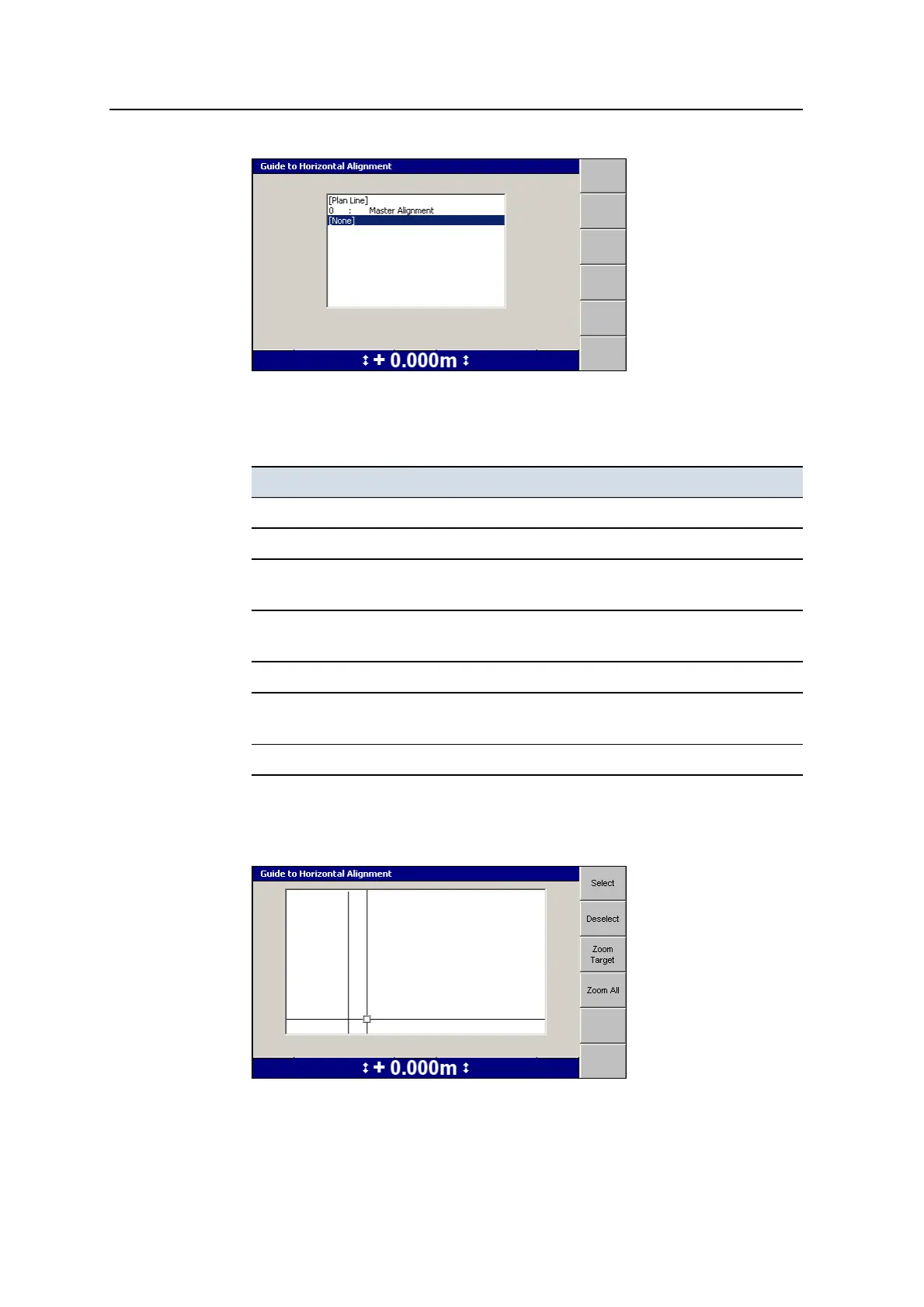
5. If you selected a plan line or a 3D line for horizontal alignment, either the
Guide to Horizontal Alignment or the Select 3D Guidance Line dialog appears.
The Guide to Horizontal Alignment dialog is shown below:
GCS900 Grade Control System for Excavators Operator's Manual 139



 To Next Page