134 6 Programming
6.2 Folders
Use the ARROW keys to highlight the program to be copied, then press
the Select soft key.
A popup menu will open where either the highlighted program can
be selected, or all programs in the folder can be selected. Highlight
Select, or Select All, then press the ENTER key.
If the program that was selected is not the correct one, select the
Clear feature, and press ENTER. The program is un selected, and
another program can now be selected.
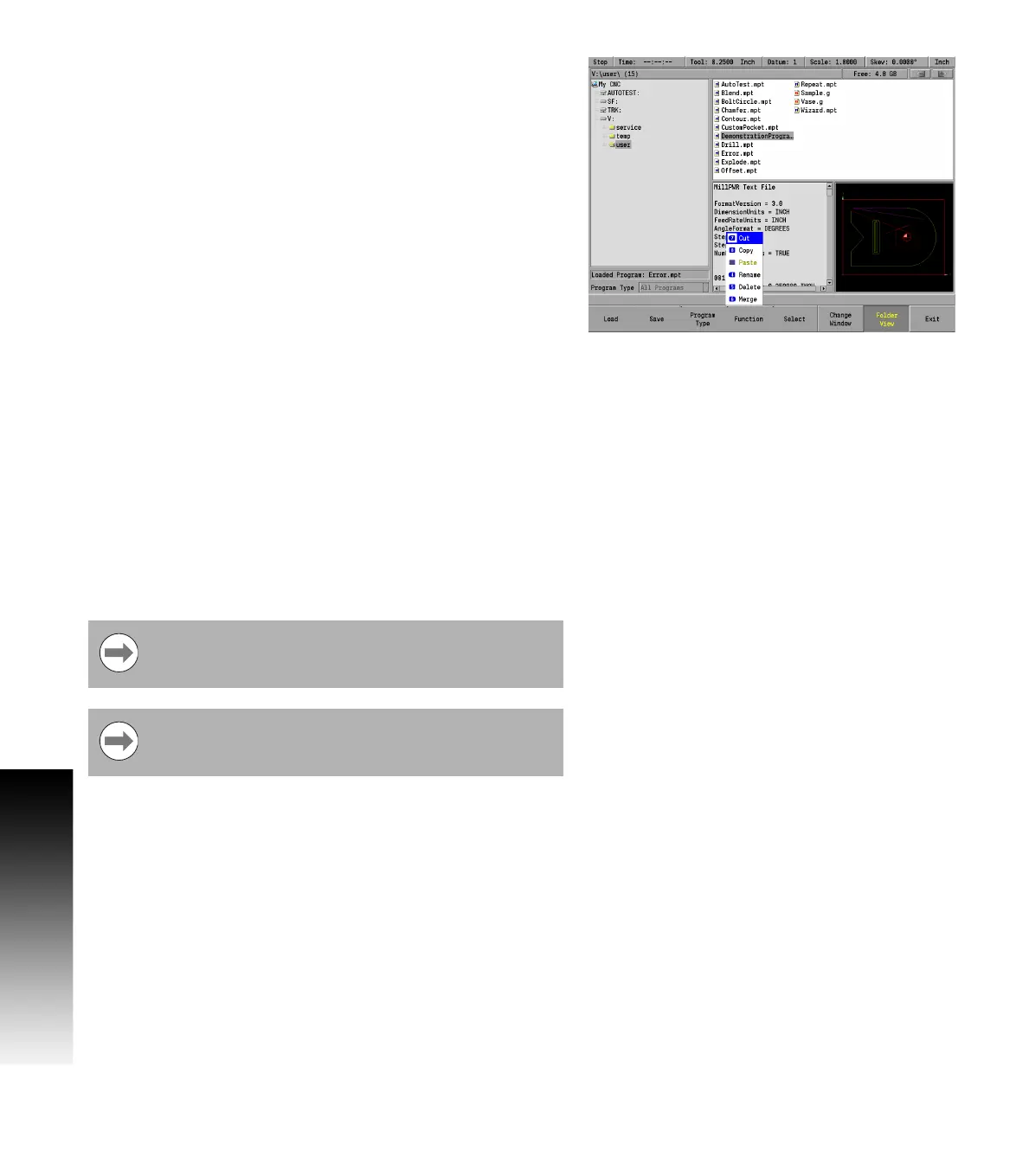
Press the Function soft key and select Copy from the popup menu,
then press the ENTER key.
Press the Function soft key again, and select Paste from the popup
menu, then press the ENTER key.
A copy of the selected program has now been copied to the same
folder and was named with a suffix of “Copy”. Another folder location
could have been chosen before Paste to copy the program to the new
location.
If a program is copied multiple times using the Paste function, each
pasted program copy would then have sequential numbering
(e.g. Copy, Copy (2), Copy (3), and so on).
Program errors
When an error is detected in a program, the step with the error is
highlighted in the program listing with a red "x" symbol. Edit the
program step to correct the error.
Additional information about the error is added to the error log. See
"Message log" .
After correcting the errors, remember to delete them
from the error log. A quick method for deleting all errors
in the log is to press the “0” key.
If there is more than one error in the program, only the
first step with an error will be highlighted. After correcting
the first error, the next error will be highlighted.



 To Next Page