80 5 Program Overview
5.1 Programming Introduction
The MILLPWR
G2
can save programs to a USB device, or to network
drive (e. g. a PC) as well as to the MILLPWR
G2
User folder.
To return to the Program Display Mode:
From Folder View, press the Folder View soft key to
exit back to the Program Functions display.
Press the Exit soft key to exit back to Program Mode.
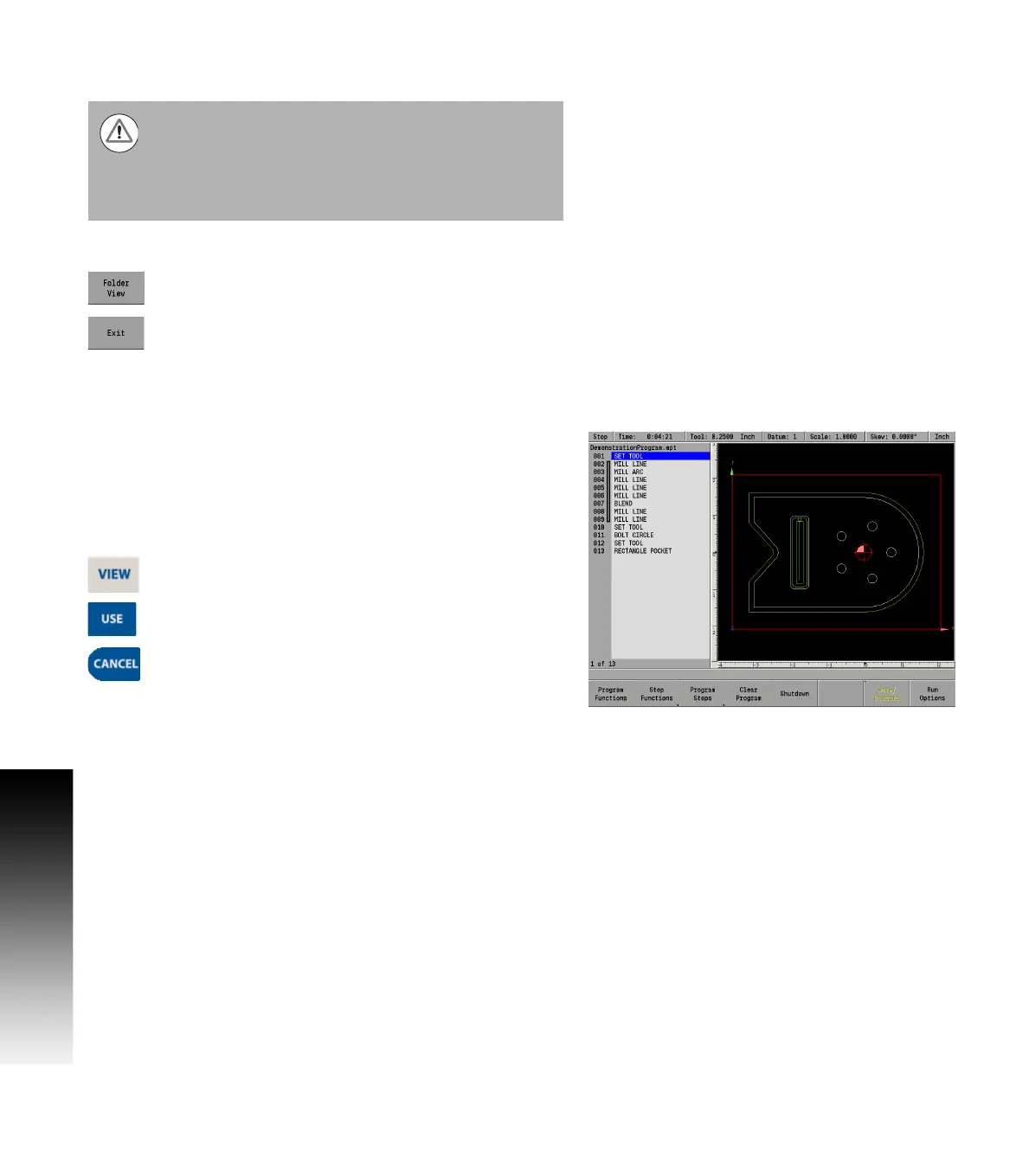
Program drawing view
W
hile a program is running (or being created), individual steps being
performed are graphically shown as they are being run or created.
Pressing the VIEW hard key shows the View Setup dialogue. The VIEW
key acts as a toggle switch, pressing it again will remove the dialogue
and return to the previous display. Pressing CANCEL or USE will also exit
the view soft keys.
To activate the View Setup dialogue press the VIEW
key. The View dialogue is explained on page 86.
To return to the previous display, press the VIEW key
again, or the USE key.
If the CANCEL key is pressed, it will exit out of the view
mode, and return to the previous display, but will not
cancel out any view changes made.
The internal memory of the MILLPWR
G2
is organized into
a folder structure. The default folder is the User folder.
Programs can be stored in the User folder. Additional
folders can be created to better organize programs.
Features in Program Functions allow for navigation of all
folders, USB memory devices and network folders.



 To Next Page