ACU-RITE MILLPWR
G2
211
9.1 Geometry Calculator
Geometry calculator layout
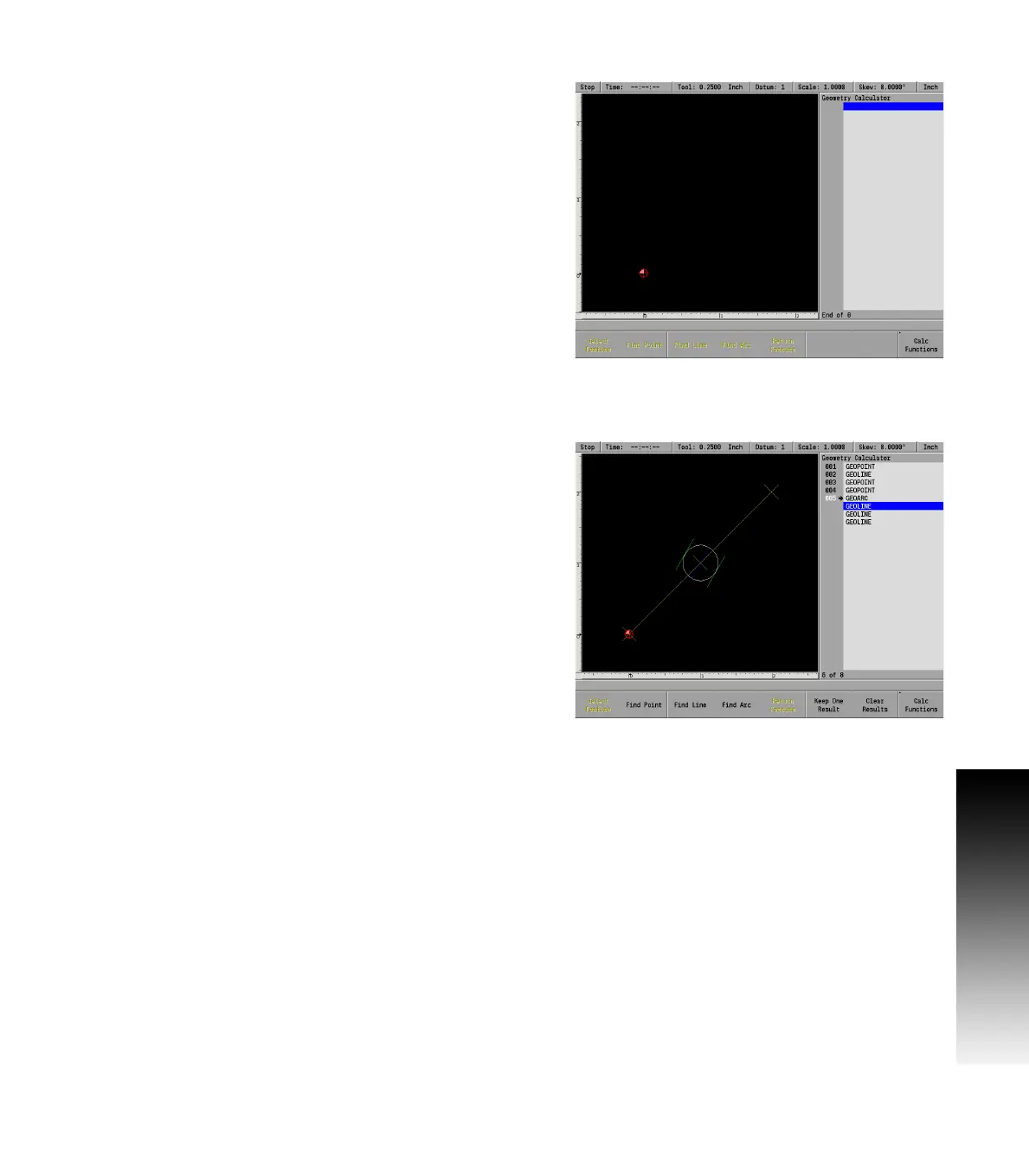
The geometry calculator’s layout is similar to the part program in PGM
mode. To differentiate it from the part program, the geometry step
listing is on the right third of the screen and the graphic window is on
the left two-thirds of the screen.
Geometry listing
The geometry calculator listing contains all steps:
Limited to geometry steps: point, line, and arc.
No continuity indicator. Margin is used to display step number for
reference only, and has no incremental references. Use the ARROW
keys for step selection.
To create a new Geo step, press the POINT, LINE, or ARC key.
To edit an existing Geo step, cursor to the step and press ENTER or
USE.
To delete an existing Geo step, cursor to the step and press CLEAR.
Goto step number is supported.
Geometry graphic
The graphics window provides visual feedback:
Limited to 2D Line view.
Extents determined by the size of the entered steps and calculated
results.
The block size matches the extents plus the normal margin. The
datum symbol is displayed at (0,0). A ruler is also shown.
Highlight features:
Focus feature – Blue
Selected features – White
New features – Green
Normal features – Yellow
A GeoPoint is displayed as a crosshair (×).



 To Next Page