212 9 Geometry/RPM Calculator
9.2 Geometry User Interface
9.2 Geometry User Interface
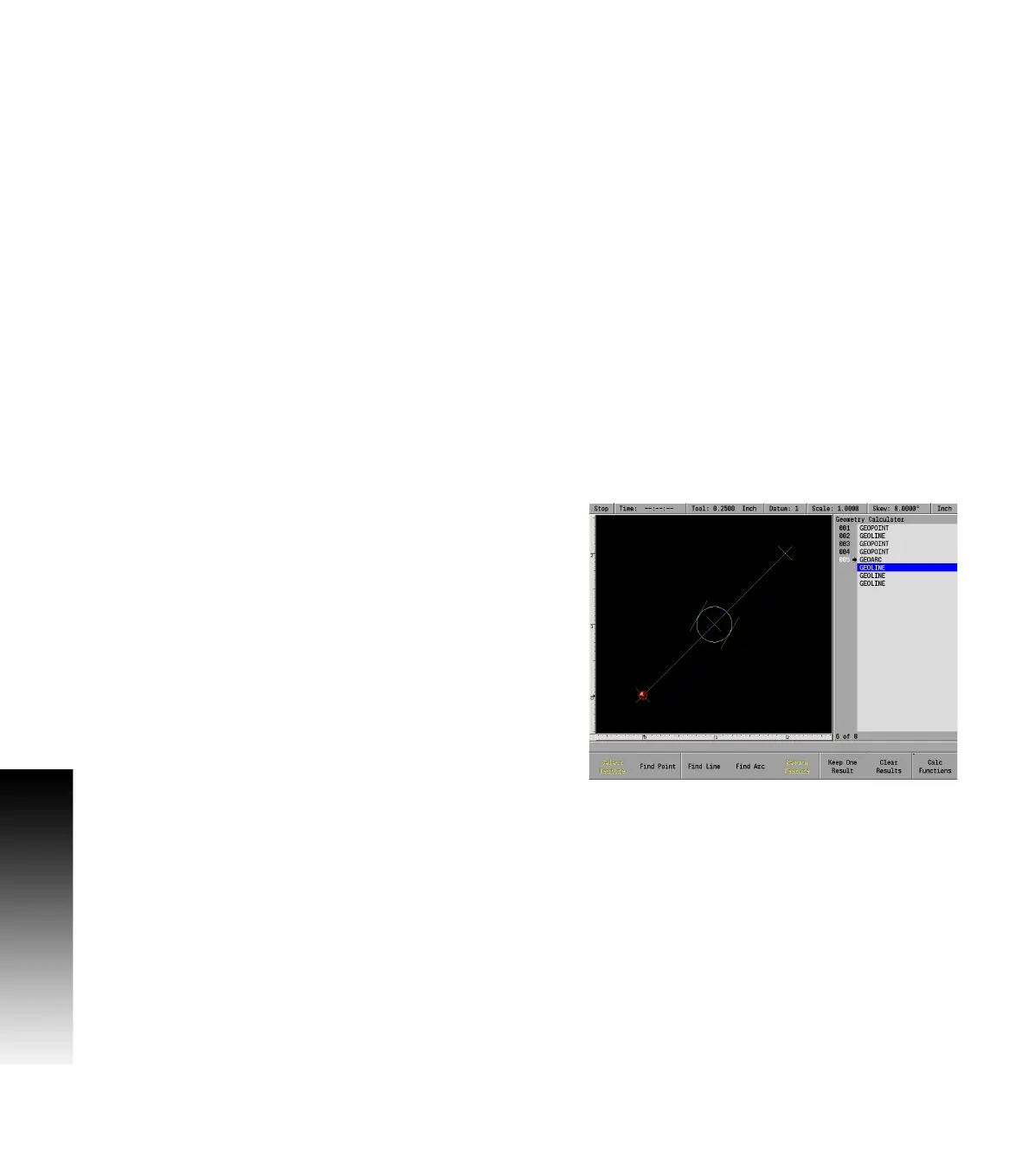
Adding geometry features to listing
Geometry steps are limited to GeoPoints, GeoLines, and GeoArcs. A
new step is added by pressing the POINT, LINE, or ARC key. As with a
part program, the new step is added before the currently highlighted
geo step
GeoPoint
Defined by single coordinate
GeoLine
Defined by combinations of From point, To point, and Angle.
GeoArc
Defined by combinations of From point, To point, Center point, 3rd
point, Radius, Direction, and Sweep Angle. From and To points are
optional (calculated at 12:00 position), otherwise, combinations
follow programmed arcs.
Finding geometry solutions
Geo steps may also be created by finding points, lines, or arcs related
to other Geo steps. These steps are created by selecting one or two
steps and pressing the Find Point, Find Line, or Find Arc soft key.
To select or deselect a step:
Cursor to the step in the listing and press the Select Feature soft
key to select it (soft key will display as being pressed).
To deselect a step, highlight the selected step, and press the Select
Feature soft key again to release unselect the step.
No more than two features may be selected at a time. Selecting a
third feature will deselect the oldest selection.



 To Next Page