86 5 Program Overview
5.1 Programming Introduction
View hard key
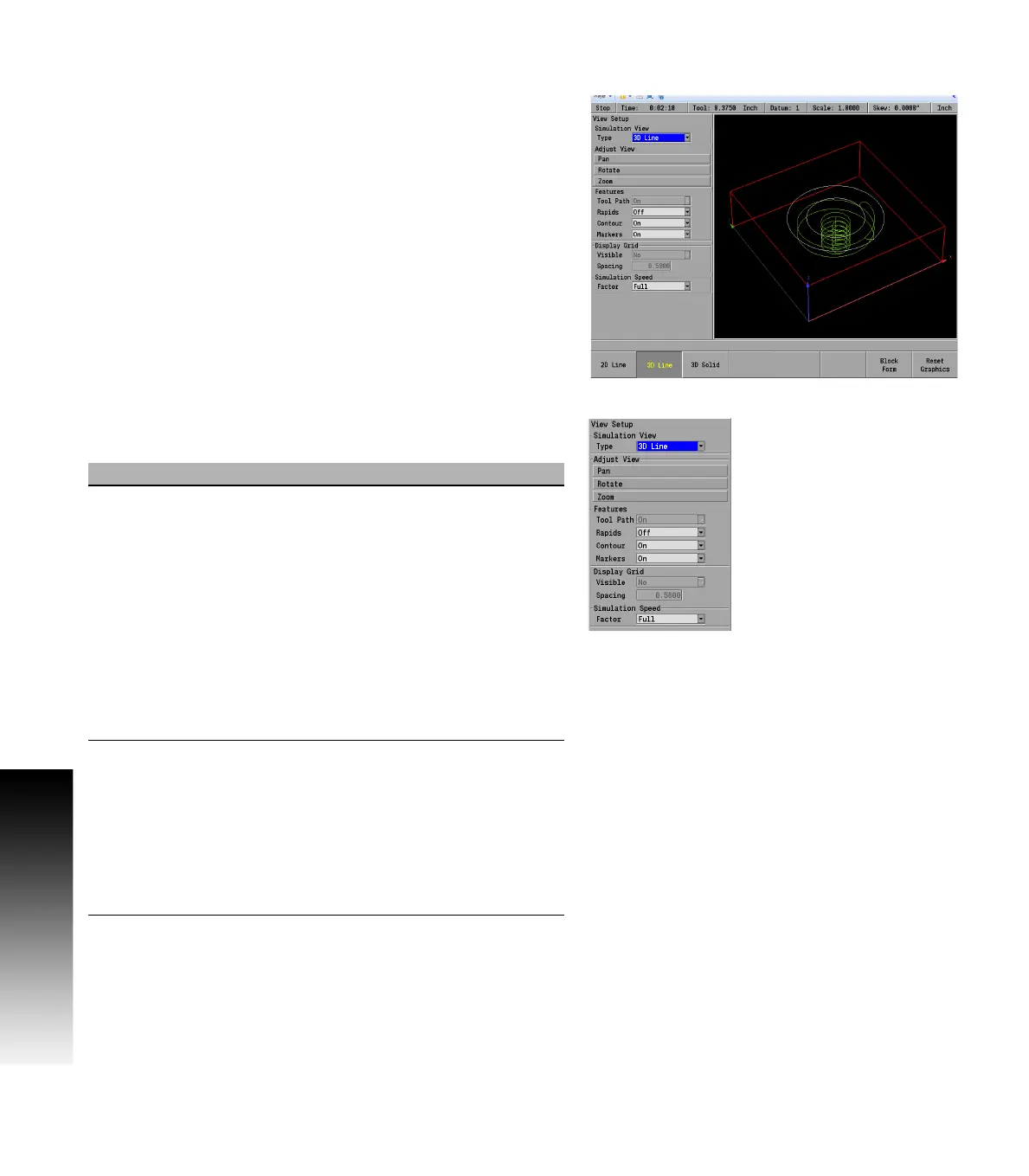
Once a program is opened, first select how the part should be
displayed in the graphics window. Pressing the VIEW key opens the
display dialogue for View Setup to set the viewing graphic options of
the program. Pressing the View key again, or pressing the CANCEL key
will turn the VIEW key display off.
See "Program drawing view" on page 80”.
All drop down menus are accessed by pressing the RIGHT ARROW key
to open the menu. Selection is made by pressing the UP or DOWN ARROW
keys. To use the selection high lighted, press the LEFT ARROW key.
The following describes the View Setup dialogue soft keys and drop
down menu options available.
View Setup
Simulation View Selection of 2D Line, 3D Line, or 3D Solid
view for the graphic display may be done
by using either the soft keys or selecting
from the drop down menu.
The default is 2D Line View.
For proper simulation of the 3D Solid view
make sure that tools are defined in the
program and have a non-zero tool
diameter.
The 2D and 3D Line views will show a drill
marker corresponding to the diameter of
the tool.
Adjust view These three buttons allow you to adjust the
graphic display.
Cursor to the appropriate button: Pan,
Rotate, or Zoom then press the ENTER key.
Use the Arrow keys to either zoom, pan or
rotate the display.
Press ENTER or CANCEL to exit this mode and
return to the view dialogue.



 To Next Page