204 8 Milling and Drilling
8.2 Additional Milling Functions
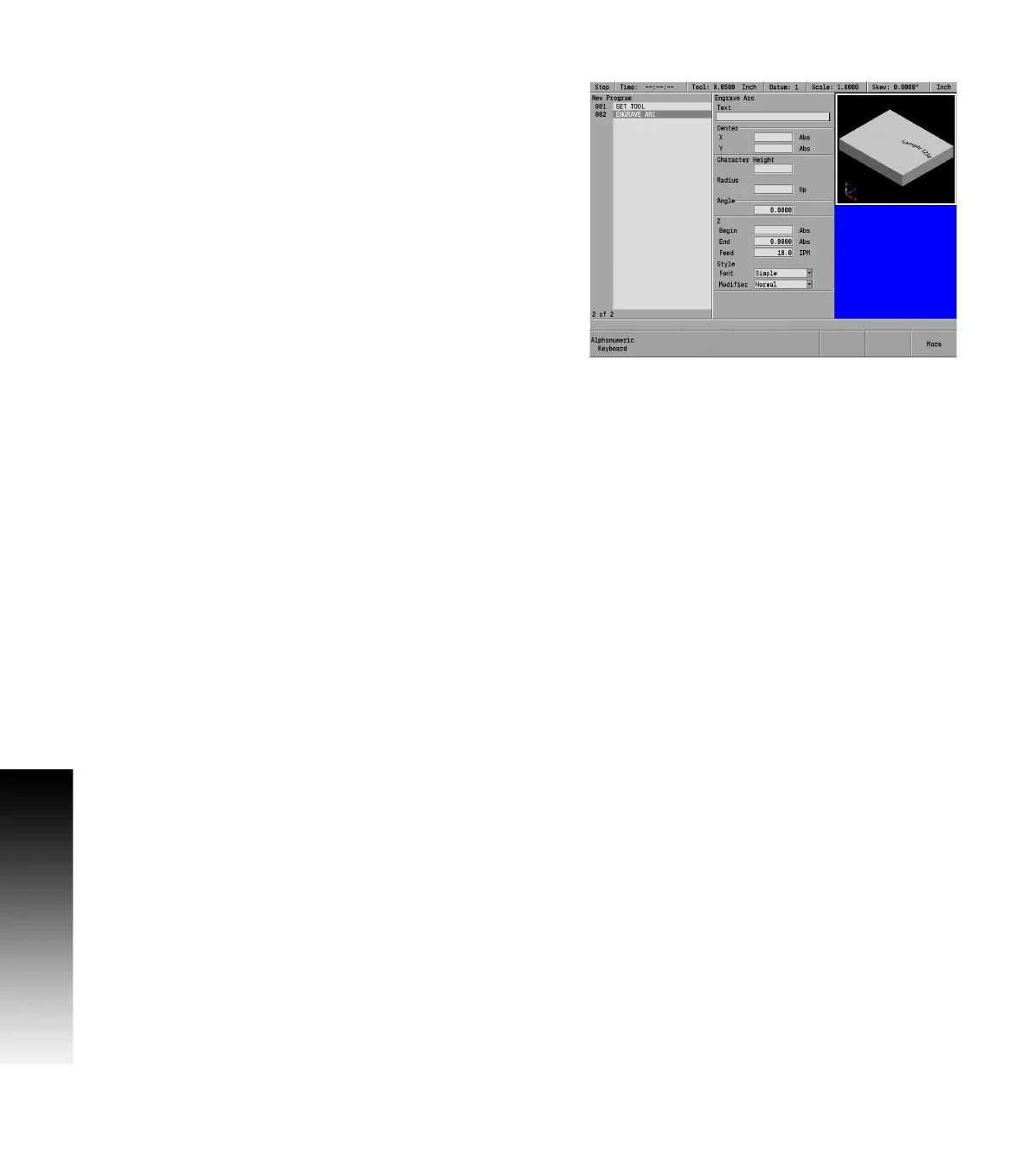
Engrave arc
All ASCII characters within the range of x032 - x126 are allowed, which
includes Uppercase, Lowercase, Numbers, and Punctuation.
From the PGM screen, press the Program Steps soft key.
Then press the Other Steps soft key.
In the popup menu select Engrave Arc.
Highlight the TEXT input field, press the Alphanumeric Keyboard soft
key, and insert the desired text.
Enter the X and Y axes coordinates for the Text Center from the
center of the engraving.
Enter the Character Height.
Enter the Radius that the text will follow, and select Arc Up, or Arc
Down (e.g. Arc Down is shown in the example).
Enter the begin and end depths for the Z axis.
Enter the Z axis feed rate.
Select the font required from 3 choices, Simple, Stencil, or Stick,
soft keys, or the drop down menu.
Select the Modifier as either the Normal or Mirrored soft key.
Normal is readable from left to right; Mirrored will make the
engraving appear backwards.
Press the USE key.



 To Next Page