94 5 Program Overview
5.3 Creating Programs Overview
5.3 Creating Programs Overview
New part program
The following briefly describes how a new program is created. See
"Fundamentals for Creating a Program" on page 99 for more complete
information.
Press the DRO/PGM key from DRO mode to enter PGM mode.
A new program can be created from an existing program, or create
a completely new program.
To create a new program from an existing program:
Press the Program Functions soft key.
Select an existing program that will be used to create the new
program, and press the Load soft key.
Press the Program Functions soft key.
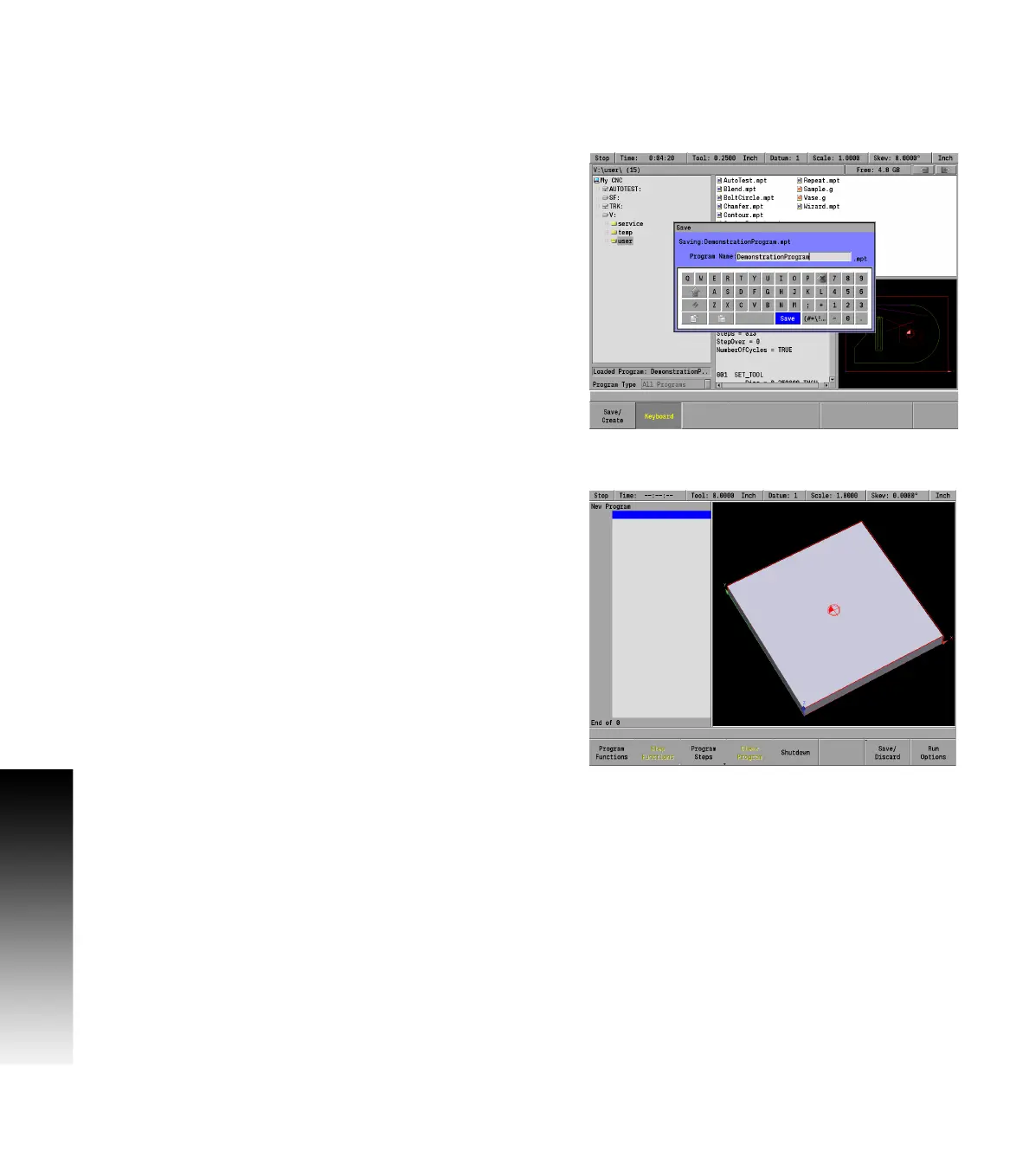
Press the Save soft key. Press the Keyboard soft key to display the
keyboard if the keyboard is not automatically displayed. Type in the
name of the new program and select Save.
The new program is now loaded, and can be modified as required.
To create a new (blank) program:
When a program is currently loaded, press the Clear Program soft
key in the PGM mode display to clear the loaded program from
memory, and to create a new program.
Press the Save soft key. Press the Keyboard soft key to display the
keyboard if the keyboard is not automatically displayed. Type in the
name of the new program and select Save.



 To Next Page