ACU-RITE MILLPWR
G2
169
8.1 Milling and Drilling
Rectangular milling functions
MILLPWR
G2
offers several rectangular milling functions that let you
program pockets, frames, faces and slots. For 2 axes systems, Refer
to Chapter 1, "Operating in 2 Axes and 3 Axes Modes" on page 31.
Rectangle pocket
A pocket is a cavity or area on the part where material is removed
when you machine. You can program a rectangular pocket three ways:
Using the coordinates of two diagonal corners.
Using the coordinates of one corner and the size of the pocket. The
X and Y size can be positive or negative dimensions which allows
the 1st corner to be any of the corners of the pocket.
Using the coordinates of the center and the size of the pocket.
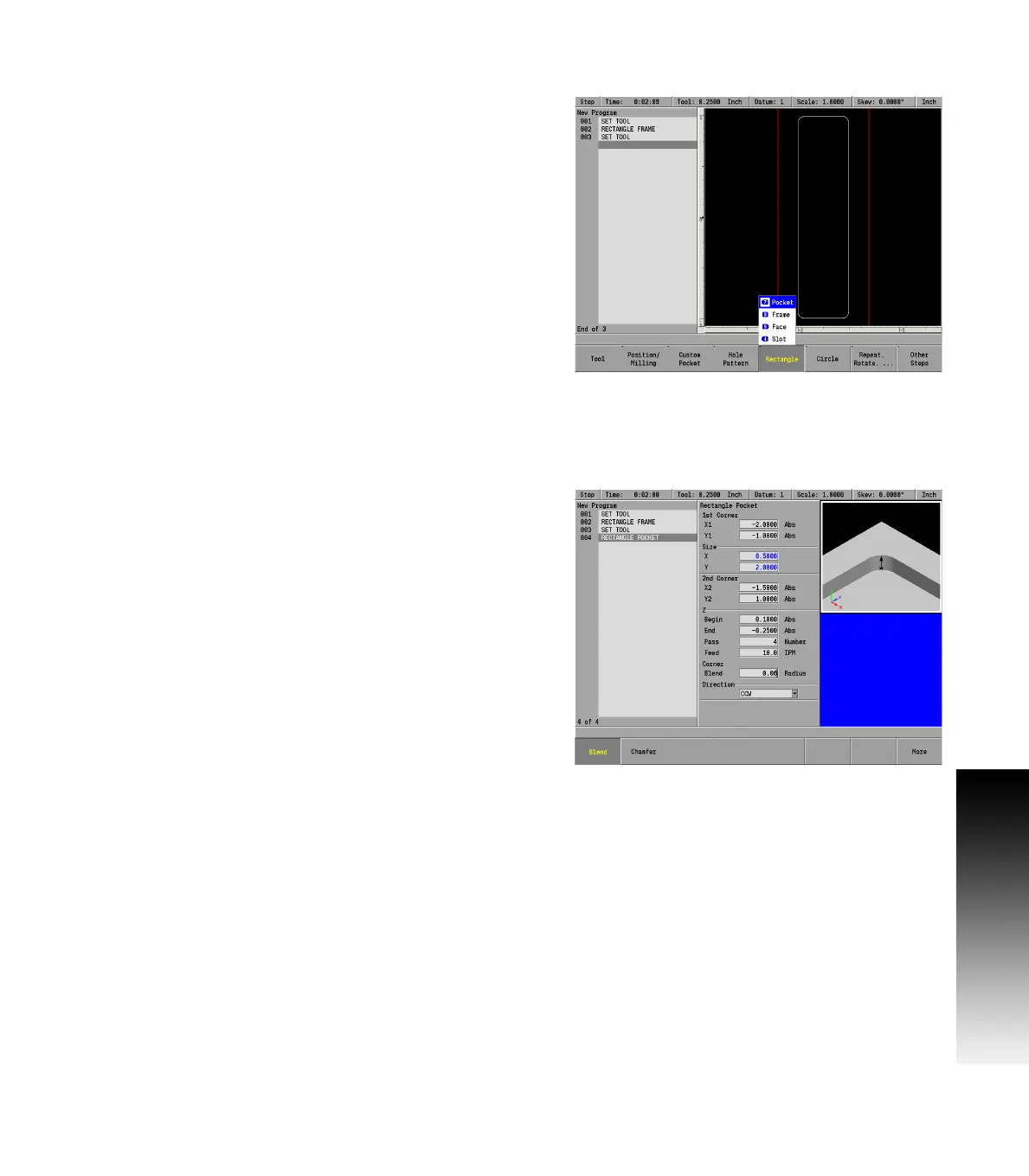
From the PGM screen, press the RECT key to access the RECT popup
Menu.
Select Pocket from the popup menu.
Entering data
Enter the 1st Corner X1 and Y1 axes coordinates.
Now enter either the Size of the pocket or the 2nd Corner
coordinates.
Either data entry will automatically fill in the fields for the other
option.
To enter the Size, enter the length of the pocket along the X and Y
axes.
Or enter the X and Y axes coordinates for the 2nd Corner. The 2nd
corner must be located diagonally from the 1st corner.
Enter the Begin and End depths for Z.
Enter either the number of passes or the distance between each
pass. Pass refers to the cuts that are used to machine the pocket to
its End depth. Which choice is shown in the dialogue was selected
in Job Setup.
Enter the Z axis Feed Rate.
Add a corner blend radius or a chamfer to the corners of the
rectangular pocket.
For Direction, press either the CW soft key for a clockwise cutting
direction or the CCW soft key for a counter-clockwise cutting
direction.
ARROW DOWN or press the More soft key and enter the table’s feed rate.
If programming by center and size, enter the Center X and Y axes
coordinates.
You can tilt a rectangular pocket by identifying a tilt angle. Highlight
the Angle field and enter an angle measured from the X axis.



 To Next Page