192 8 Milling and Drilling
8.2 Additional Milling Functions
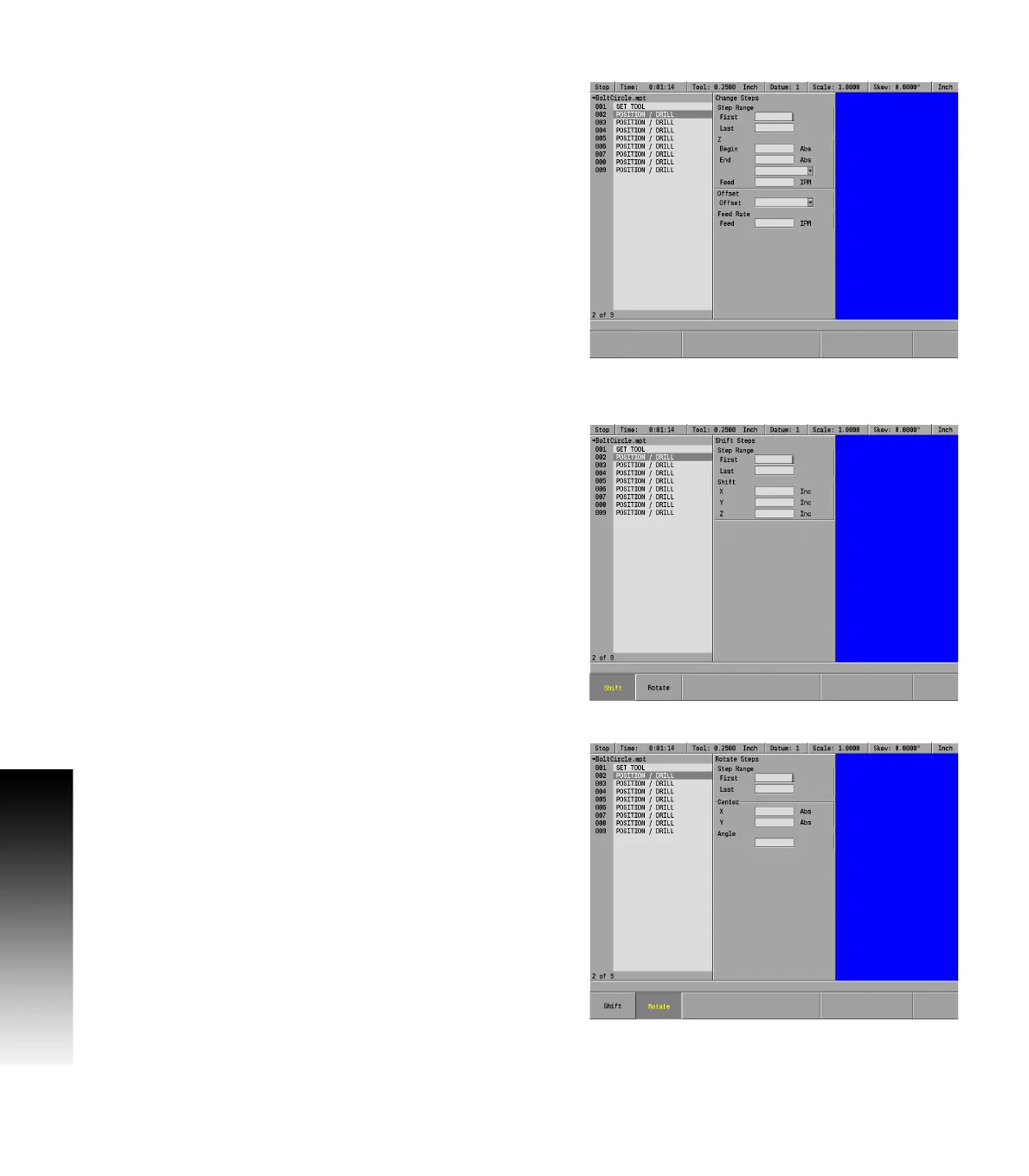
Change steps
The Change Steps feature gives you the ability to change or edit the
depth, offset and feed rate of several steps simultaneously.
You can use this feature from anywhere within your program and
does not require the specific step to be highlighted.
To Change Steps:
From the PGM screen, press the Step Functions soft key.
Press the Change Steps soft key.
Enter the first and last step numbers that you would like to change
in the Step Range field.
Use the ARROW keys to select each field that you want to change and
enter the new data.
Press the USE key.
Highlight the changed steps in the program sequence, then press the
ENTER key. Each step should include the new settings.
Shift/Rotate steps
The purpose of the Shift/Rotate Steps feature is to transpose a range
of steps from one location to another on the actual work piece.
This feature can be used from anywhere within the program, and
does not require the specific step(s) to be highlighted.
To Shift Steps:
From the PGM screen, press the Step Functions soft key.
Then press the Shift/Rotate Steps soft key.
Then press the Shift soft key.
Enter the first and last step numbers to be transposed.
Enter in each axis field the distance to shift per axis. Leaving a field
empty will result in no shift per that axis.
Press the USE key.
To Rotate Steps:
From the PGM screen, press the Step Functions soft key.
Then press the Shift/Rotate Steps soft key.
Then press the Rotate soft key.
Enter the first and last step numbers to be transposed.
Enter the X and Y axes coordinates for the center point of rotation.
Enter the angle of rotation.
Press the USE key to apply the rotation to the selected steps.
Highlight the changed steps in the program sequence, then press the
ENTER key. Each step should show the new axis coordinates.



 To Next Page