ACU-RITE MILLPWR
G2
215
9.2 Geometry User Interface
Returning features to the part program
Press the Return Feature to transfer the current geo step to the part
program. The soft key is disabled when it is not possible to transfer
the current step to the program.
If no program step is open, Return Feature adds an equivalent
program step at current location. The system returns to PGM view
with the new step open.
If a program step is open, Return Feature (GeoPoint) returns the
GeoPoint’s coordinate to the current field (x and y).
If a program step is open, Return Feature return of line or arc is only
possible if feature matches the step type.
If the return type does not match the destination step/field, nothing
is returned.
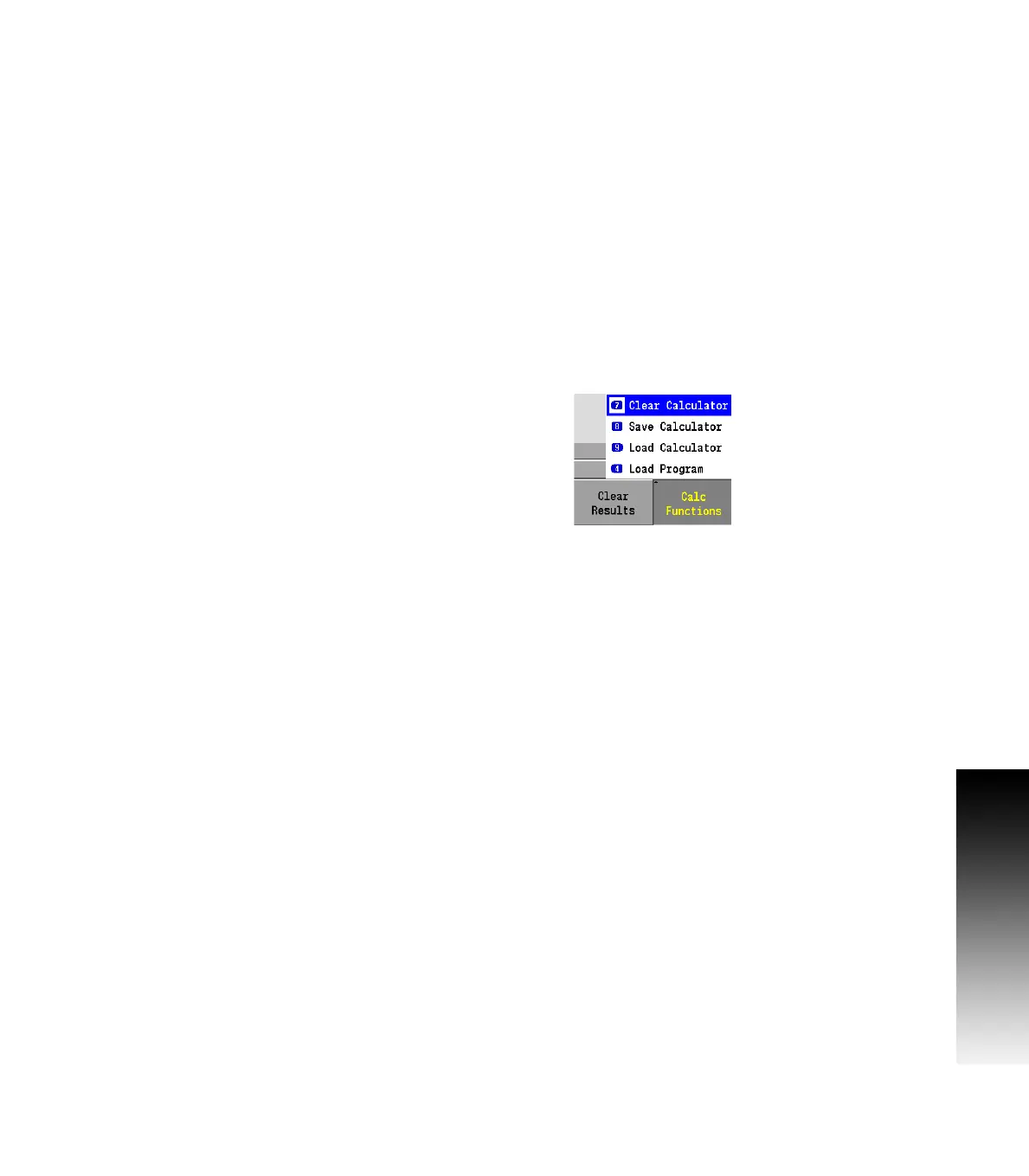
Geometry calculator functions
Pressing the Calc Function soft key opens a pop-up menu for
selecting a function.
Clear calculator
Removes all Geo steps from the calculator.
Loading and saving calculator contents
Press Save Calculator to save the current GeoCalc session to
internal memory.
Press Load Calculator to load the previously saved GeoCalc
session into the calculator.
Loading the part program into the geometry calculator
The Load Program function adds the equivalent geometry steps
(GeoPoint, GeoLine, and GeoArc) from the program to the calculator
listing at the current cursor location.
Hole patterns are converted to a series of GeoPoints.
Rectangle and circle steps are converted to profile GeoLines and
GeoArcs
All other steps (tool, replication, engrave, etc.) are not supported



 To Next Page