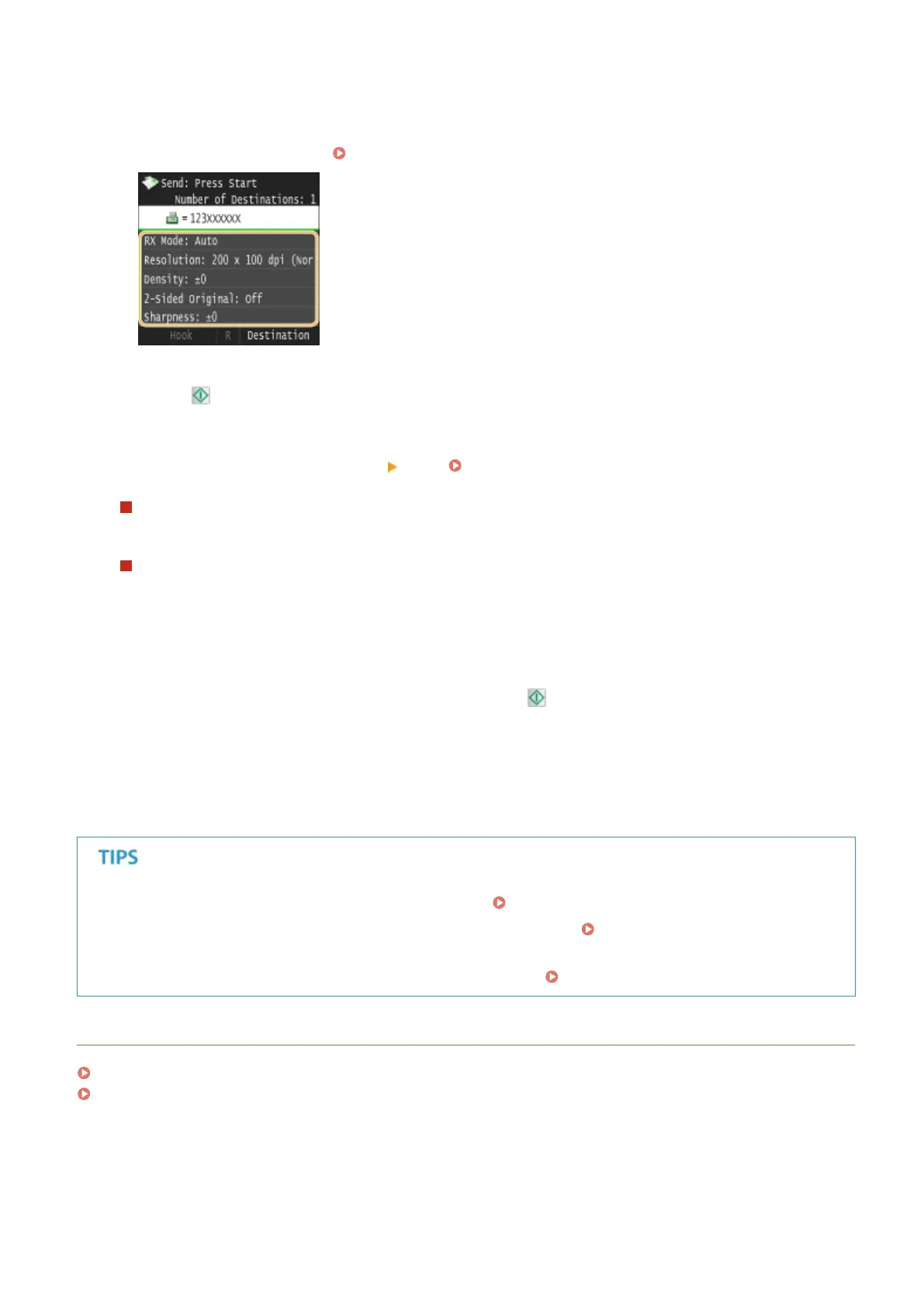
5
Specify the scanning settings as necessary.
● Tap the item you want to set. Various Fax Settings(P. 166)
6
Press to start sending.
➠ Scanning of the document starts.
● To cancel sending, tap <Cancel> <Yes>. Canceling Sending Documents (Fax/I-Fax)(P. 177)
When placing documents in the feeder in step 1
When scanning is complete, the faxes are sent.
When placing documents on the platen glass in step 1
Follow the procedures below.
1
Select the document size.
● When there is only one page to be scanned, proceed to step 3.
2
Place the next document on the platen glass, and press .
● Repeat this step until you nish scanning all of the pages.
3
Tap <Start Sending>.
➠ The faxes are sent.
● If you always want to send faxes with the same settings: Changing Default Settings(P. 173)
● If you want to register a combination of settings to use when needed: Registering Frequently Used Fax
Settings(P. 174)
● If you want to sound an alarm when the handset is off the hook:
Off-Hook Alarm(P. 655)
LINKS
Sending and Receiving Faxes According to Your Purposes (MF419x / MF416dw)(P. 183)
Checking Status and Log for Sent and Received Documents(P. 201)
Faxing
152







 To Next Page