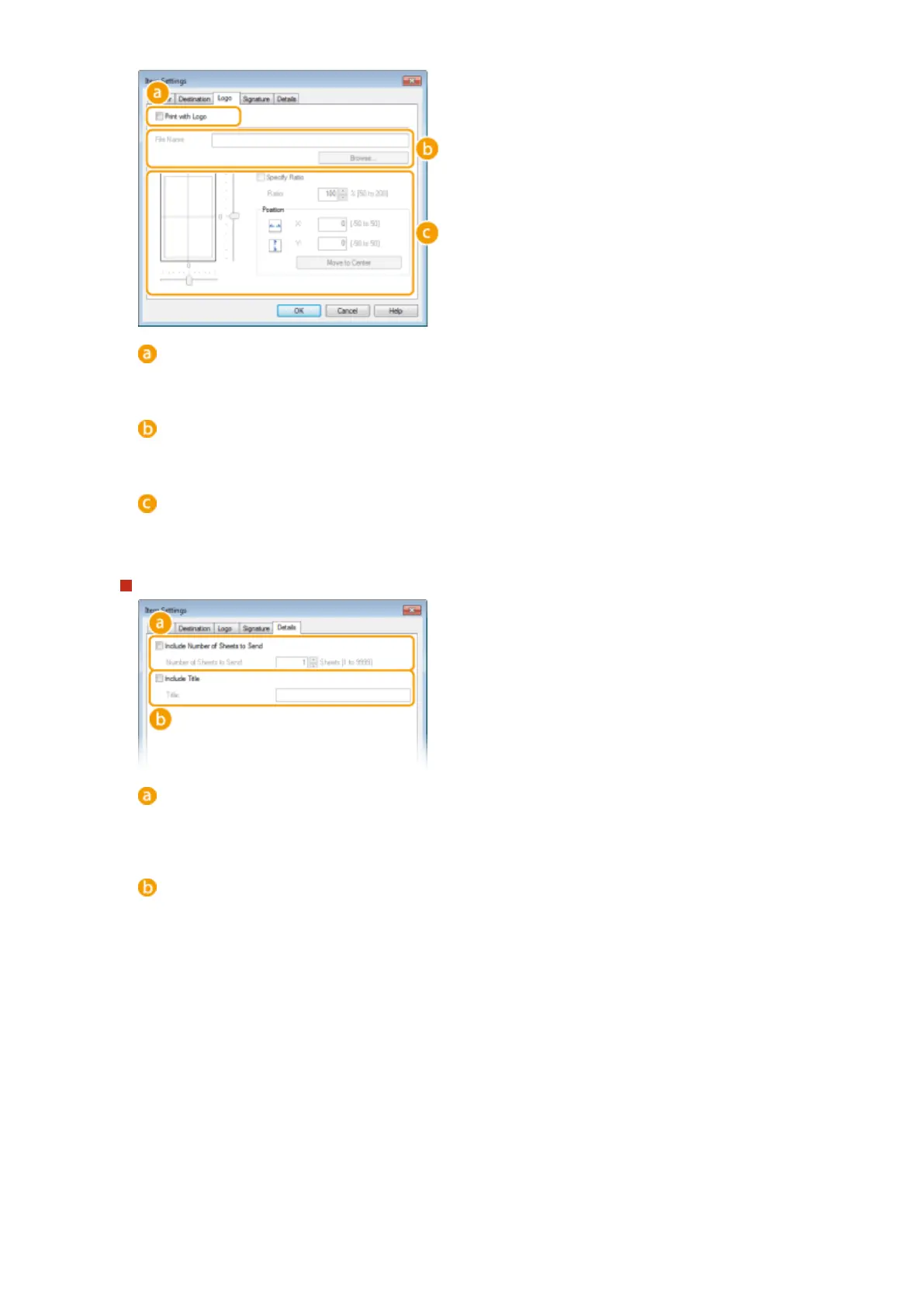
With/without logos or signatures
Select [Print with Logo] or [Print with Signature] if you want to include logos or signatures on the cover
sheet. Have the bitmap les for logos or signatures ready beforehand.
Location of logos or signature les
Specify the location where logos or signatures les are saved. Click [Browse] to locate the le you are
using for logos or signatures.
Size and position of the specied logos or signatures
Adjust the size and position of the specied logos or signatures while checking the image displayed on the
left.
[Details] tab
[Include Number of Sheets to Send]
Select this check box if you want to include the number of sheets that you are going to send in the cover
sheet and specify the number of sheets in [Number of Sheets to Send]. The number of sheets to send is
not counted automatically. The value specied here is included in the cover sheet.
[Include Title]
Select this check box if you want to add a title to the cover sheet and enter the title in [Title].
4
If you want to insert an attention note, select [Insert Attention Note] and select a
note from the [Attention Note] drop-down list.
● Attention notes such as "Urgent" and "Condential" are available. You can also enter characters directly in
[Attention Note] instead of selecting a note from the list.
● You can also add comments in [Comment to Include].
Faxing
209







 To Next Page