● To cancel sending, tap <Cancel> <Yes>. Canceling Sending Documents (Fax/I-Fax)(P. 177)
When placing documents in the feeder in step 1
When scanning is complete, the I-Fax is sent.
When placing documents on the platen glass in step 1
When scanning is complete, follow the procedures below.
1
If there are additional pages of documents to be scanned, place the next document on the platen
glass, and press .
● Repeat this step until you nish scanning all of the pages.
● When there is only one page to be scanned, proceed to the next step.
2
Tap <Start Sending>.
➠ The I-Fax is sent.
If the <SMTP Authentication> screen is displayed
● Enter the user name and password with the numeric keys, and tap <Apply>.
If a Send Error Occurs
Error notications are sometimes sent to the e-mail address set to the machine. If you leave it as-is, it may
result in an insucient remaining capacity of mailbox depending on your mail server. It is recommended that
you clear the mailbox periodically.
To clear the mailbox
● When the mailbox is cleared, all e-mail in the server mailbox is deleted. When you specify the e-mail
account that you use usually, you should rst check whether any e-mail in the mailbox needs to be kept.
1
Start the Remote UI and log on in System Manager Mode. Starting Remote UI(P. 606)
2
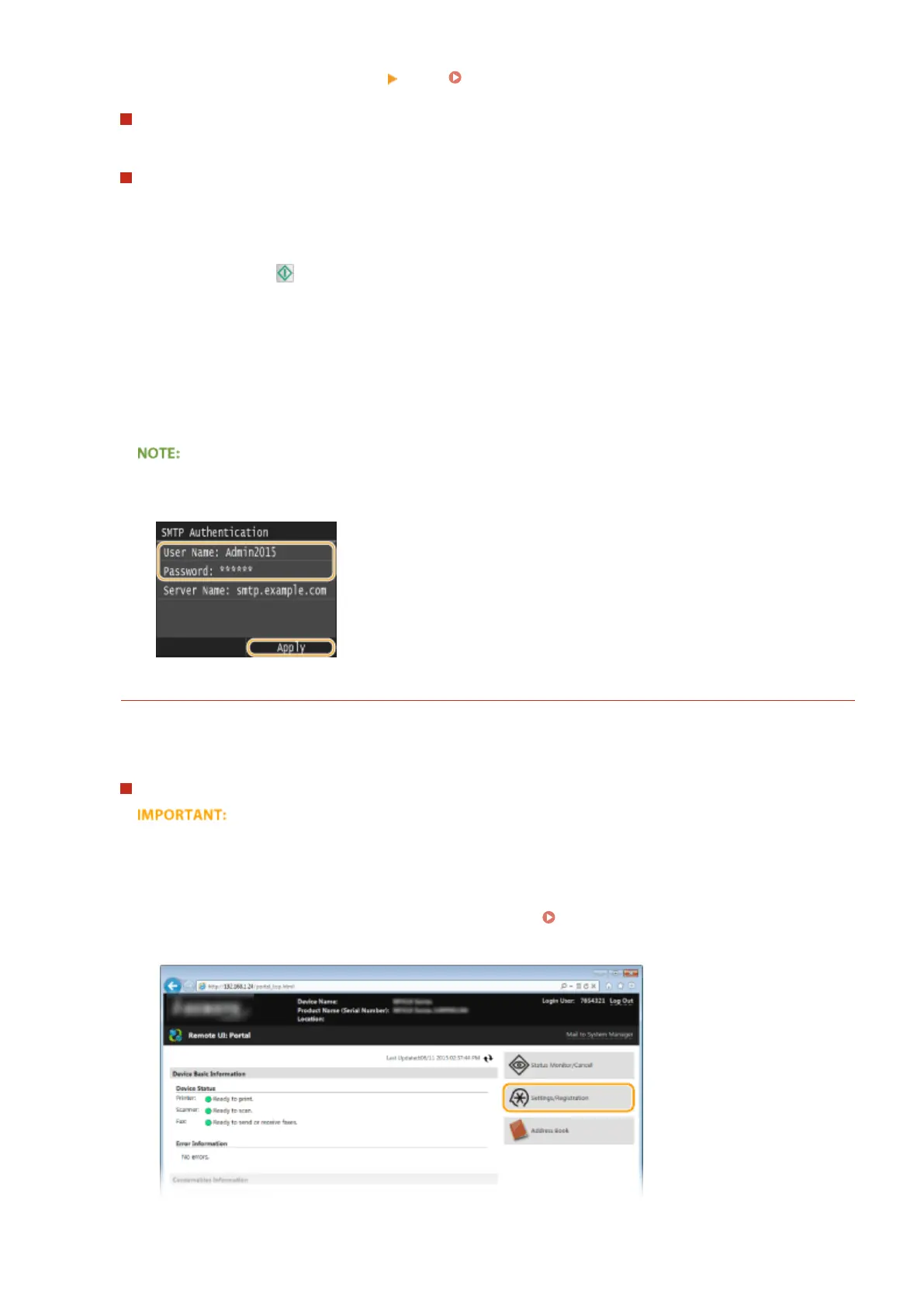
Click [Settings/Registration].
Faxing
228


 To Next Page
 Loading...