2
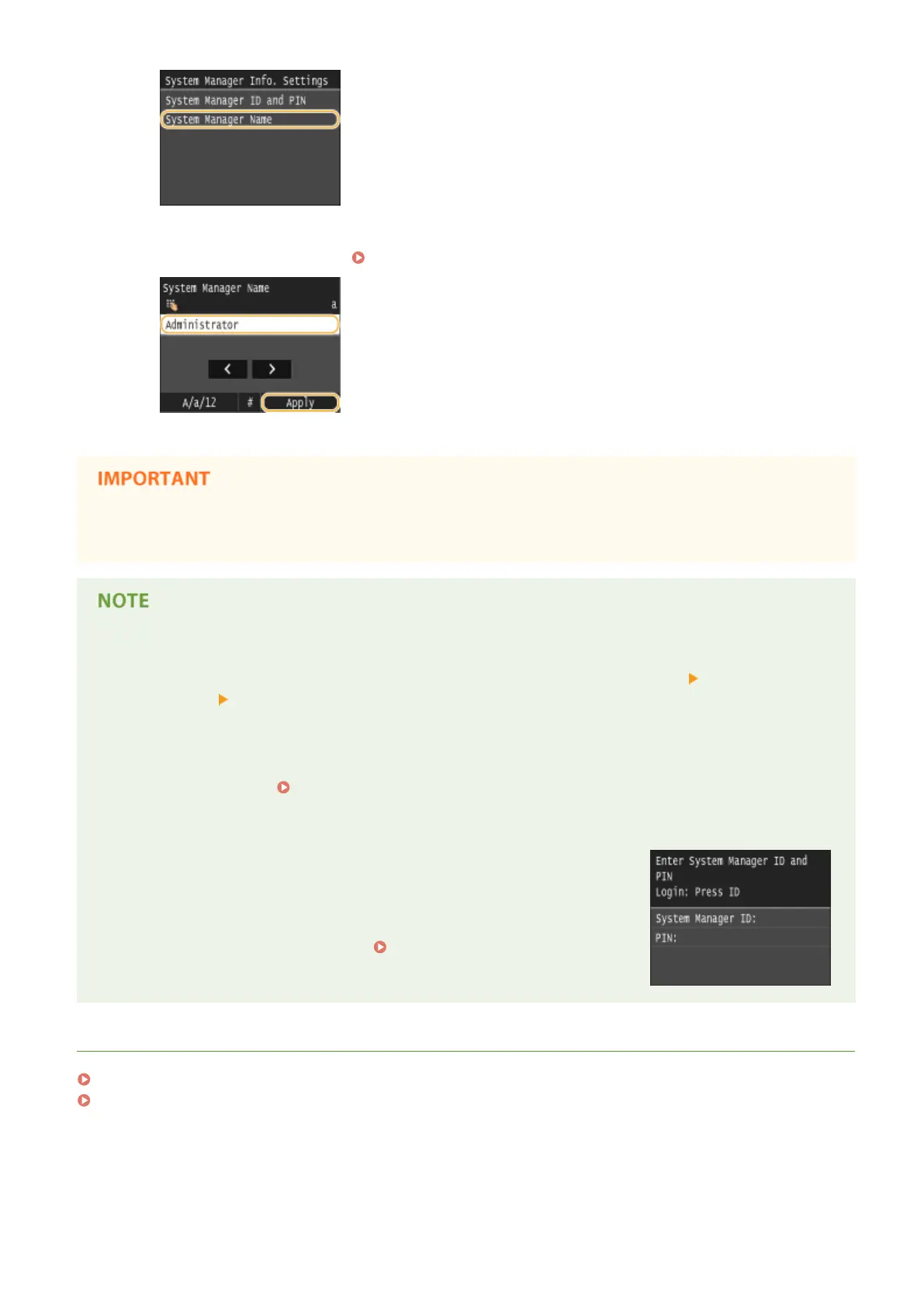
Enter up to 32 characters for the System Manager Name, and tap <Apply>.
● On how to enter text, see Entering Text(P. 41) .
● Do not forget your PIN. If you forget your PIN, contact your local authorized Canon dealer or the Canon help
line.
Conguring settings via the Remote UI
● Start the Remote UI and log on in System Manager Mode. Click [Settings/Registration] [System
Management] [Edit] and specify the necessary settings on the displayed screen.
● By using the Remote UI, you can register a variety of information, including contact information,
Administrator comments, the installation location of the machine, as well as to the settings that you can
register by using the operation panel. The registered information can be viewed on the [Device Information]
page of the Remote UI. Checking System Manager Information(P. 615)
Logging on to the machine
● If you try to access <Network Settings> or <System Management Settings>
when only the System Manager ID is enabled, the following logon screen is
displayed:
● You must also enter the System Manager ID and PIN to log on using the
Remote UI in System Manager Mode.
Starting Remote UI(P. 606)
LINKS
Setting Access Privileges(P. 523)
Setting the Department ID Management(P. 526)
Security
525







 To Next Page