Editing the settings of the registered Department ID
1
Click the corresponding text link under [Department ID] to edit.
2
Change the settings as necessary and click [OK].
Deleting a Department ID
● Click [Delete] on the right of the Department ID you want to delete click [OK].
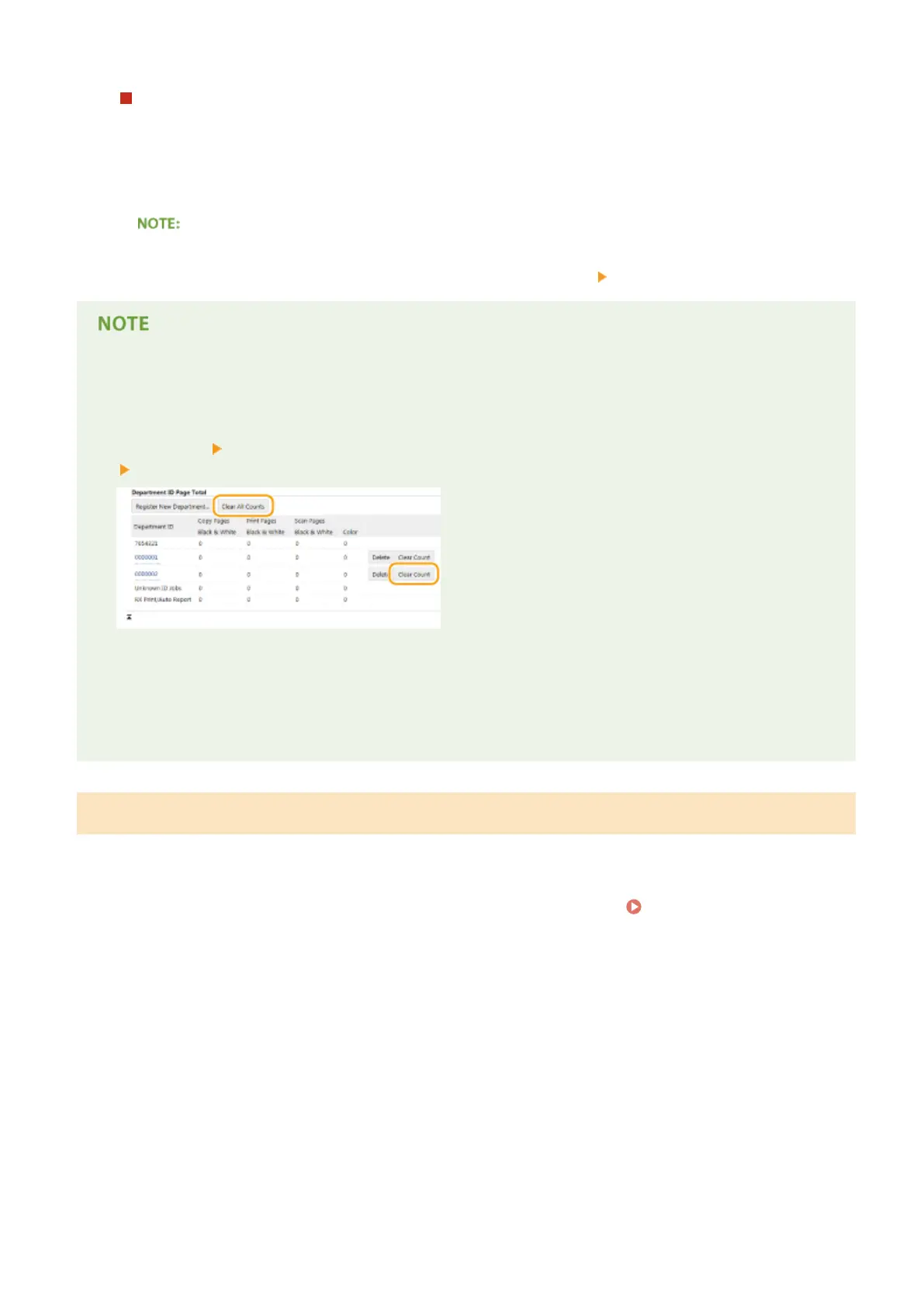
[Department ID Page Total]
● You can check the total numbers of pages copied, printed, scanned, or faxed for each Department ID.
● If you want to return the counts to zero, click the corresponding text link under [Department ID] and click
[Clear Count] [OK]. If you want to return the counts of all Department IDs to zero, click [Clear All Counts]
[OK].
Using control cards
● When the optional Copy Card Reader-F1 is attached to the machine, 300 sequential numbers are registered
automatically.
● Do not edit or delete the department IDs. The control cards that correspond to the edited or deleted
department IDs will be unavailable.
Enabling the Department ID Management
After you register as many Department IDs as necessary, enable Department ID Management.
1
Start the Remote UI and log on in System Manager Mode. Starting Remote
UI(P. 606)
2
Click [Settings/Registration].
Security
528







 To Next Page