©2024 Comba Telecom. All Rights Reserved.
568 Gibraltar Drive, Milpitas, CA 95035 | +1 408 526 0180
3.13 CHANGING THE DEVICE OPERATING MODE/TYPE (BDA OR DAS)
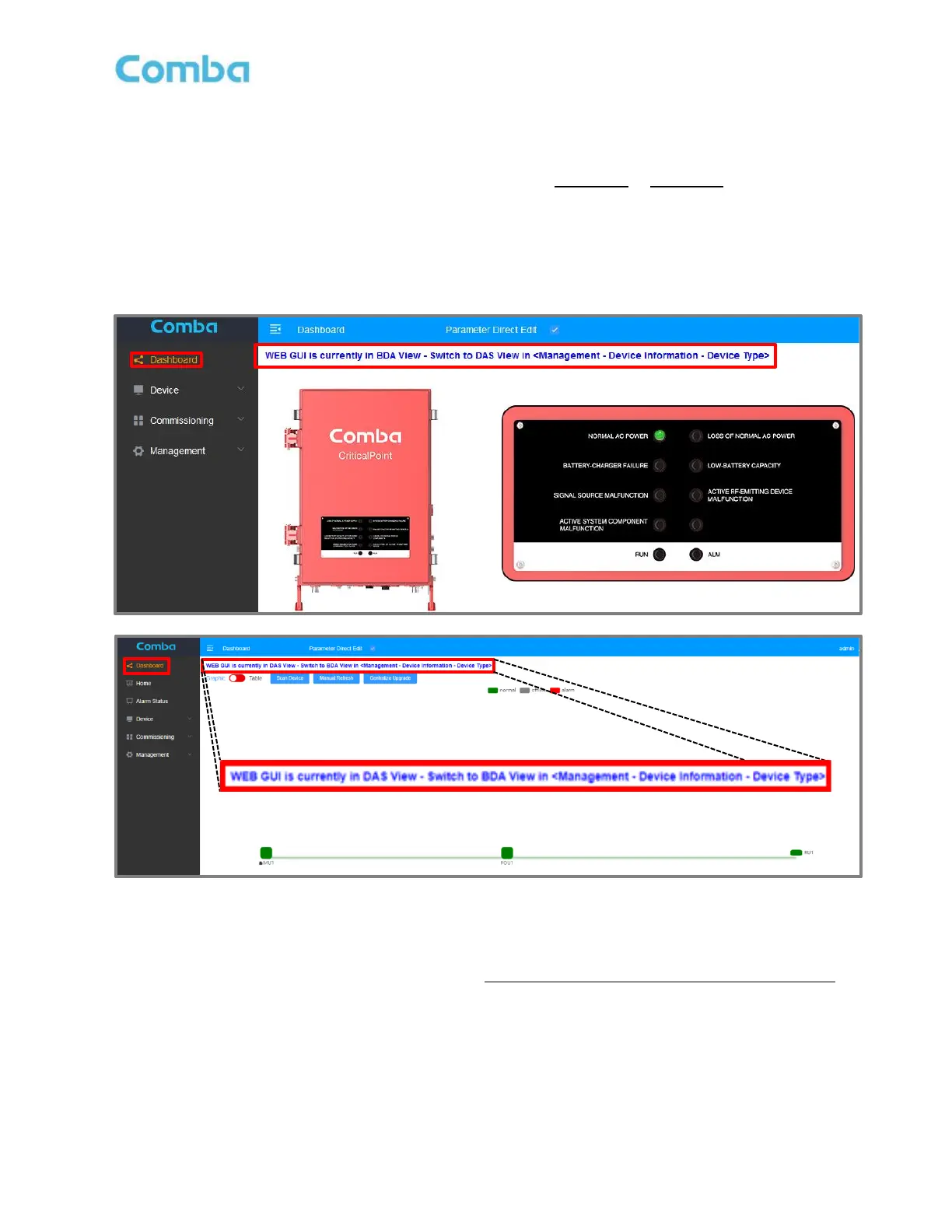
If you are using the BDA/MU device in a Fiber DAS configuration, you must change the Device Operating
mode (Device Type) in the GUI. The Device Type can be set to BDA View or DAS View to display and
configure the system components correctly. The current view is indicated on the <Dashboard> Page. See
Figure 89.
Note: The BDA/MU device uses the same firmware regardless of whether it is operating in BDA mode
or in Fiber DAS mode.
Figure 89: V3 BDA/MU Dashboard Viewing – BDA vs DAS mode
• To change the Device Type, navigate to <Management – Device Information – Device Type>
and click <Modify>. After making the change, you will be logged out of the web GUI, and the
new selected mode will be displayed after re-login. Note, upgrading the firmware will NOT
change this setting. See Figure 90.



 To Next Page