©2024 Comba Telecom. All Rights Reserved.
568 Gibraltar Drive, Milpitas, CA 95035 | +1 408 526 0180
3.15 V3 FIBER DAS – SCANNING, VIEWING AND ACCESSING DEVICES
When commissioning the system in a Fiber DAS configuration, the system <Device Type> must be changed
to DAS mode and the user must perform a <Scan Device> to identify all the connected devices in the
system.
Scanning for Devices
• Ensure all wiring and cabling has been properly installed/connected for FOU and Remote Units
per the Installation section of this user manual.
• Login into the BDA/Master Unit, and make sure the <Device Type> is set to DAS mode/view.
Refer to section 3.13
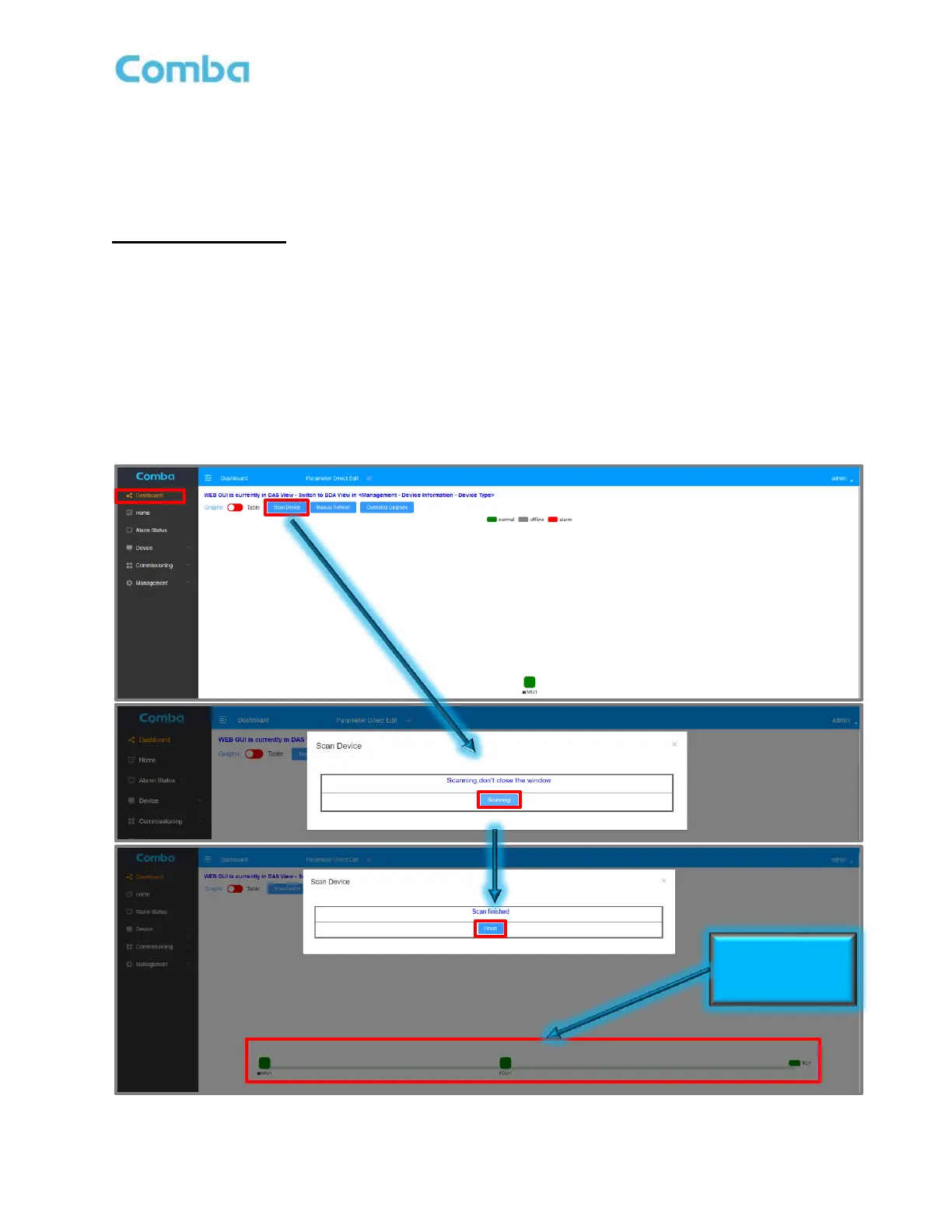
• Navigate to <Dashboard> and click the <Scan Device> button. Click the <Scan> button in the
pop-up window to start scanning for devices. It will take approximately 1 – 5 minutes to complete
the scanning process depending on the number of FOUs and RUs.
Note: Leave the window open when it is “scanning”. Click <Finish> to close the window once the scan has
finished. All FOU and RUs should be populated after the scan has finished. See Figure 92 below.
Figure 92: V3 Fiber DAS – Scanning to Identify Connected System Devices
Devices will appear
in System Tree upon



 To Next Page