©2024 Comba Telecom. All Rights Reserved.
568 Gibraltar Drive, Milpitas, CA 95035 | +1 408 526 0180
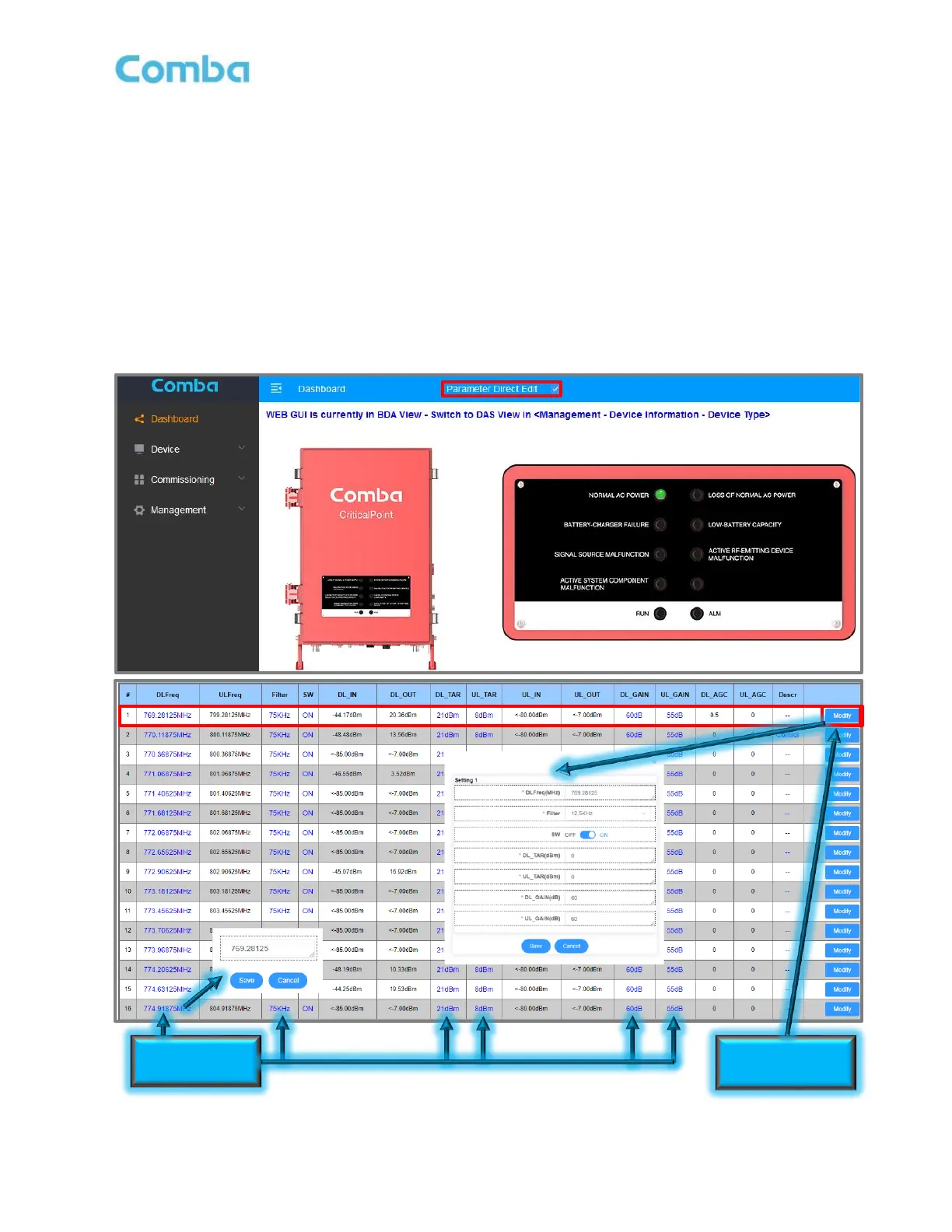
3.14 MODIFYING PARAMETERS VS PARAMETER DIRECT EDIT
There are two different ways a user can change settings for a certain parameter of the device. The first
option is to use the <Modify> button. By clicking on a <Modify> button, the user will be presented with a pop-
up window which allows the user to make changes to one or several parameters all at once. This option is
convenient during initial setup and commissioning to enter parameters quickly as a group. The second
option is to use the <Parameter Direct Edit> function. If this option is chosen, the user can also make
changes to certain parameters throughout the GUI web pages by clicking directly on that parameters link
which will be highlighted by blue text. This option is convenient if the user only wishes to make changes to
one specific parameter.
• To enable Parameter Direct Edit, ensure the <Parameter Direct Edit> checkbox at the top of the
screen is checked. See Figure 91.
Figure 91: V3 BDA/MU/RU Modifying Parameters in the WEB GUI



 To Next Page