Dry Contact Alarms (User Defined):
Users can customize alarms and configure any BDA/DAS internal alarm to trigger any dry contact output.
This is only recommended if alarm requirements do not follow one of the standard presets.
• For BDA Mode, Login to the BDA/MU and navigate to <Device – Overview – Alarm>. For DAS
Mode, Login to the BDA/MU and navigate to <Home – Device Checkbox – Alarm>.
• Click <Modify> in the <Dry Contact Alarms> section to change the configuration. Select <User
Defined> from the drop-down list. Click <Save> to apply the change.
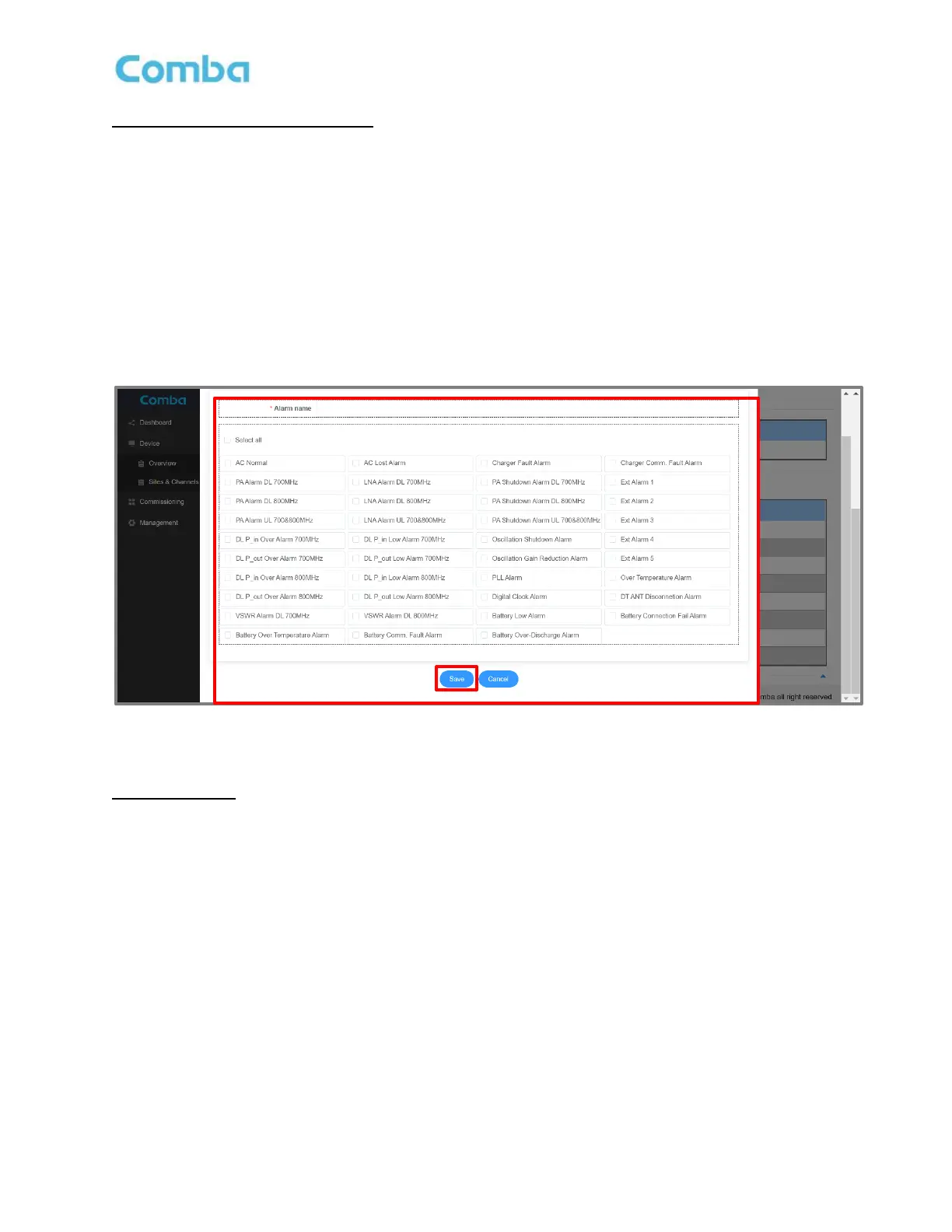
• Click <Modify> in the desired Dry Contact alarm row to configure which internal BDA/DAS alarms will
trigger the Dry Contact. Click <Save> to apply the change. Repeat for all desired Dry Contact
Outputs.
• Install Blank Front-Panel alarm plate and label accordingly.
Figure 102: V3 BDA/MU/RU User-Defined/Custom Dry Contact Alarm Configuration
External Alarms:
A user can configure an External Alarm for an external device if desired. This allows a Dry Contact alarm
from a third-party device to be monitored by the BDA/MU and can be configured to trigger one of the Dry
Contact Alarm outputs. The External Alarm(s) need to be enabled for normal use and can be set to
<Normally Open> / <Normally Closed> to trigger based on the external dry contact inputs configuration.
From the factory, External Alarm #5 is used for <Door Open> by default, however, users can use it for other
purposes if a door alarm is not required (unplug the #5 external alarm inside the BDA/DAS and configure in
the software for other External alarms).
• For BDA Mode, Login to the BDA/MU and navigate to <Device – Overview – Alarm>. For DAS
Mode, Login to the BDA/MU and navigate to <Home – Device Checkbox – Alarm>.
• In the External Alarm configuration section, click <Modify> for the External Alarm you wish to
configure.
• In the pop-up window, configure the external alarm parameters. The user can change the <Alarm
Name>, add a <Remark>, and set the <Trigger> for the External Alarm. Make sure to enable the
alarm and click <Save> to apply the change.



 To Next Page