©2025 Copeland LP.
026-1803 R13 Supervisor I&O User Guide 9 - 32
How To Add an XR75CX 5.6 Device on the Super-
visor:
1. From the Home screen, click the Control Inventory icon
(box). Click the drop-down arrow for Add Control in the
appropriate category and select from the list.
2. Select the Control or Application Type - XR75CX 5.6,
enter the Quantity, Control Name and Serial Type. Note
that Serial Type information can be entered later. Click
Save to add the application.
3. A Confirmation box will appear saying that the
application is successfully added to the system, click
Close or Edit these controls.
4. The system will display the new application(s) on the Site
Summary screen.
5. Click the XR75CX 5.6 application panel box to view the
application.
6. The system will display the XR75CX 5.6 application
parameters.
7. The user can view and configure the properties of the
application by setting the Edit Mode to “ON” on the
screen drop-down arrow on the upper right of the screen.
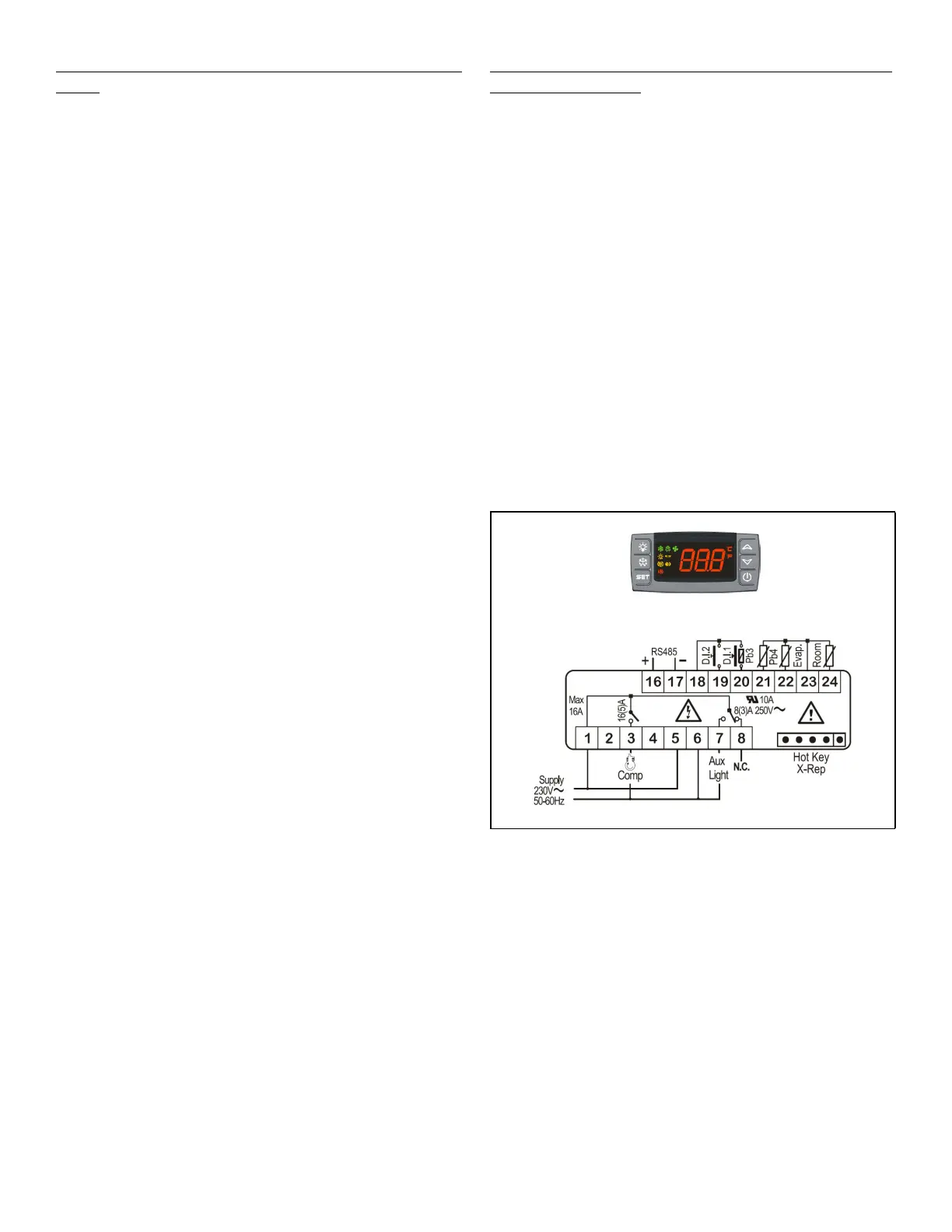
9.19 XR35CX 5.6 and 2.6
The Model XR35CX (32 mm x 74 mm) is a digital thermostat
with off-cycle, defrost, designed for refrigeration applications
at normal temperature. It has two relay outputs to control
compressor and light (configurable). It can have a Real Time
Clock (RTC) that allows programming of up to six daily
defrost cycles, divided into holidays and workdays. A “Day
and Night” function with two different setpoints is fitted for
energy savings. It can also have up to four NTC or PT1000
probe inputs: the first one for temperature control, the second
one located on the evaporator to control the defrost
termination temperature. One of the two digital inputs can
operate as a third temperature probe. The fourth probe is
used to signal the condenser temperature alarm or to display
a temperature value.
The RS485 serial output enables the controller to be
connected to a network line that is MODBUS RTU compatible
such as the monitoring units of XWEB family. The Hot Key
receptacle allows the controller to be programmed by means
of the Hot Key programming keyboard.
The controller is fully configurable through special
parameters that can be easily programmed through the
keyboard.
How To Add an XR35CX 5.6/ XR35CX2.6 Device
on the Supervisor:
1. From the Home screen, click the Control Inventory icon
(box). Click the drop-down arrow for Add Control in the
appropriate category and select from the list.
2. Select the Control or Application Type - XR35CX-5.6/
XR35CX2.6, enter the Quantity, Control Name and Serial
Type. Note that Serial Type information can be enter
later. Click Save to add the application.
3. A Confirmation box will appear saying that the
application is successfully added to the system, click
Close or Edit these controls.
4. The system will display the new application(s) on the Site
Summary screen.
5. Click the XR35CX-5.6/ XR35CX 2.6 application panel box
to view the application.
6. The system will display the XR35CX-5.6/ XR35CX 2.6
application parameters.
7. The user can view and configure the properties of the
application by setting the Edit Mode to “ON” on the
screen drop-down arrow on the upper right of the screen.
Figure 9-7 - XR35CX 5.6 and 2.6 Device



 To Next Page