©2025 Copeland LP.
026-1803 R13 Supervisor I&O User Guide I - 1
Appendix I: Supervisor Scheduling and Events Training
Adding New Schedule
The Time Schedule application schedules lighting or
occupancy state activities.
Time Schedule Types:
• Master (Parent)
• Slave (Child)
Logging In
1. Launch a preferred web browser.
2. Enter the IP address of the device.
3. The default IP Address is 192.168.1.250.
4. Enter user for Username and pass for Password and
click the Login button.
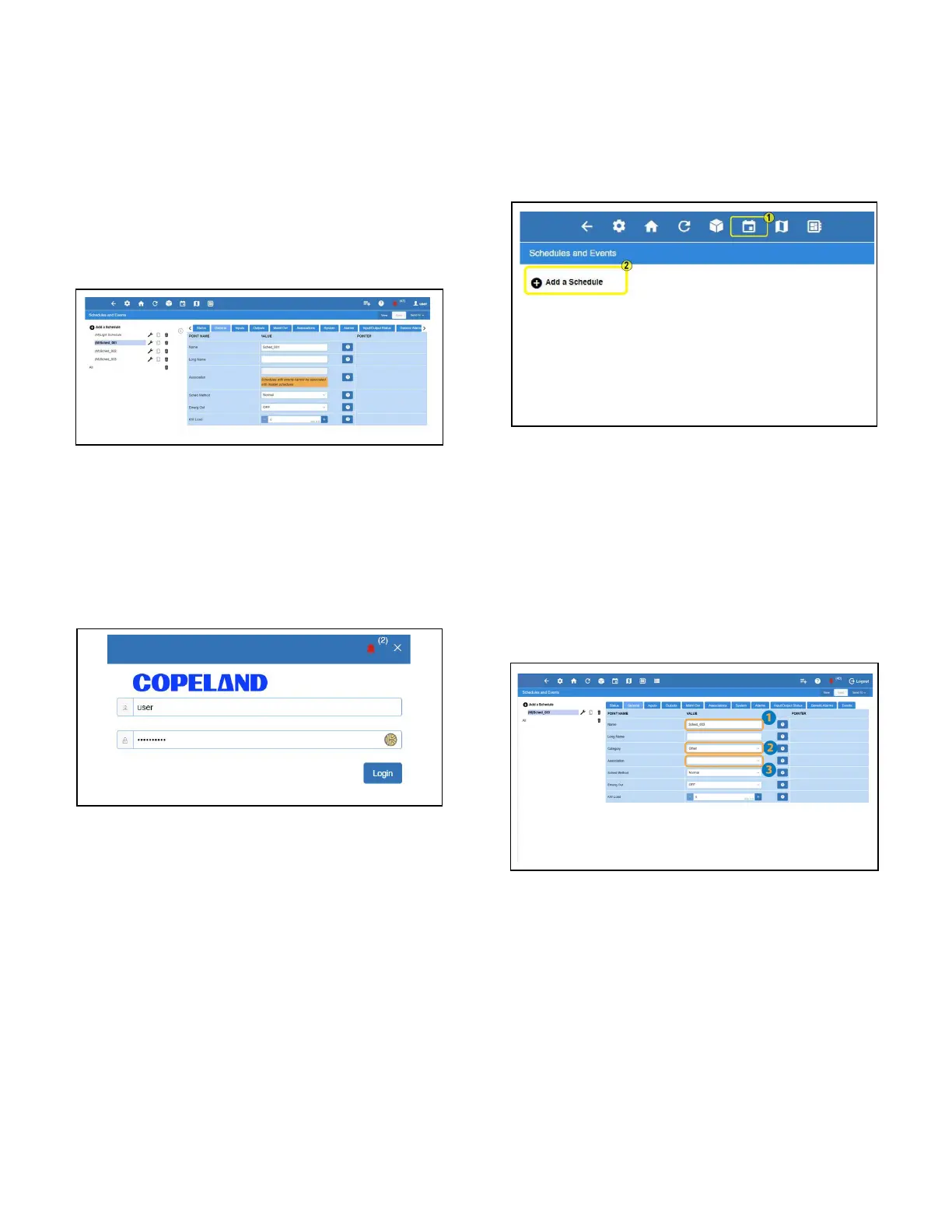
Setting Up Schedules
1. Click the Schedules and Events icon.
2. Click Add a Schedule.
Schedules - General Tab
1. Enter a name for the new schedule.
2. Select Others from the Category drop-down list to
specify the subsystems that the Time Schedule is
providing service to.
3. If a Master (Parent) schedule has already been defined
and the new schedule is to be a Slave (Child), select the
Master (Parent) schedule from the Association drop-
down list.



 To Next Page