©2025 Copeland LP.
026-1803 R13 Supervisor I&O User Guide G - 1
Appendix G: Firmware Update
When a USB device containing Supervisory Controller firmware package is plugged into the Supervisory Controller device, the
system will automatically detect it. Once the user reaches the firmware updating page, the firmware from USB disk option can be
selected. The firmware updating process includes three steps:
• Select: Select a firmware package from the USB and conduct a legitimacy check.
• Transfer: Transfer the selected firmware from the USB to the Supervisory Controller.
• Apply: Upgrade the transferred firmware to the targeted Supervisory Controller.
A processing bar will appear to inform the user of the real-time processing during transferring and application. The system will
reboot automatically when the application process is complete.
Firmware Update - Remote Access
1. Download the latest firmware update file (for example, “SS_2.0XF01_Firmware_Update) to a location on your PC.
2. Connect a standard Ethernet cable from the Supervisory Controller (ETH 0 port) to a router and enter the Supervisory
Controller IP address into a browser.
3. Login and select Configure System > File Management & Licensing from the Main menu
4. Before proceeding with the firmware update, click Backup (to back up configuration files).
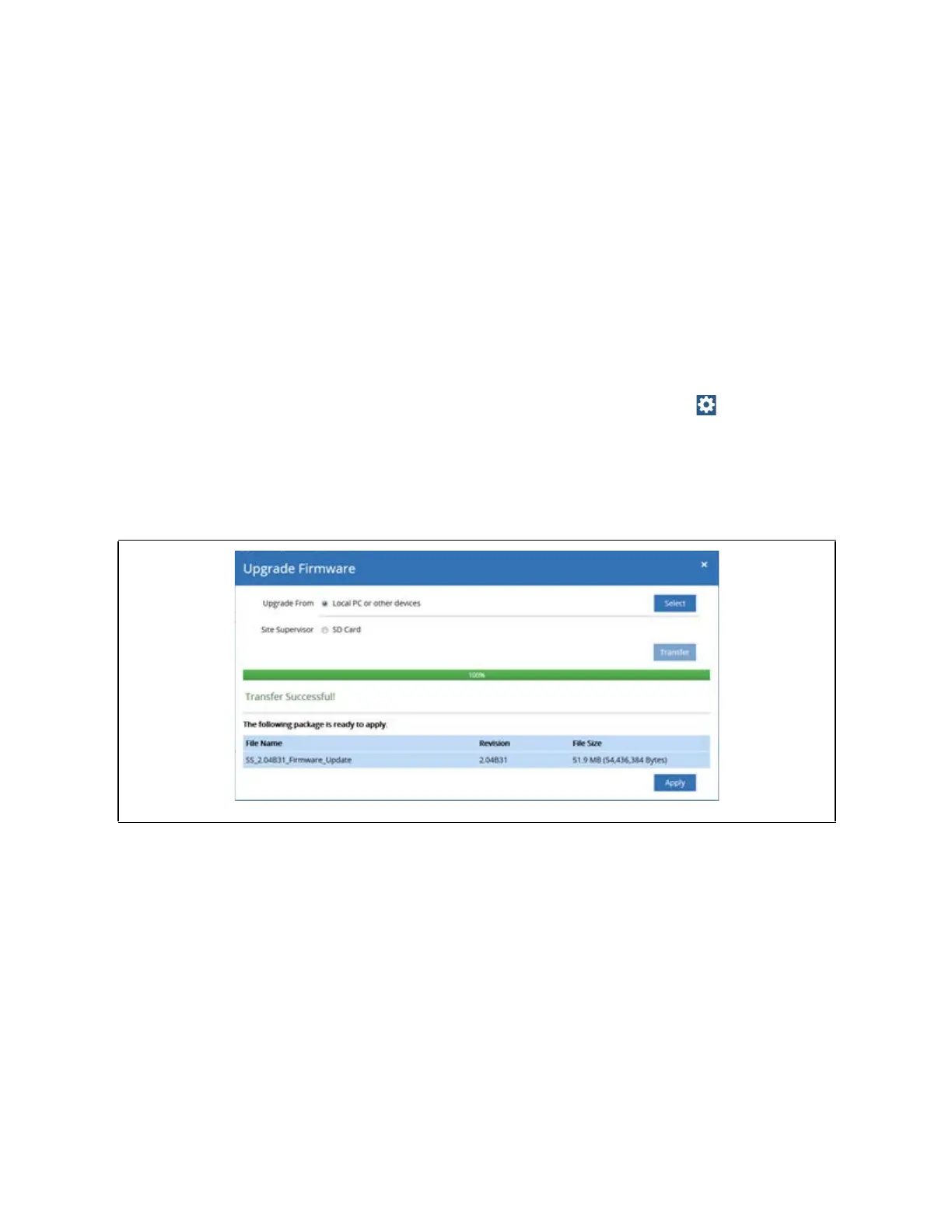
5. Once the backup is complete, click Upgrade Firmware and click Select. Browse and locate the latest firmware update file.
Select the file and click Open or double-click the file to load.
6. A Loading file message will appear (wait for several seconds). Once loaded, the Revision and File Size will display.
7. Click Transfer. A progress bar will appear with the percentage complete.
8. Click Apply. A progress bar will appear with the percentage complete. The system will reboot and restart automatically
when the upgrade is complete.
9. The new firmware version number will appear in the lower right corner of the screen.
Upgrade Firmware - Remote Access



 To Next Page