©2025 Copeland LP.
026-1803 R13 Supervisor I&O User Guide F - 4
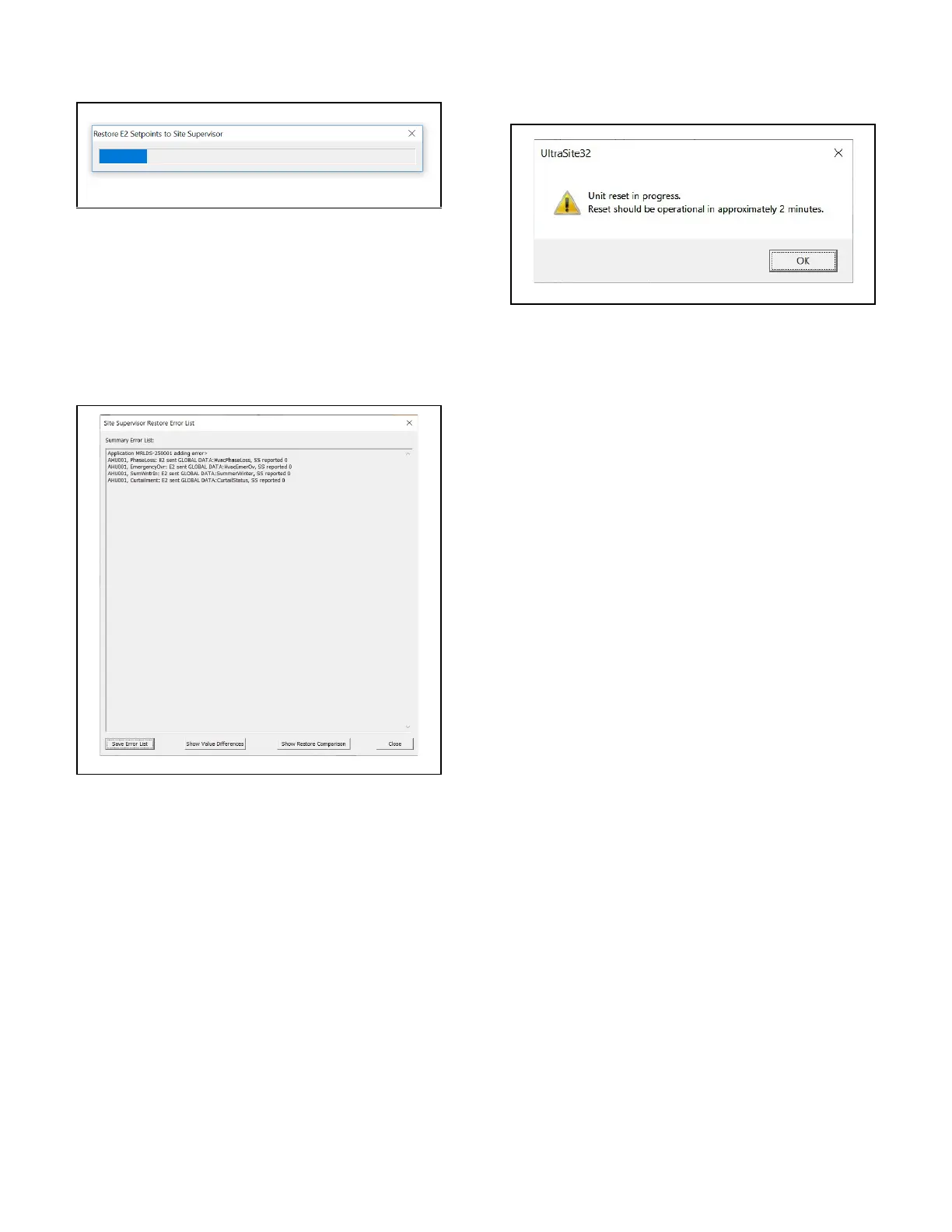
6. A status bar of the restore process will display (wait time
is dependent on the file size).
7. When completed, a Site Supervisor Restore Error List
(Site Supervisor Restore Error List) will display and
contain a Summary Error List of any of the following:
• Unsupported or applications that cannot be converted.
• Invalid properties.
• Mismatched properties, points, parameters, and more.
• Applications that encountered issues during the restore.
8. Click Save Error List to save the Summary Error List in a
.csv file.
9. Click Show Value Differences to show an html view of
the Summary Error List.
10. Click Show Restore Comparison to open a .csv file of all
the points sent by the E2 with a side-by-side comparison
of the Supervisor values. This file can be saved or closed.
11. Click Close or the X at the top right to close the Site
Supervisor Restore Error List window.
12. The following message will display:
13. Click OK to start the Supervisor reboot process and
confirm the Site Supervisor has rebooted
successfully.
Step 3: Restore Errors Listed on the Site Supervisor
Restore Error List
1. In UltraSite, connect to the E2 with the setpoints that
were restored to the Supervisor.
2. For each application/device listed in the Site Supervisor
Restore Error List, right-click and select Edit Application.
3. For each error, compare the properties and their values to
the same application/device in the Supervisor tab point
names and values (for Site Supervisor, always click
Advance).
4. Change or add the Supervisor’s value, setpoints, devices,
applications, parameters to match the E2.
.
Restore Process Status Bar
.
Site Supervisor Restore Error List
.
Site Supervisor Restore Error List



 To Next Page