©2025 Copeland LP.
026-1803 R13 Supervisor I&O User Guide 4 - 10
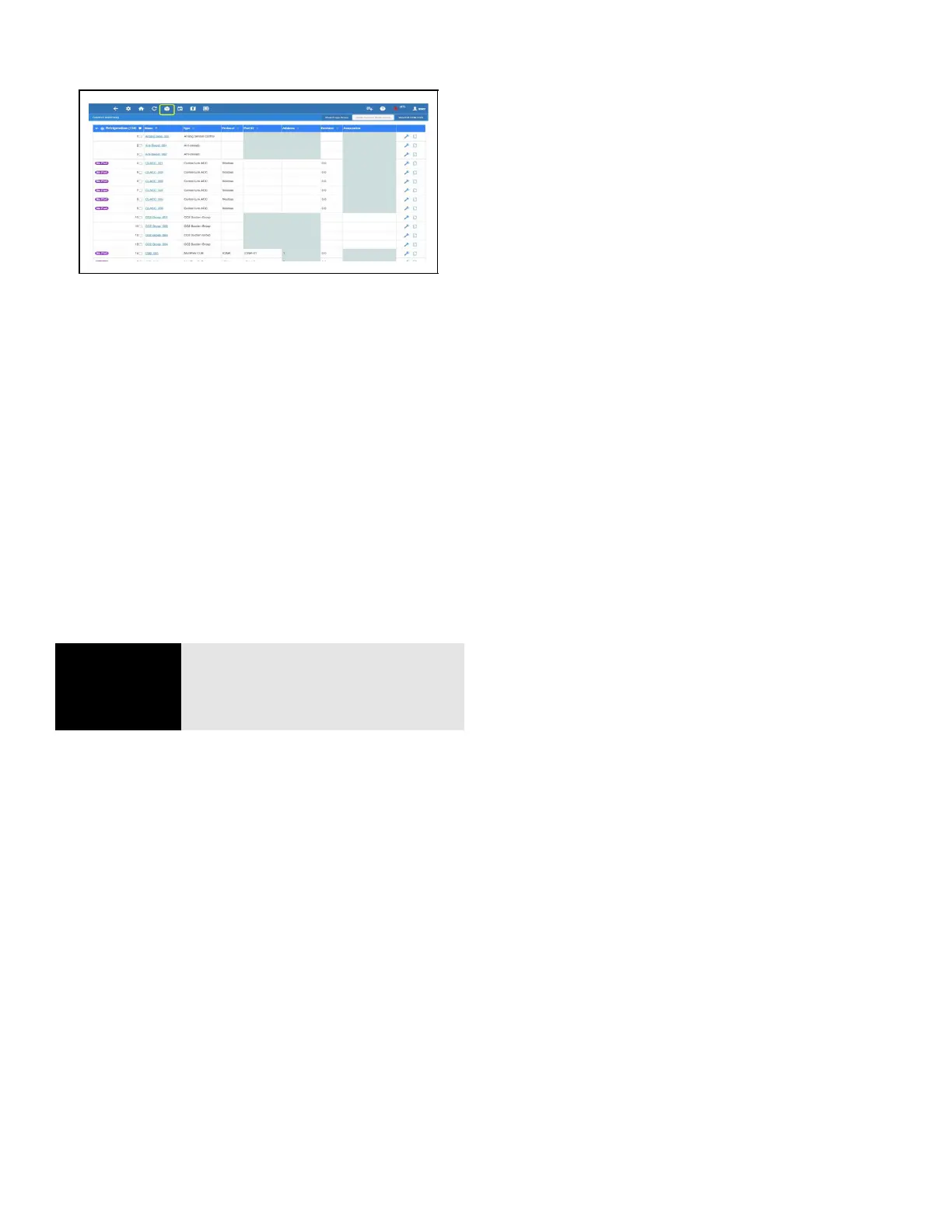
4.9.3 Control Inventory
Control Inventory provides a centralized control list by
category. It allows you to view the network status of controls,
and perform the following functions: create and duplicate
one or more controls to a group quickly, commission a
device, associate controls to other controls, edit the control
name or commission information for existing controls, and
delete a control from existing groups.
To duplicate an application, the appropriate user privileges
must be assigned. The user can specify the number of
duplicated instances for a device or application. When a
device or application is duplicated, the points specified by
the user or application type on the status tiles is also
duplicated. The name of each duplicated instance is unique.
The maximum total number of application instances of a
given type, including duplicated instances of that type, will
not exceed the license limit for that type.
4.9.3.1 Adding Applications
1. Add an application to your Supervisor by first going to the
Control Inventory page.
2. After logging in, click the Control Inventory icon at the
top of the screen.
3. From the Control Inventory screen, select an application
to add from the drop-down list at the bottom of each
category.
4. Fill in the fields and click Save.
5. Go back to the Home screen to verify the
application appears under the category.
4.10 ADFs
An ADF is an Application Description File. ADFs allow a
particular device to communicate on the Supervisor. An ADF
is required before connecting a non-native device on the
Supervisor. The ADF is not automatically activated on the
Supervisor after installation. A license key is required to
enable specified instances of the application/device. Contact
your Sales representative or Customer Service to obtain an
ADF. The ADF can be uploaded on the Supervisor using the
File Management screen. A license key is required to active
the application after the ADF has been uploaded. A license
key can be obtained from Technical Support with necessary
approval. Email
ColdChain.TechnicalServices@Copeland.com
with the below information to generate the required license:
1. Name of the application/device
2. Supervisor MAC address and Model Type
3. Number of instance of the application
Figure 4-13 - Control Inventory Page
NOTE
Once the user has logged in, click the
duplicate button next to the
application on the screen. Select the
count in Number of Duplicates.



 To Next Page