©2025 Copeland LP.
026-1803 R13 Supervisor I&O User Guide 4 - 8
4.7 Language Settings
The default for the language selection is English (United States). The system will store a setting for the preferred system
language (internal language code). This is used when no authorized user is logged in. The default language is used as a fall
back when the currently active preferred language doesn’t contain a translation for the given label, prompt, or display text.
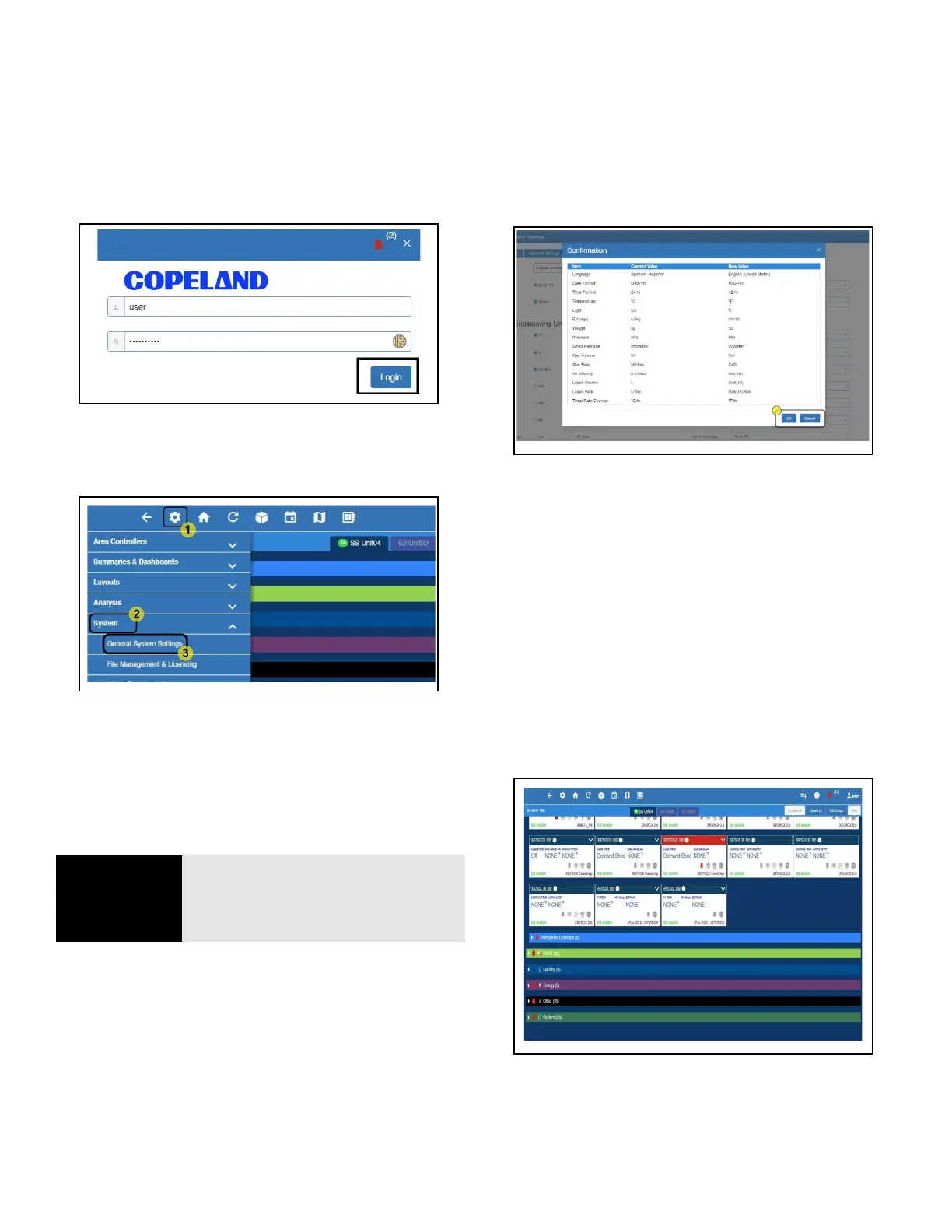
To change the language setting:
1. Log into the Site Supervisor.
2. Click the Main Menu icon.
3. Click Configure System > General System Settings.
4. On the General System Settings page, click the
Localization tab.
5. Choose the preferred language on the Language drop-
down menu.
6. Click the Save button.
7. The Confirmation pop-up box will appear on the screen
showing the summary of changes, click OK or Cancel
button.
4.8 Locating and Working With
Applications
Applications in the controller are located on the Home screen
and from individual application screens and are easy to find.
Each of the five categories can be seen on the Home screen
and if applications have been set up, they will display under
the category to which they have been assigned. For example,
in Figure 4-7 all of the five categories are displayed with
Refrigeration containing two applications that have been set
up. Choose an application and the categories will then be
displayed as icons across the top that are easily accessible.
Click the icons to see the applications.
Figure 4-4 - Logging In
Figure 4-5 - Language Settings Set Up
NOTE
NOTE: English is the only language
available. Changing this setting will
only change the engineering units
appropriate to the region selected.
Figure 4-6 - Language Settings Set Up
Figure 4-7 - Home Screen Application Menus



 To Next Page