©2025 Copeland LP.
026-1803 R13 Supervisor I&O User Guide 9 - 39
How To Add an XR75CX 2.6 Device on the
Supervisory:
1. From the Home screen, click the Control Inventory icon
(box). Click the drop-down arrow for Add Control in the
appropriate category and select from the list.
2. Set the Port ID and Address and click checkmark to add
and save changes. Click the wrench icon to edit and the
pages icon to duplicate.
3. A Confirmation box will appear saying that the
application is successfully added to the system, click
Close or Edit these controls.
4. The system will display the new application(s) on the Site
Summary screen.
5. Click the XR75CX 2.6 application panel box to view the
application.
6. The system will display the XR75CX 2.6 application
parameters.
7. The user can view and configure the properties of the
application by setting the Edit Mode to “ON” on the
screen drop-down arrow on the upper right of the screen.
9.22.1 Application Advisories
9.22.2 Command
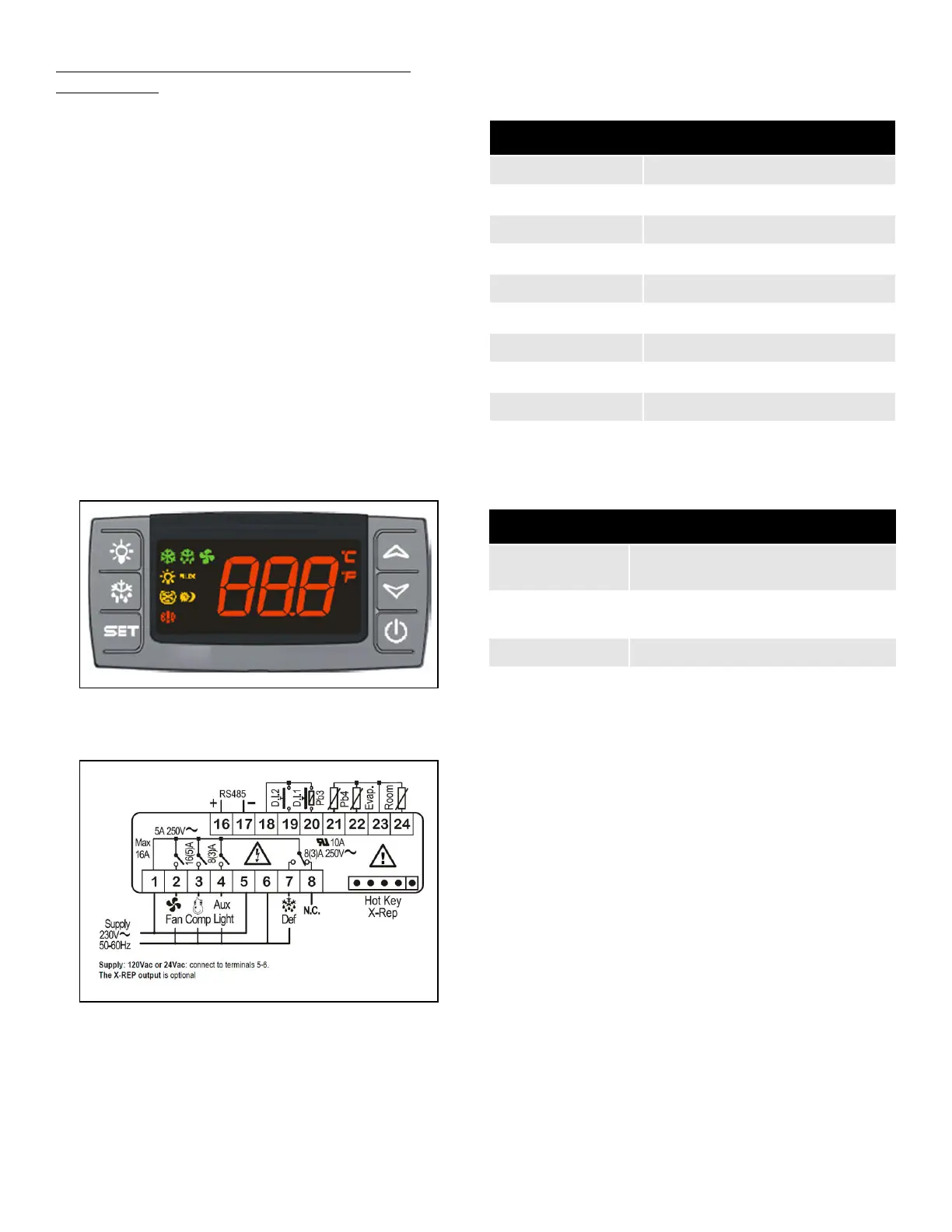
Figure 9-10 - XR75CX 2.6 Device
Figure 9-11 - XR75CX 2.6 Wiring Connection
Table 9-20 - XR75CX 2.6 Application Advisories
Alarm Description
EXTERNAL ALARM External alarm
DOOR OPEN Open Door alarm
EEPROM FAILURE EEPROM Failure alarm
CASE TEMP FAIL Case temperature probe failure alarm
DEFR TERM FAIL Defrost termination probe failure alarm
HIGH CASE ALM High case temperature alarm
LO CASE ALM Low case temperature alarm
RTC DATA LOST RTC data lost alarm
RTC FAILURE RTC failure alarm
Table 9-21 - XR75CX 2.6 Commands
Command Description/Alarm Text
Keyboard LOCK The front panel is locked cannot be
used.
Keyboard
UNLOCK
The front panel is unlocked and can be
used.
Alarms Muting Silences the alarm output.
Defrost Periodic Sends the Disable Standalone Defrost
command.



 To Next Page