©2025 Copeland LP.
026-1803 R13 Supervisor I&O User Guide 4 - 7
4.6 Basic Screen Elements
Table 4-2 - Basic Screen Icons
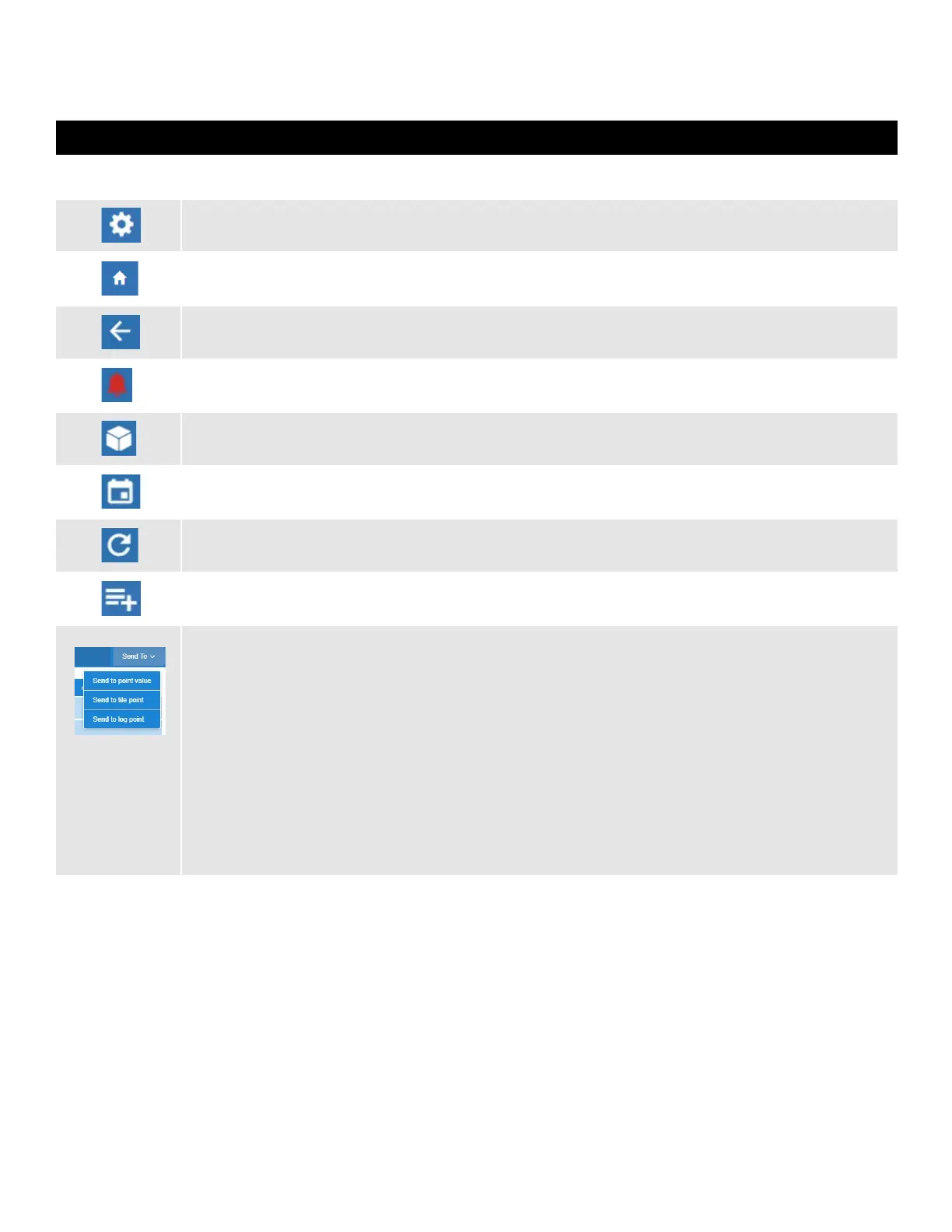
Icons Functions
Main display - This is the main section of the screen, which contains and displays the content of the chosen
selection such as reports, device information, configuration settings, and more.
Main Menu (gear) - When clicked, the Main Menu panel will slide open containing the menus and submenus of the
controller.
Home button - Returns you to the default Home screen of the controller.
Back button - This button will return you to the previous screen. The Back button is indicated by a left arrow icon.
Active Alarms (red circle with exclamation mark) - When this icon is clicked, the screen will display the current active
alarms. The number of alarms is displayed in parentheses next to the exclamation mark.
Control Inventory (box) - Select this box to access the Control Inventory screen where applications can managed.
Time Schedules (calendar) - Select to access the Schedules and Events screen where Schedules, Events, Inputs/
Outputs, Alarms, and System information is located.
Refresh - Select to return to the Home screen and log out.
Application Icon - Click to choose an application from the list and add to the controller. Once added, you will be
taken directly to that application screen in the controller.
Send To
• Changes to multiple applications at the same time using the Send To button. Changes to summary parameters,
setpoints, log points, and other parameters can now be sent to multiple, user-selected “like” applications. A single
change or multiple changes can be sent to all “like” applications using the Save and Send To buttons, eliminating
making a change individually to each application one at a time. For example, updates to a temperature setpoint
can be sent with a single click to all controllers that you wish to update. The save confirmation will confirm all
changes made.
• Source points can be sent to target users. Tile point changes to an application can be sent selectively to other
applications of the same type. Tile point displays can be easily created for specific application and users.
• Sending source points to target users from the Send To drop-down menu. When sending tile points to another
user, note that points cannot be sent to an administrator and the admin roles will not appear in the list of available
users. Custom user roles will also appear in the list of available target users. Select from the list of non-admin user
role choices.



 To Next Page