©2025 Copeland LP.
026-1803 R13 Supervisor I&O User Guide 6 - 1
6 Alarm Configuration
Alarms in the supervisory controller can be generated from
different sources including external networked devices,
applications, value-added applications, and sub-systems.
Alarm configuration, transmission, and history settings can be
defined by the user.
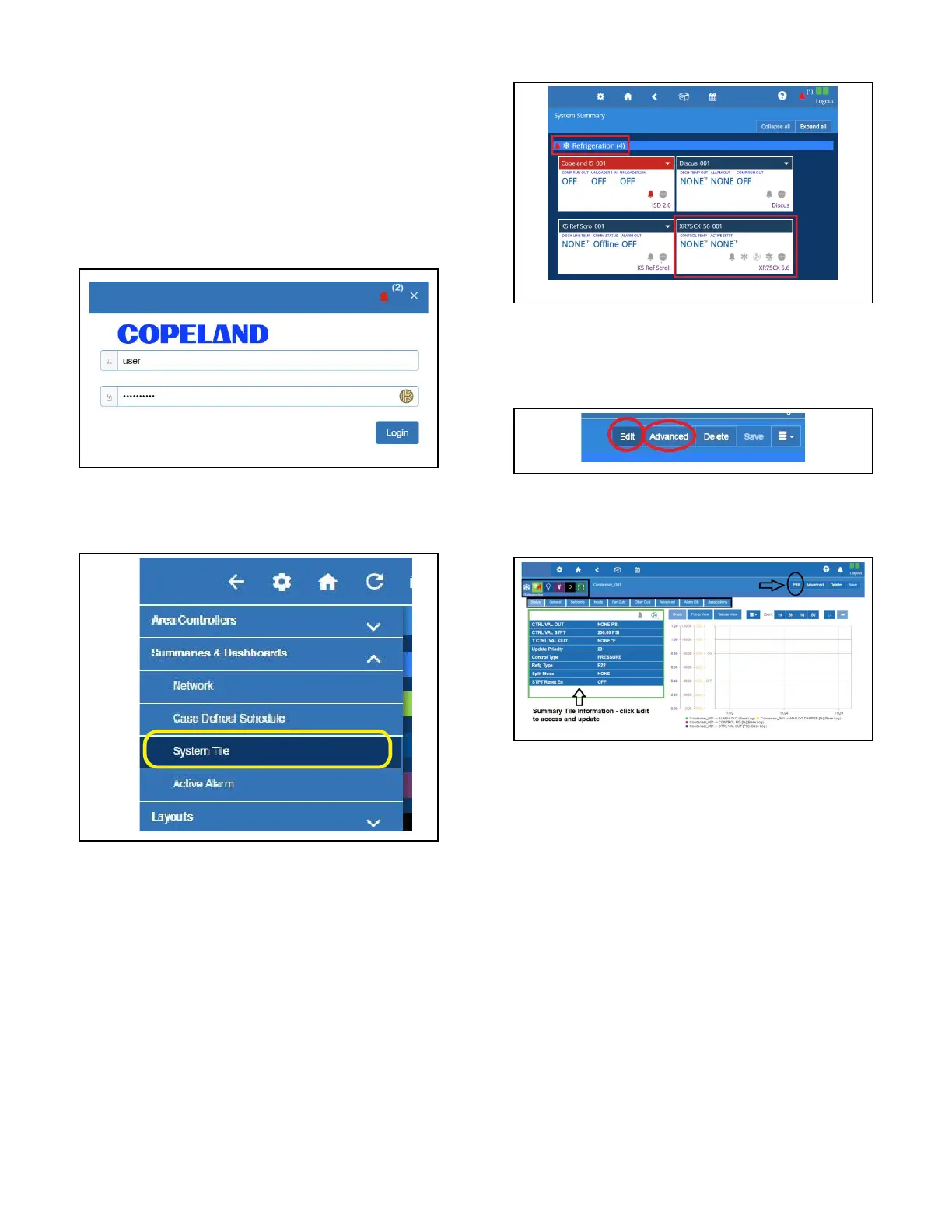
1. Log in to the Site Supervisor by clicking Login on the
Main Menu, located on upper right side of the screen and
enter your username/password.
2. From the Home screen, navigate to Summaries &
Dashboards > System Tile.
3. In this example, alarm configuration for XR75CX 5.6
controller is used. Select the XR75CX 5.6 device on the
Site Summary screen to access the device status page.
4. On the drop-down menu on the upper right of the screen,
click Edit and Advanced to access configuration
properties and alarms for the XR75CX 5.6 device.
5. Click each tab to see the XR75CX parameters:
In the Status tab, selecting properties for the Status tab list is
unlimited. The top 10 properties shown on the System
Summary tile will appear with a different color from the rest of
the items on the list. Properties can be dragged and dropped
into the list and color designations can be changed. Note
that under the Status tab on any device application page,
the wrench icon can be clicked for customizing the
summary tile information.
Users who are logged in with System Administrator privileges
can overwrite the default setting on the selected point's
section that will be synchronized with the tiles on the System
Summary page. New category icons are located across the
top and when clicked will go to those application pages.
Figure 6-1 - Site Supervisor Login
Figure 6-2 - Accessing Site Summary
Figure 6-3 - XR75CX Under Refrigeration
Figure 6-4 - Accessing the Configuration Properties of
XR75CX 5.6
Figure 6-5 - XR75CX 5.6 Tabs



 To Next Page