©2025 Copeland LP.
026-1803 R13 Supervisor I&O User Guide F - 1
Appendix F: Using the E2 setpoint conversion tool when retrofitting E2 with
supervisory or E3 controllers: Using the Latest Version of UltraSite32™
Note:
• Conversion of E2 setpoints should be done using a .003
setpoint file extension.
• 3rd party integrations are not supported by this
conversion process.
When retrofitting E2 with supervisory controllers, a backup/
restore process should be performed on the E2 controller.
The supervisory controller will run the same devices and
applications as the E2, but instead of manually entering the
information, the setpoints and configurations can be
automatically converted from the E2 to the supervisory
controller using the latest version of UltraSite. The conversion
tool can be expected to convert 80% or more of your E2
backup file. The conversion process will take between 10 to
20 minutes depending on the complexity of the backup file.
You must do a side-by-side comparison of the E2 backup file
and the newly converted Supervisor file to verify there are no
errors. It will be necessary to review all setpoints and alarms
for consistency in addition to the error log report and restore
comparison log (see ) that is generated at the end of the
conversion process to ensure your new system will run
properly. Licensed features will not convert if your new
controller does not have the licenses or features installed.
Note that some complex schedules and Flex Combiners may
not be converted.
For any firmware version below 3.05F05, it is recommended
to upgrade in the order listed below to at least 3.08F03, then
do a back-up (.003) to restore to the Site Supervisor or E3.
Step 1: Set Up Supervisor in UltraSite
14. Log into UltraSite as user/pass.
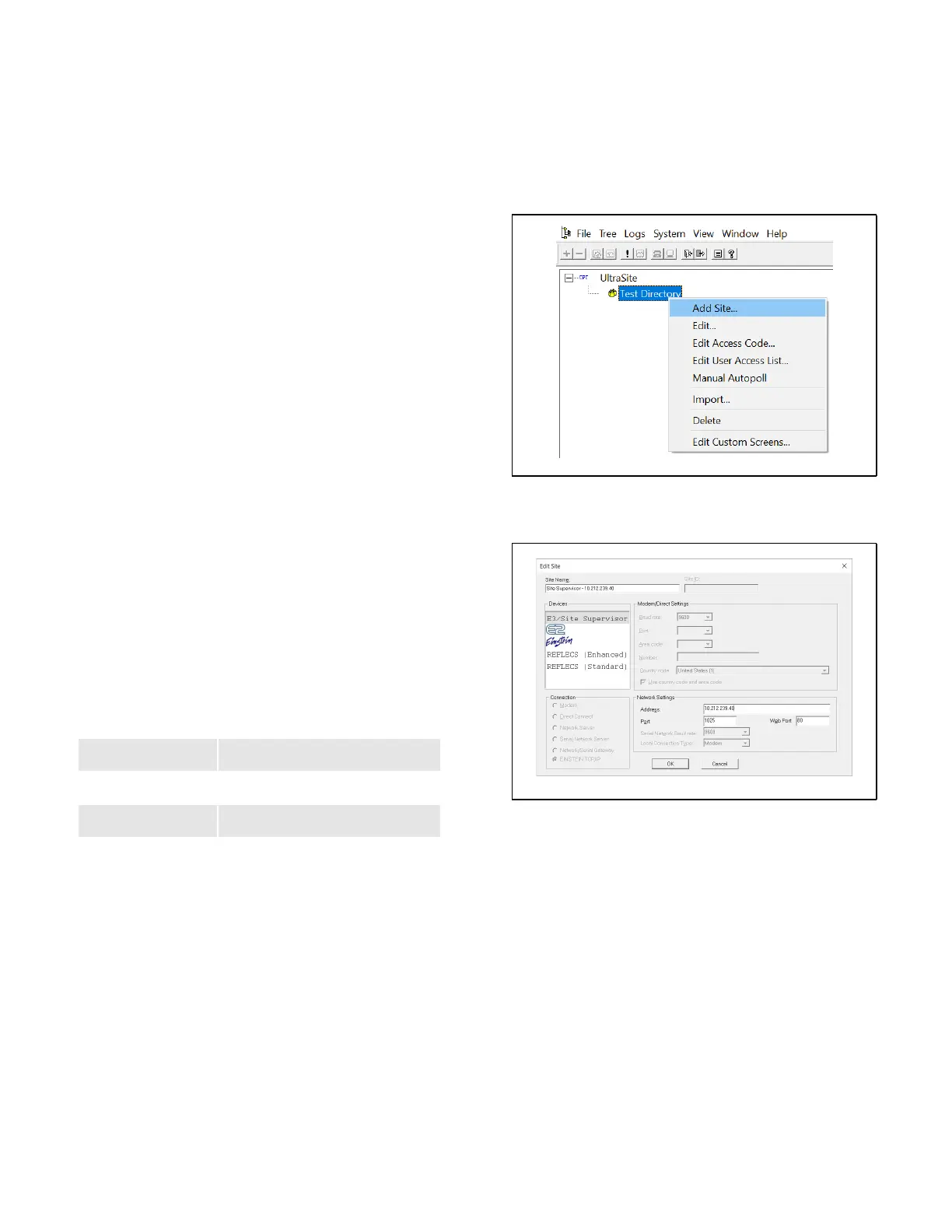
15. Add Supervisor as a Site (right-click Directory and click
Add Site).
16. The Add Site window displays:
17. Enter a Site Name.
18. Enter the Site Supervisor IP Address in the address field
under Network Settings.
19. Select the Supervisor controller under Devices. Confirm
Site Supervisor is highlighted under Devices, if it is not
highlighted, select Site
Supervisor.
20. Confirm EINSTEIN TCP/IP is auto-selected under
Connection and confirm that Port and Web Port are
correct (these values should match your Site Supervisor).
21. Click OK.
1
st
upgrade
3.05F05
2
nd
upgrade
3.08F03
3
rd
upgrade
3.09F04
4
th
upgrade
Current release
.
Click Add Site
.
Site Configurations



 To Next Page