©2025 Copeland LP.
026-1803 R13 Supervisor I&O User Guide 4 - 14
4.14 Icons or Buttons Appearing on the Home Screen
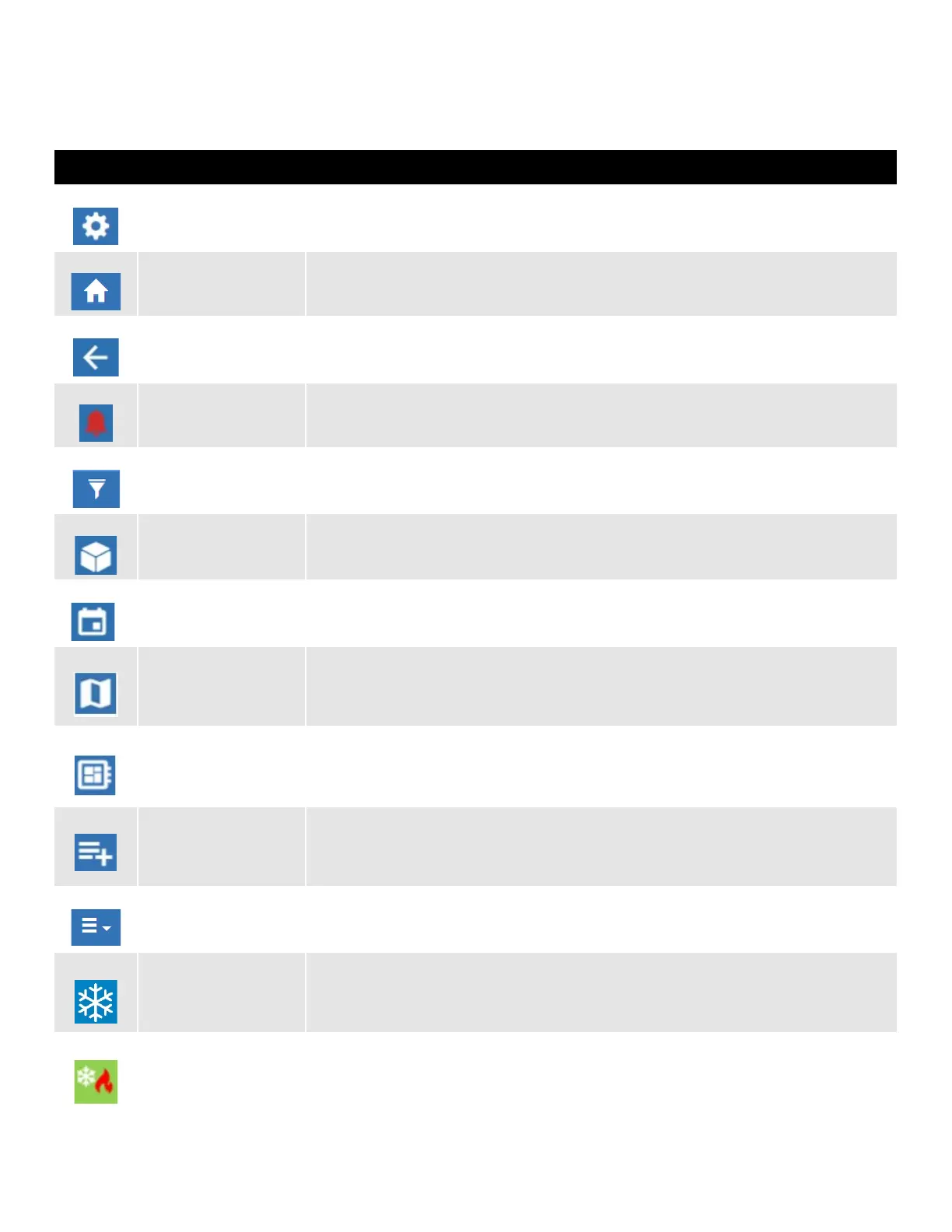
Table 4-3 - Top Screen Icons and Buttons
Icon Function
Main Menu Gear Icon
Found at the top left-hand side of the page. When the main menu gear icon is clicked, the main menu panel
will slide open containing the menus and submenus of the controller.
Home
Opens the main menu panel when clicked. The main menu panel contains menus and submenus of the
controller.
Back Arrow The Back button will return you to the previous screen.
Active Alarms When the Active Alarm icon is clicked, the screen will display the current active alarms.
Filter
Clicking the Filter icon opens the Filter Alarms screen which allows you to choose or filter the type of alarm
you want to see on your Active Alarms screen.
Control Inventory
Click to manage the system-wide inventory of applications. Edit, delete, and add applications from this
screen.
Time Schedules Click to add and edit schedules and events.
Floor Plan Displays the Floor Plan screen where you can select and work with floor plans.
Physical I/O Status Displays a system-wide report of all inputs and outputs for all Applications in the controller.
Add Application
Click to choose an application from the list and add to the controller. Once added, you will be taken directly
to that application screen in the controller.
Screen Drop-down Menu
The screen drop-down menu is activated when the current screen is active/online. This menu contains
other options such as Download, E-mail, Print, and View History.
Refrigeration
Displays on Home screen and application screens. Shows all applications in the controller that are
categorized under Refrigeration.
HVAC
Displays on Home screen and application screens. Shows all applications in the controller that are
categorized under HVAC.



 To Next Page