©2025 Copeland LP.
026-1803 R13 Supervisor I&O User Guide 4 - 12
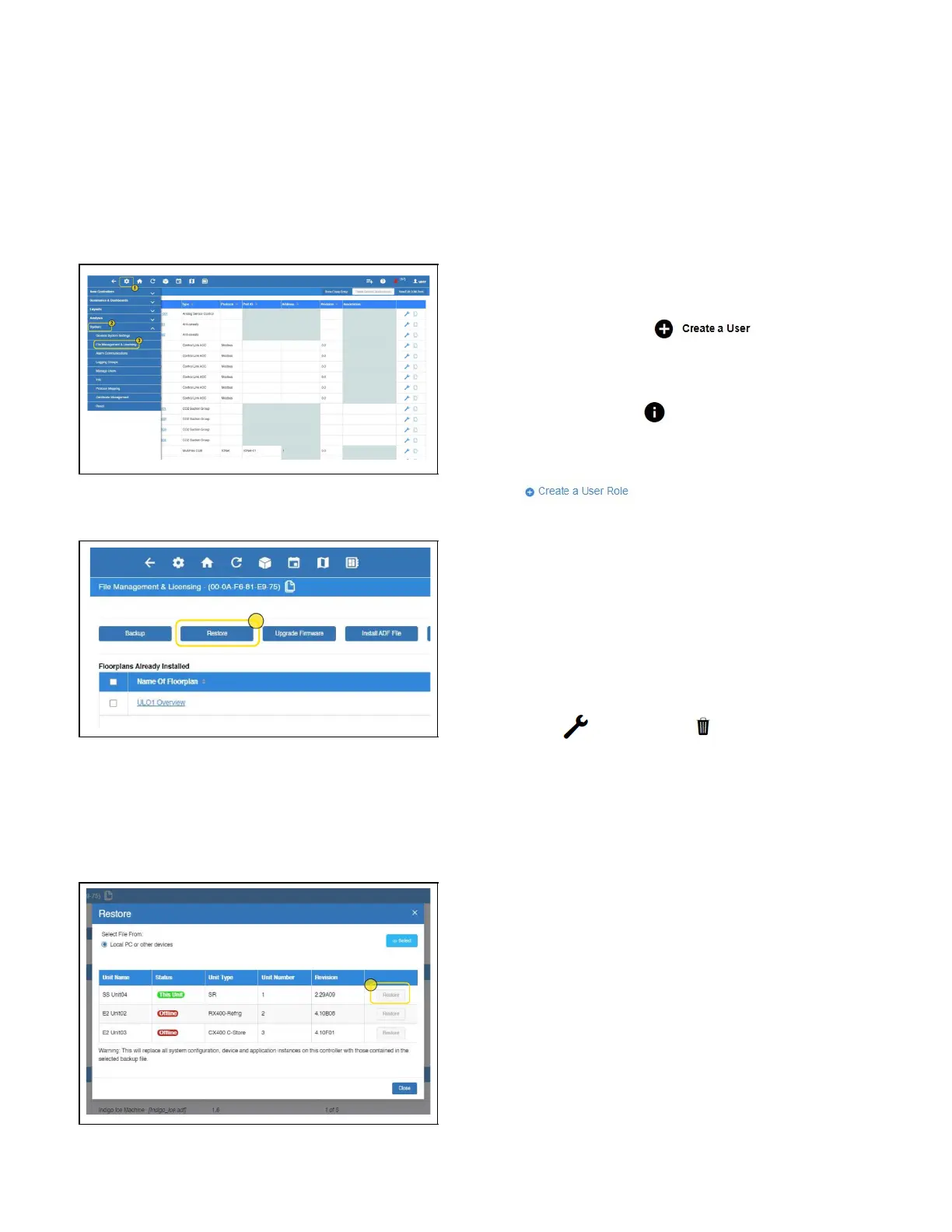
4.11.3 Restore
If the Backup file is available, a Restoration can be performed.
To successfully Restore, the Supervisor used to create the
Backup and the Supervisor to be restored should be the
same model. The ADF and license keys must be complete on
the Supervisor to be restored, matching the applications
configured on the Backup file.
1. From the home page, click the gear icon and choose
Configure Settings > File Management & Licensing.
2. Click Restore.
3. Select the source of the Backup file. Click Select.
4. Select the Backup file from its location.
5. Click Open.
6. Click Restore.
7. Click OK or Cancel on the confirmation window.
The Site Supervisor provides a restore notice when restoring
backup files. The notice will list any applications that did not
restore and the reason why, such as number application limits
exceeded, or missing ADF files.
4.12 Setting User Roles
To set up user roles and manage user accounts, you must
have Administrator permissions.
1. Click the gear icon and choose System > Manage
Users.
2. Click Create a User .
3. The Manage Users screen opens where you can enter
information. When selecting the user role, click the
information icon ( ) next to the role and set the
permissions and click Save.
4. To create a new user role, click Create a User Role
.
5. Then, choose an existing template to build permissions.
For example, choose System Admin for the Template
and all permissions would be enabled. If choosing Non-
Technical End User, all permissions would be disabled
except for permission to mute alarms. Choose one that
best fits the role of the user you are creating and
customize. Administrators can edit or delete custom user
roles by an Admin by clicking the icons that appear next
to it.
6. To edit or delete your custom user roles, use the
Edit ( ) and Delete ( ) icons next to the
customer user role name.
Figure 4-19 - File Management & Licensing
Figure 4-20 - Restore
Figure 4-21 - Restore



 To Next Page