117
Table 20. Log Filters
The ‘Details’ button provides more information about the currently selected log entry. The ‘Selftest’ button provides
direct access to the self test panel in the event a maintenance procedure is needed in response to a log entry.
16.3 Reagent Status
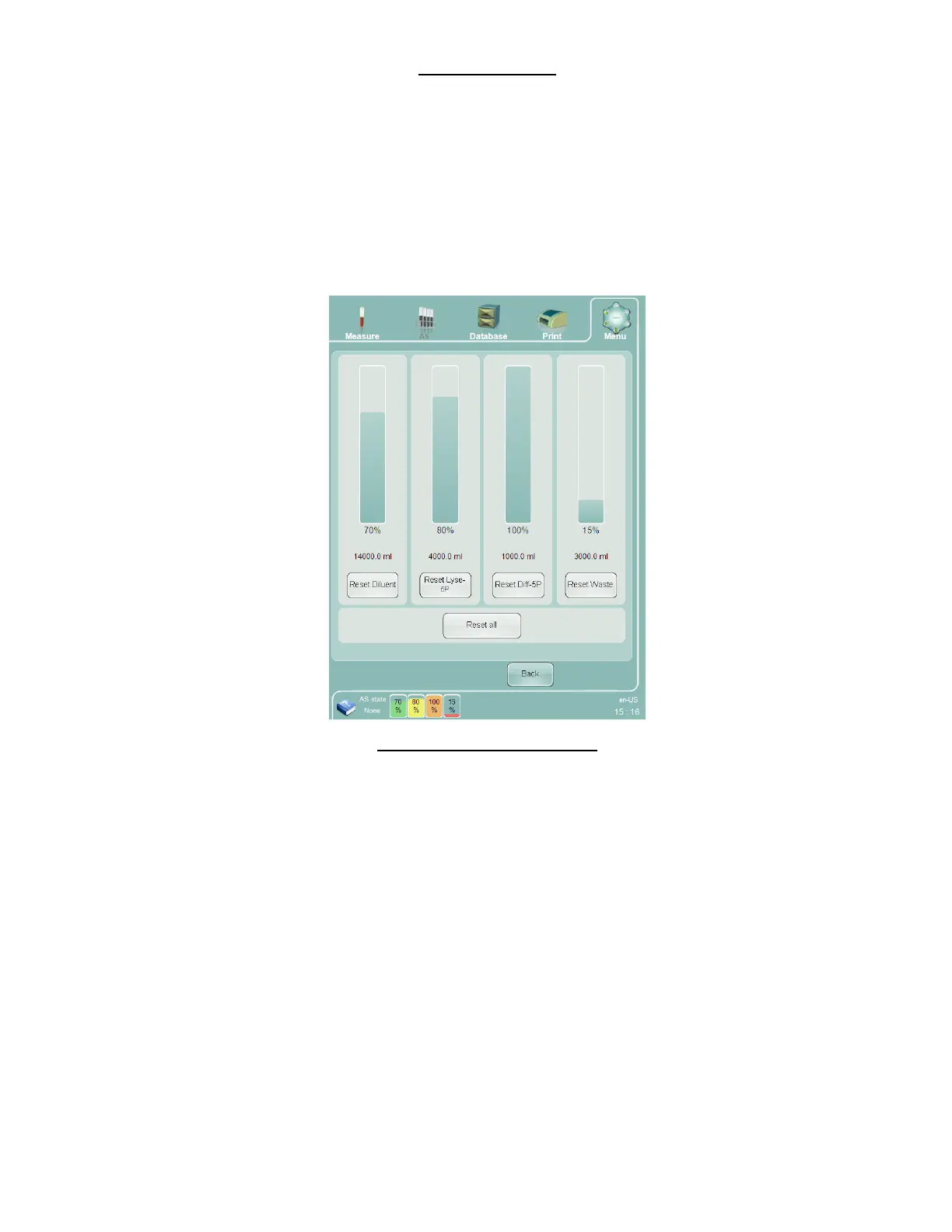
The reagent status panel displays the level of each of the on-line reagents and waste containers. It provides the
means to reset the levels of each of the reagents in the event of a reagent container change. It also provides the
means to reset the waste container level in the event the waste is emptied. A ‘Reset all’ button is also provided in the
event of a change of all reagent containers and emptying of waste.
Figure 88. Reagent Status Panel
The ‘Abacus 5’ analyzer has built-in reagent consumption calculators. The calculated level of each reagent is
graphically and numerically indicated on the reagent status panel. The current reagent levels are also indicated in the
status area at the bottom of the screen.
The ‘Abacus 5’ analyzer notifies the user when any of the reagents are running low or when the waste container is
almost full. If you receive a reagent low notification, check the reagent container and replace it if necessary. Click or
tap the ‘Reset Diluent,’ ‘Reset Lyse-5P’ or ‘Reset Diff-5P’ button reset the software counters to a full container level.
Similarly, if you receive a notification that the waste is almost full, empty the waste container and click or tap the
‘Reset Waste’ button on the reagent status panel to reset the software counters to an empty waste container level.
If the reagent-locking feature is activated, please remove the old hardware key and insert the new hardware key
provided in the Lyse-5P package before clicking or tapping pressing the ‘Reset Lyse-5P’ button. Clicking or tapping the
‘Reset Lyse-5P’ button activates the uploading of additional measurement counts from the hardware key.


 To Next Page